Roku makes it easy to stream almost anything—but that can be a problem if you have kids. Here’s how to set up parental controls on Roku, block new apps from being downloaded, and keep certain content locked behind a PIN.
Read More: How to Change the Account on a Roku TV
How to Set Up Roku Parental Controls
To set up parental controls on Roku, use a computer or smartphone to go to my.roku.com. Then sign in to the same account as your Roku device and go to “PIN/Parental controls.” Finally, choose your parental control settings and select “Save.”
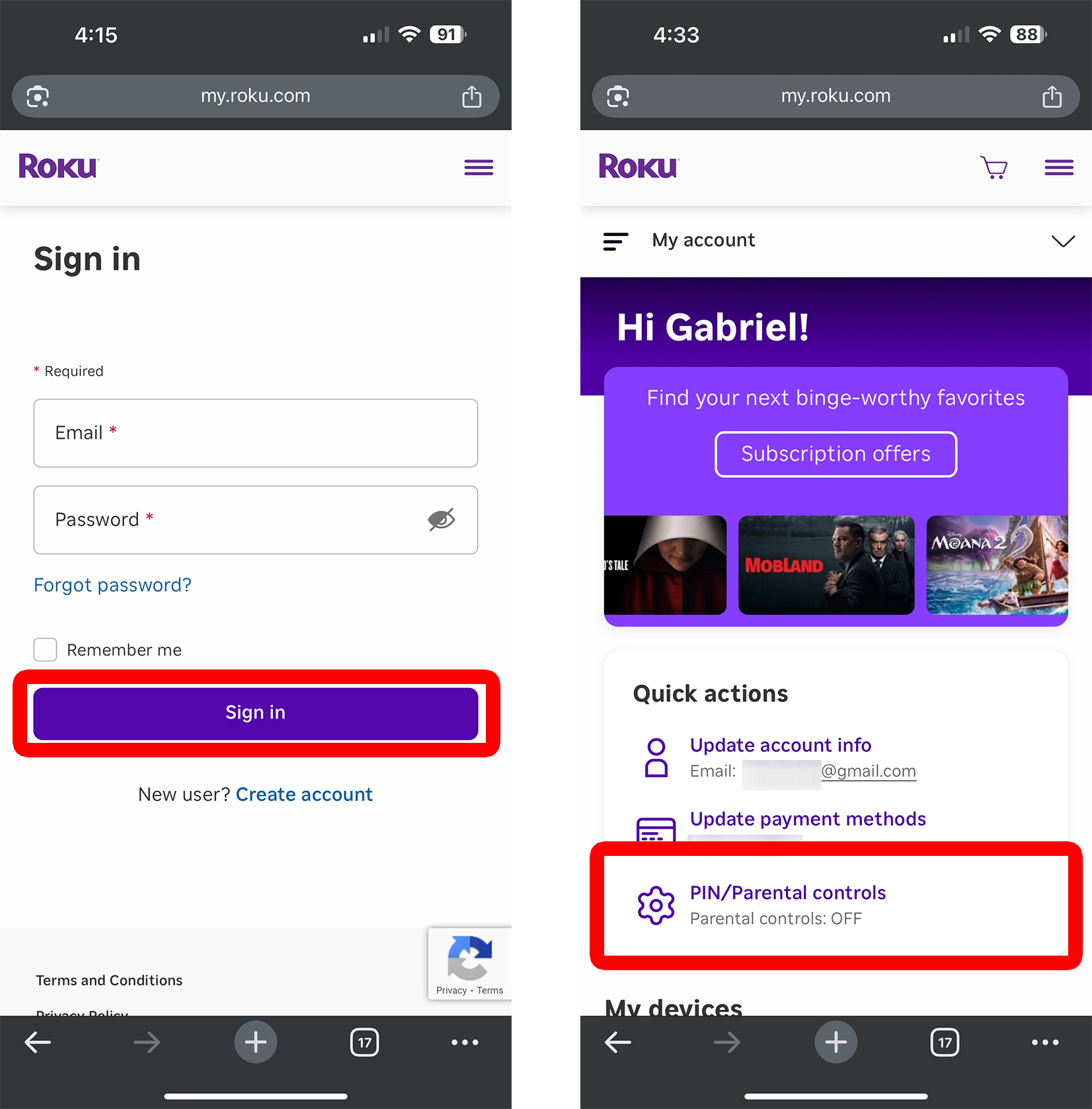
- Go to my.roku.com. You can complete the following steps using your computer or smartphone.
- Enter your Roku username and password. You need to enter the same email address associated with your Roku device. Then click “Sign In.”
- Go to “PIN/Parental controls.”

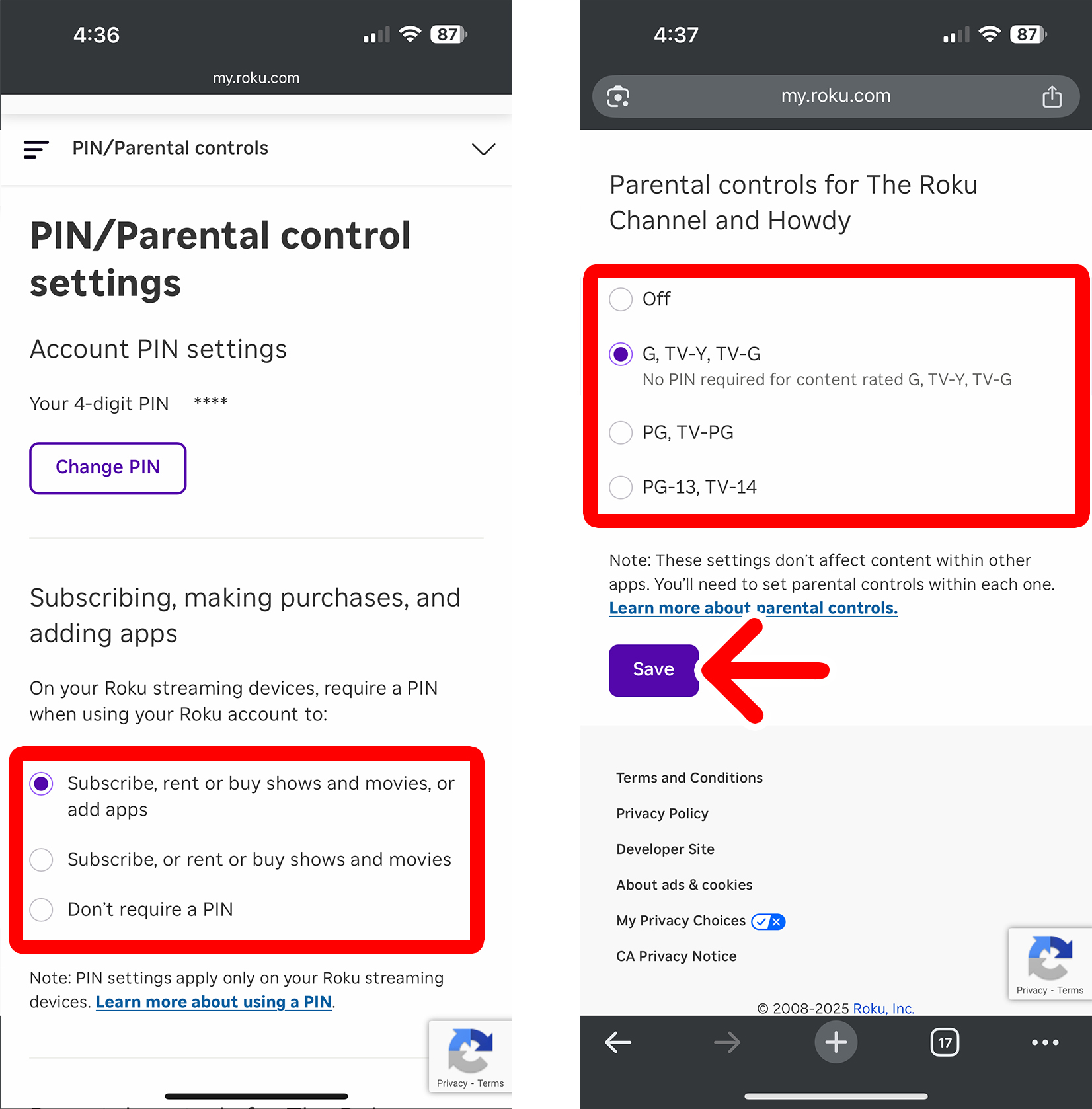
- Change your parental control settings. Choose “Change PIN” to update your four-digit code. Then choose an option under “Subscribing, making purchases, and adding apps” to decide when a PIN is required. Finally, choose an option under “Parental controls for The Roku Channel and Howdy” to choose which movies and TV shows require a PIN.
- Finally, select “Save.” It can take a while for these settings to be applied to all of your Roku devices.
Roku only lets you block content inside The Roku Channel and the Howdy app. These controls won’t block mature content in apps like Netflix, Hulu, or YouTube. To restrict content in those apps, you’ll need to use the parental control settings inside each app. You can also delete apps so they can’t be added again without entering your PIN.
Read More: How to Delete Apps and Recommendations on Roku
How to Set Parental Controls in the Roku App
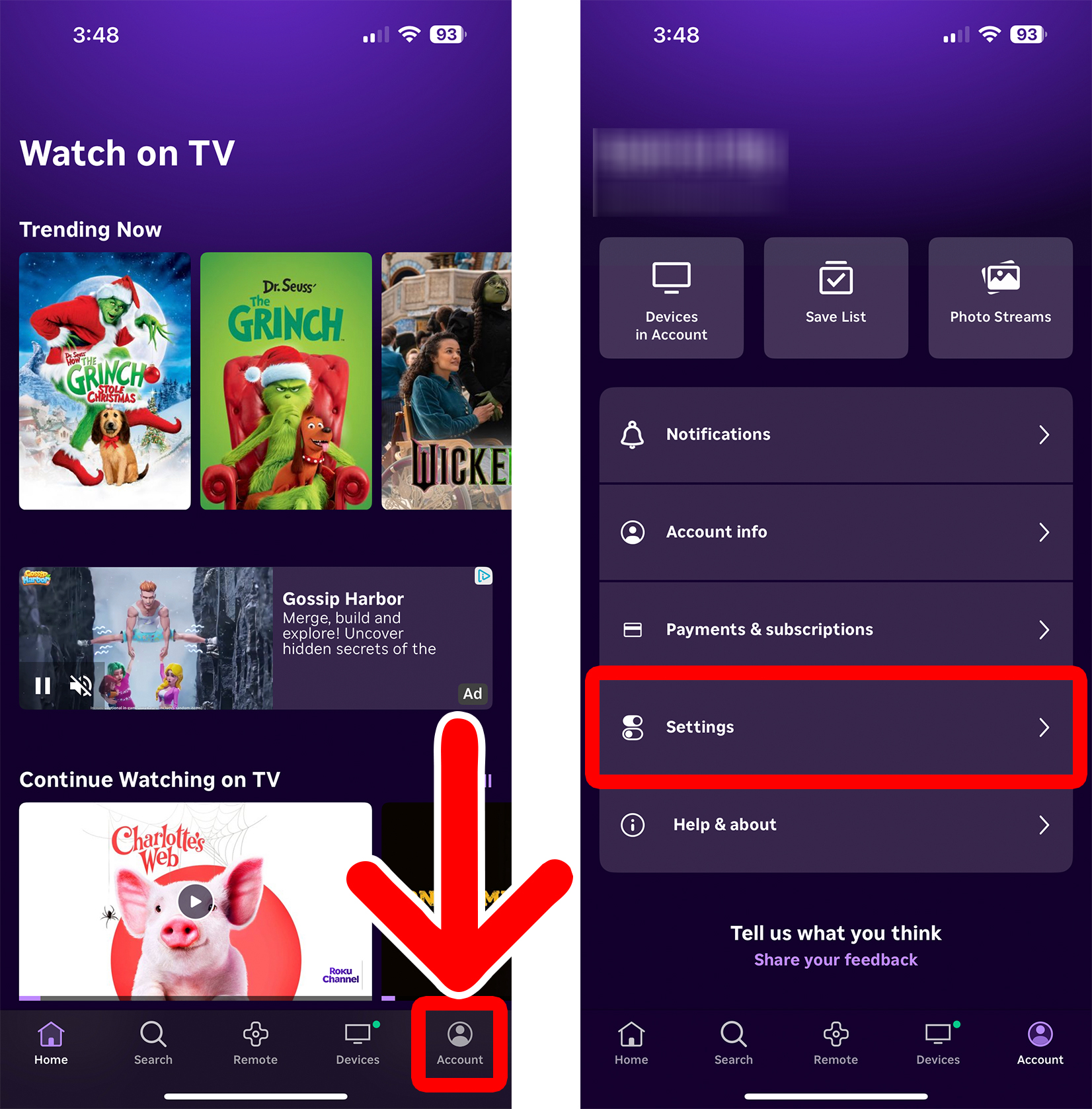
- Open the Roku app. If you don’t already have the app, you can download it from the Apple App Store or Google Play Store.
- Go to “Account.” You will see this in the bottom-right corner of the screen.
- Select “Settings.”
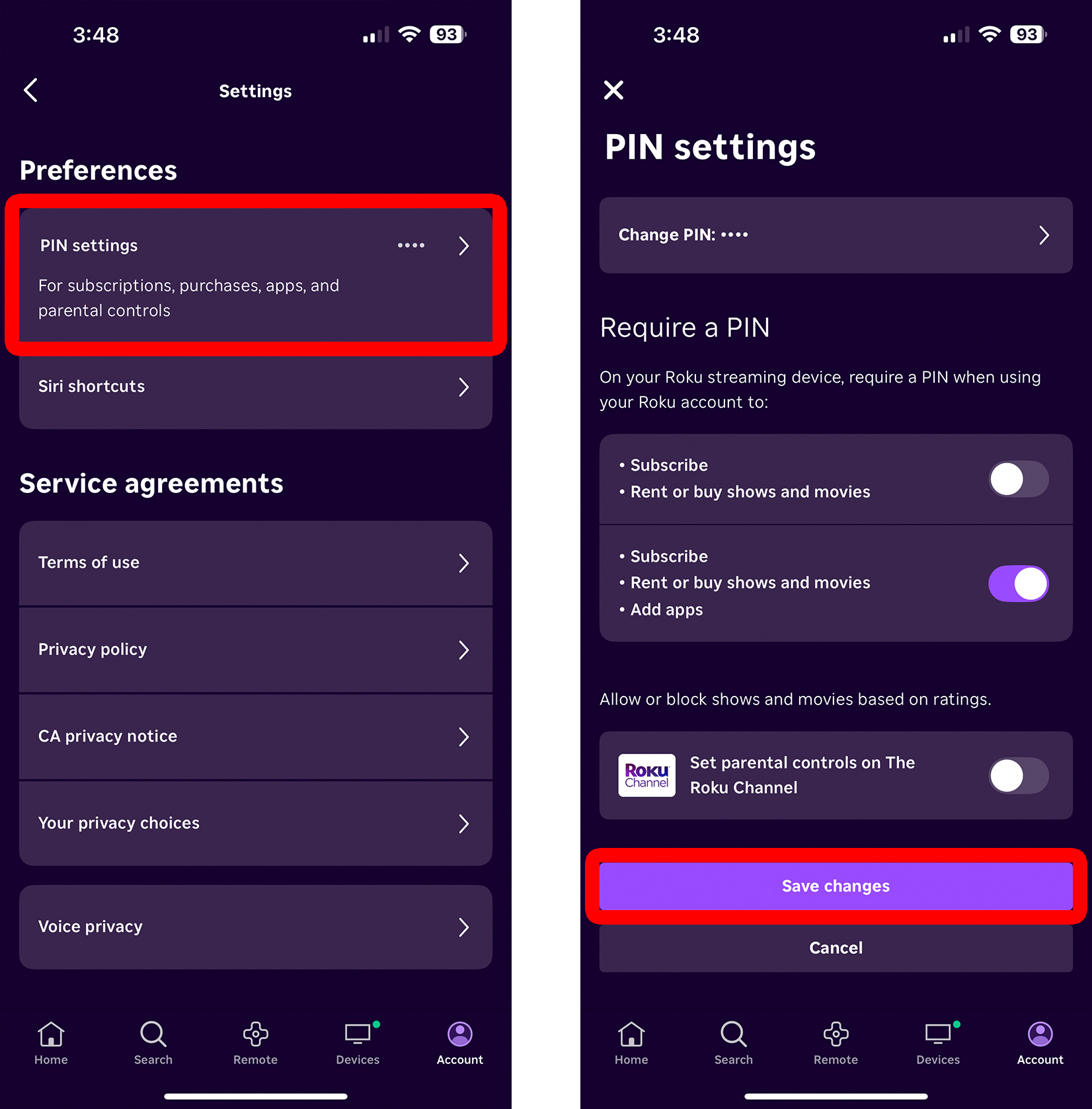
- Select “PIN settings.”
- Finally, choose your parental control settings and tap “Save changes.”