Is your computer slowing you down? You might have too many apps running in the background. These hidden apps use resources by sending notifications, syncing data, installing updates, and more—even when you’re not using them. Here’s everything you need to know about how to find and turn off background apps to speed up your Windows 11 PC.
Read More: How to Uninstall Apps in Windows 11
How to Find Background Apps
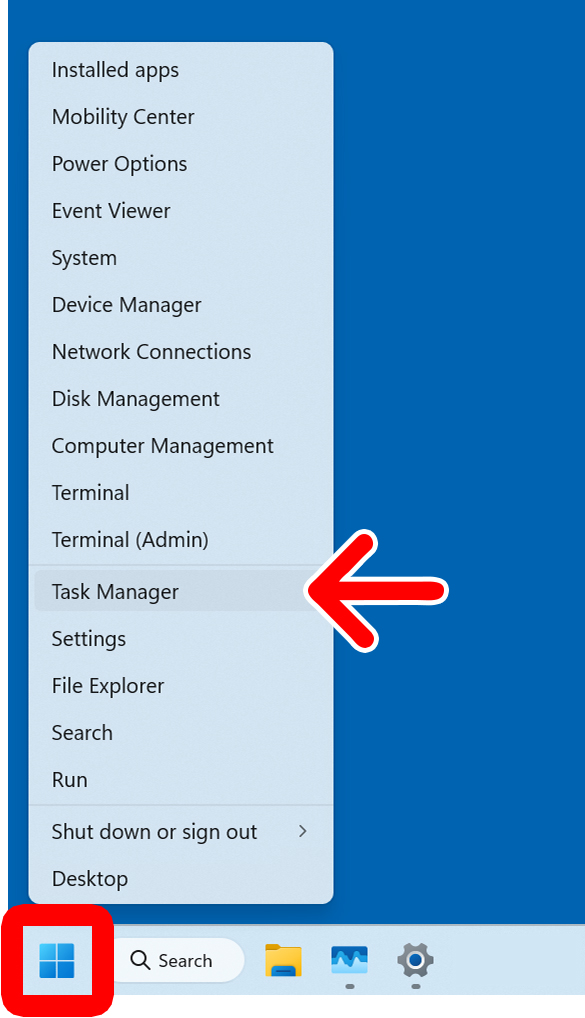
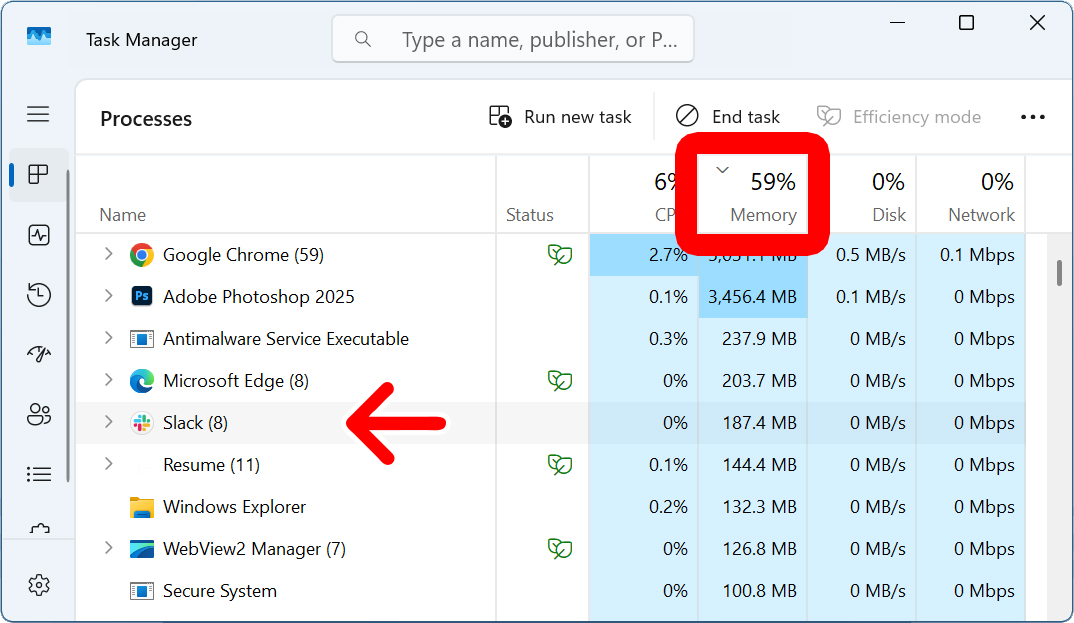
To find background apps in Windows 11, right-click the Windows logo at the bottom of your screen and select “Task Manager.” Then click the “Memory” tab header to sort apps by how much memory they’re using. Apps that you didn’t open might be running in the background.
- Right-click the Windows logo at the bottom of your screen.
- Select “Task Manager.” You can also open the Task Manager by pressing the Ctrl + Shift + Esc keys on your keyboard at the same time.

- Click “Memory.” Clicking the word “Memory” at the top of the list will sort all the processes by how much memory they are using.
- Find any apps running in the background. For example, I didn’t open Slack, but it was still running in the background and using memory.

How to Turn Off Background Apps in Windows 11
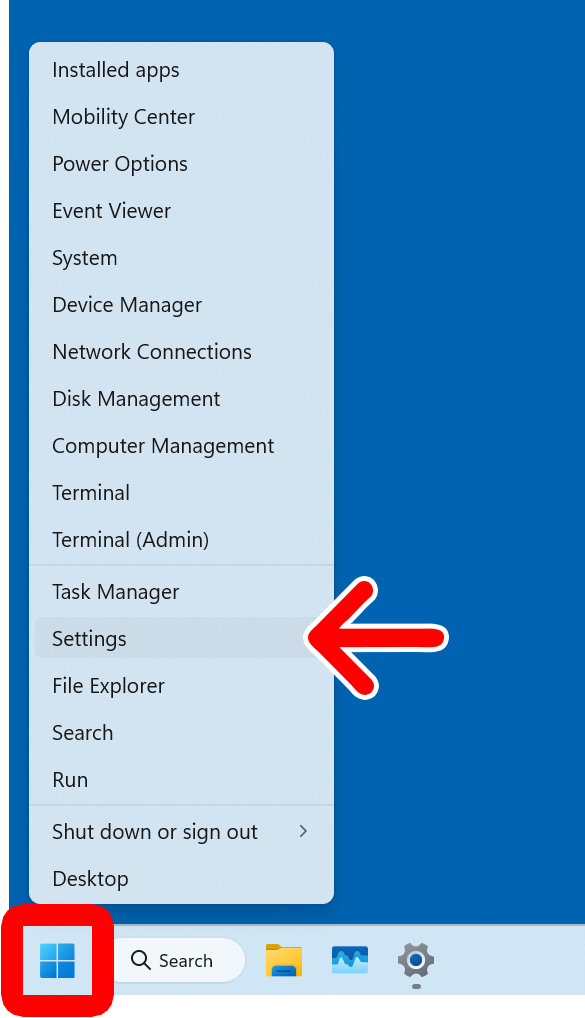
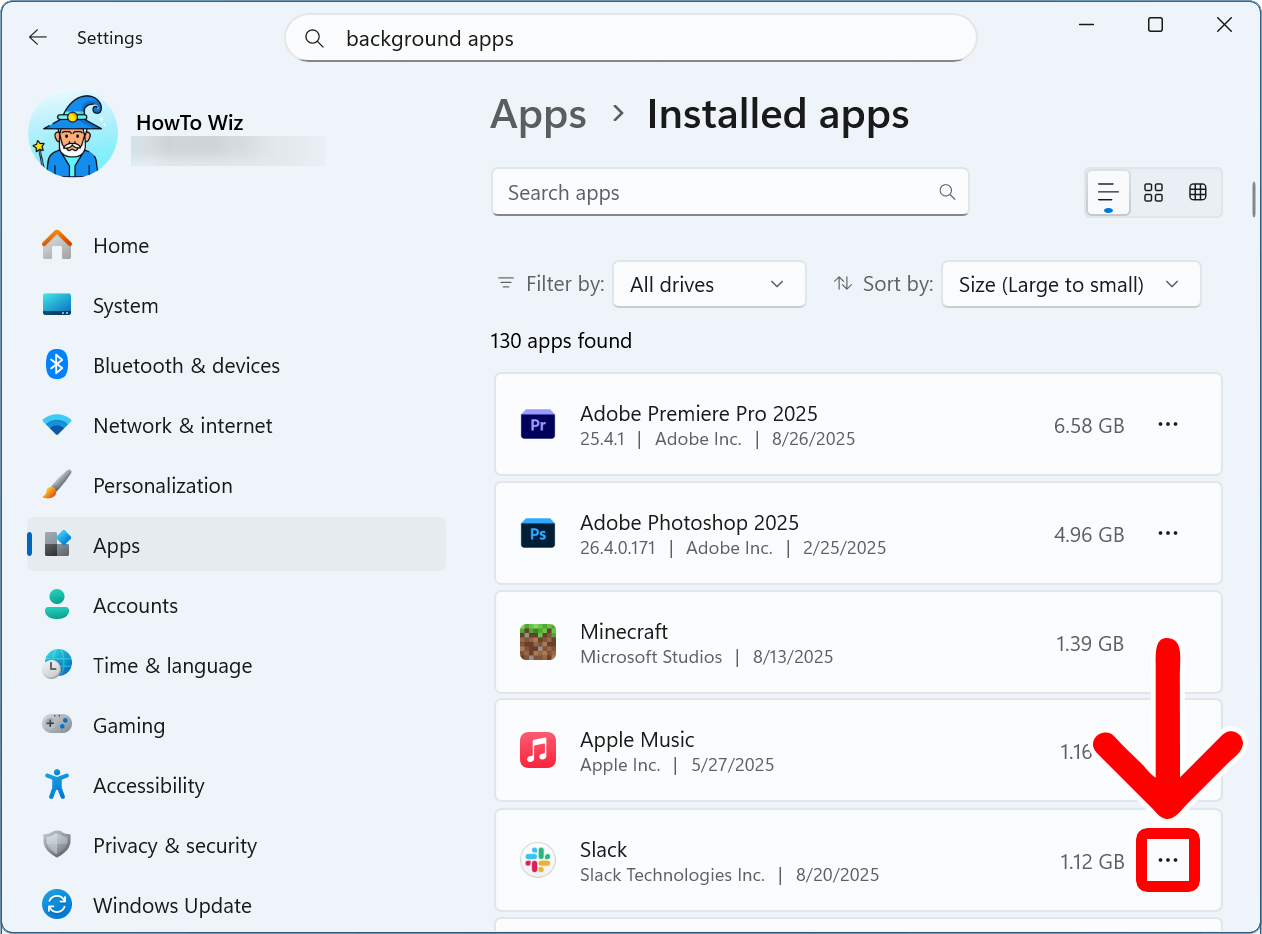
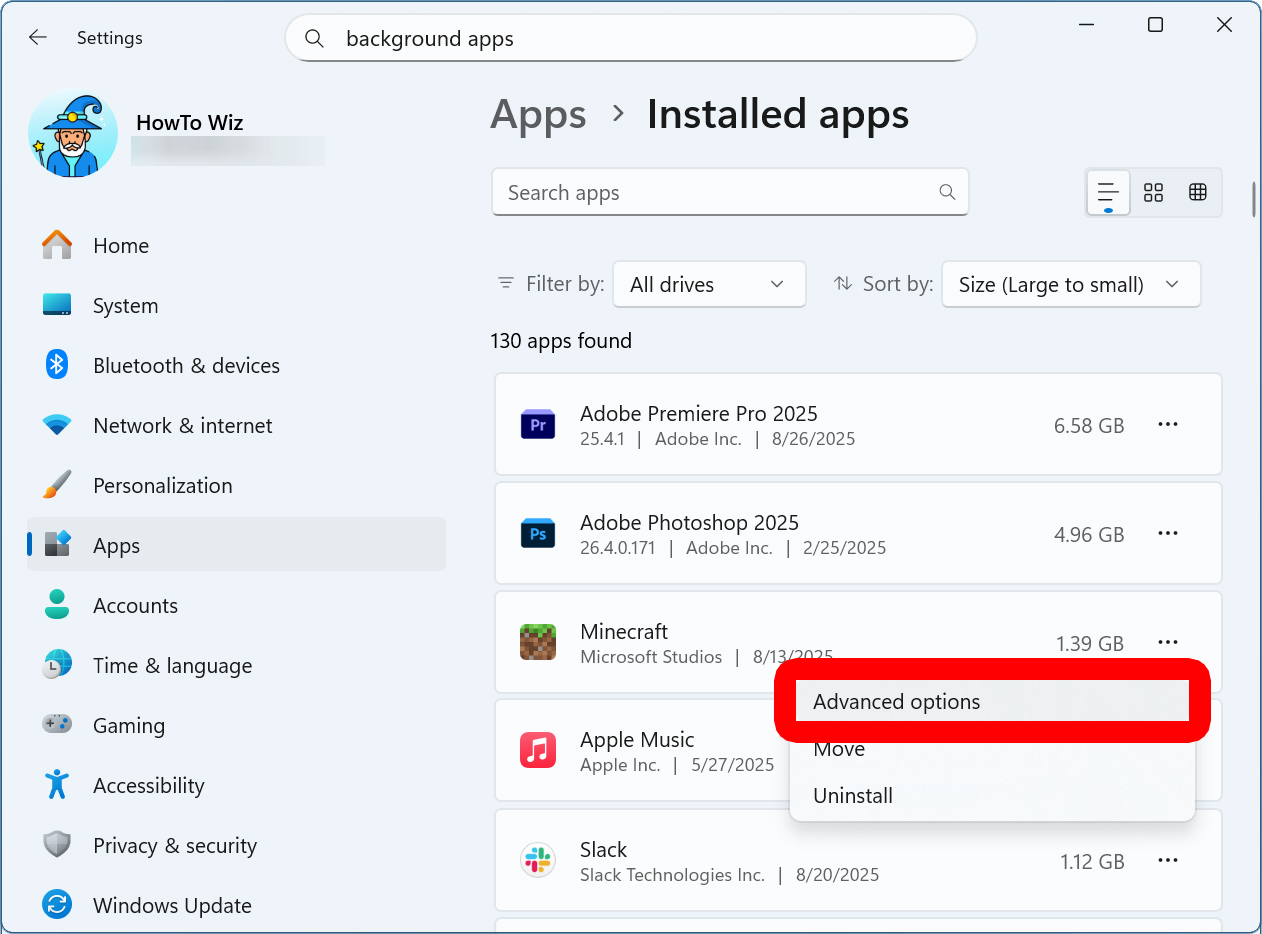
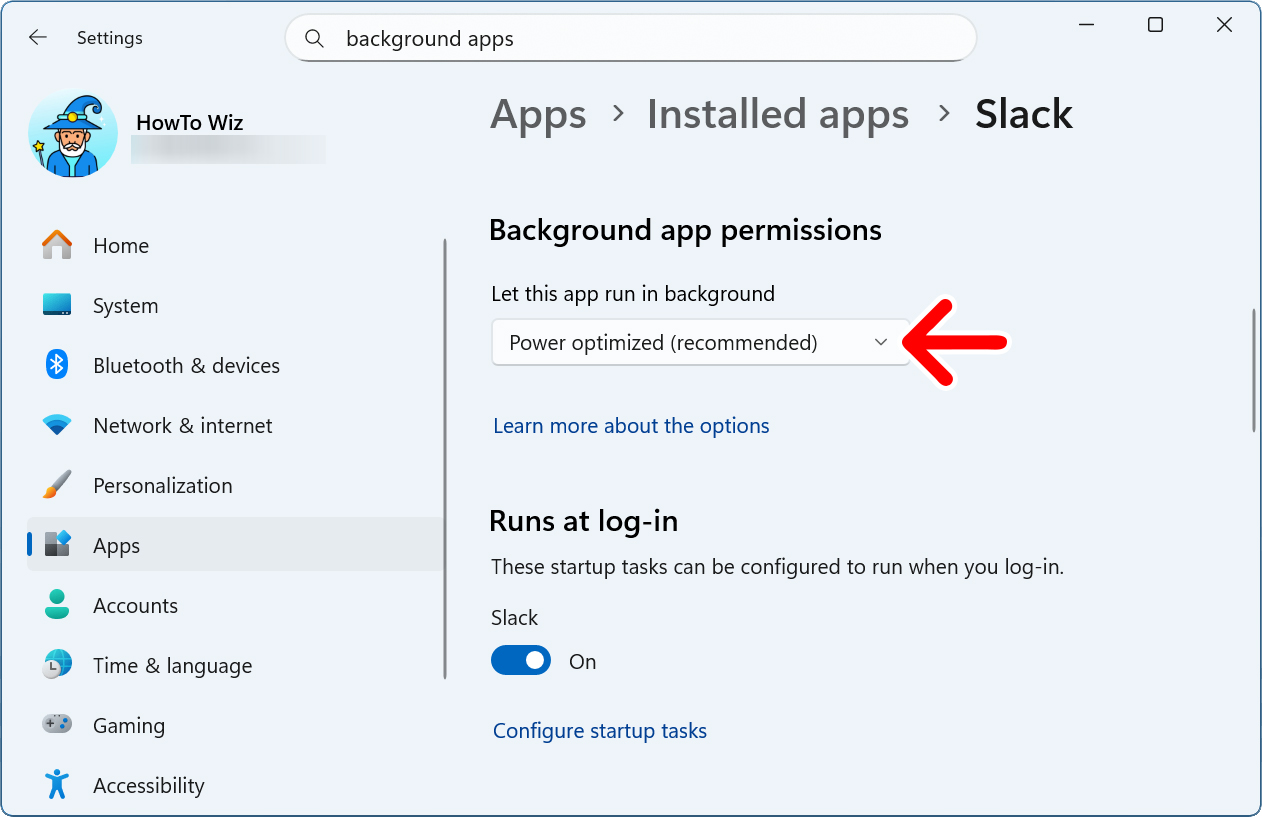
To turn off background apps, right-click the Windows logo at the bottom of your screen and select “Settings.” Then go to “Apps > Installed Apps” and click the three-dot icon next to an app. Finally, select “Advanced Options” and set “Background app permissions” to “Never.”
- Right-click the Windows logo at the bottom of your screen.
- Select “Settings.” You can also open Settings by pressing the Windows + i keys on your keyboard at the same time.
- Click “Apps.” You will see this in the left sidebar menu. If you don’t see this option, try expanding the Settings window by clicking the square “maximize” icon in the top-right corner.
- Select “Installed apps.” You will see this on the right side of the window.

- Click the three-dot icon next to a background app.

- Select “Advanced Options.” If you don’t see this option, you can’t stop the app from running in the background.
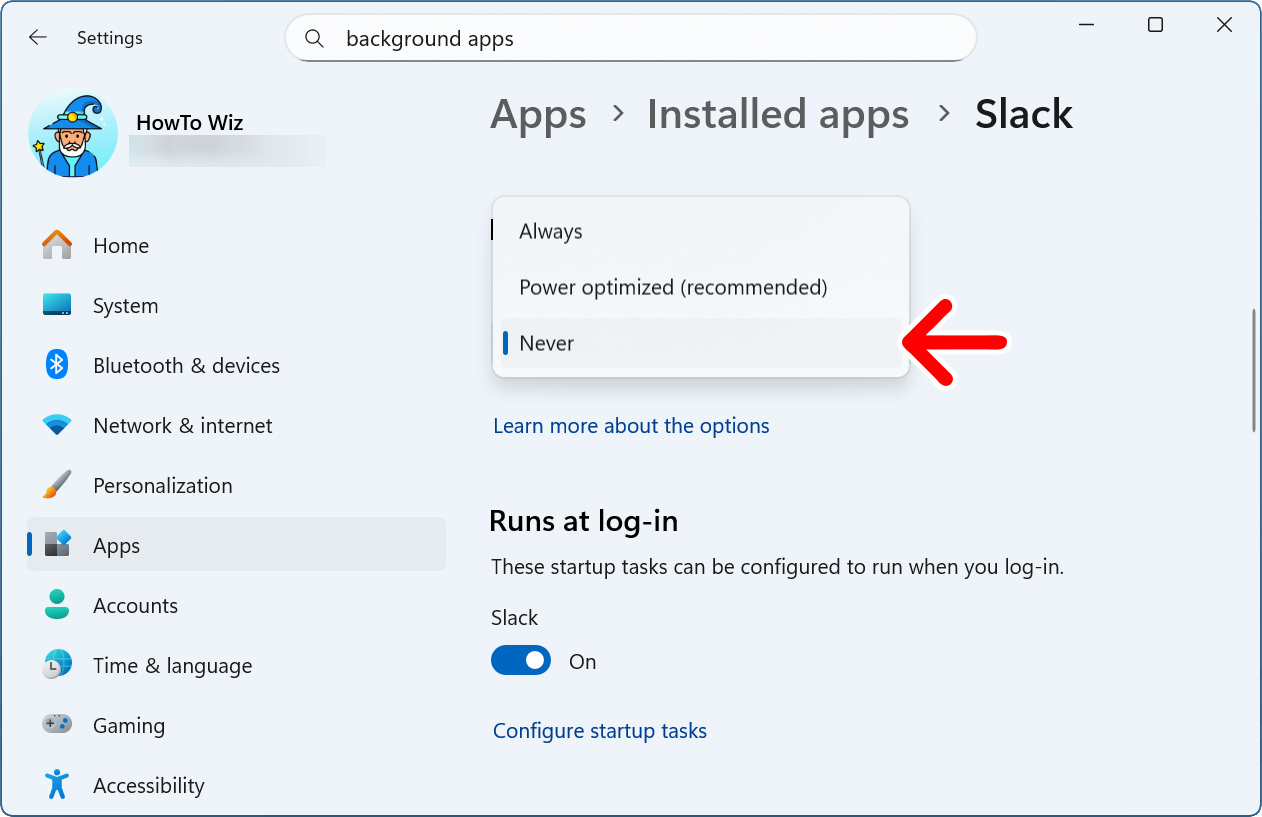
- Select the drop-down menu under “Background app permissions.”

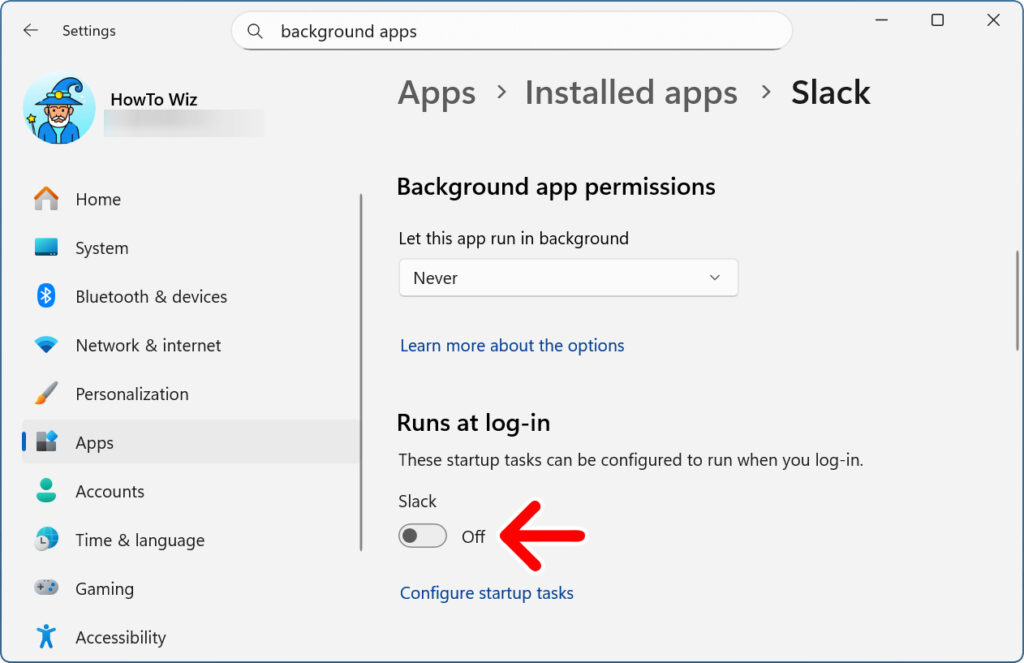
- Finally, select “Never” to disable the app from running in the background.