Is your Windows 10 PC lagging? One common reason could be too many apps taking up space. Here’s everything you need to know about how to uninstall apps on Windows 10 from the Start Menu, Settings, or Control Panel.
Read More: How to Uninstall Apps in Windows 11
How to Uninstall Apps from the Start Menu
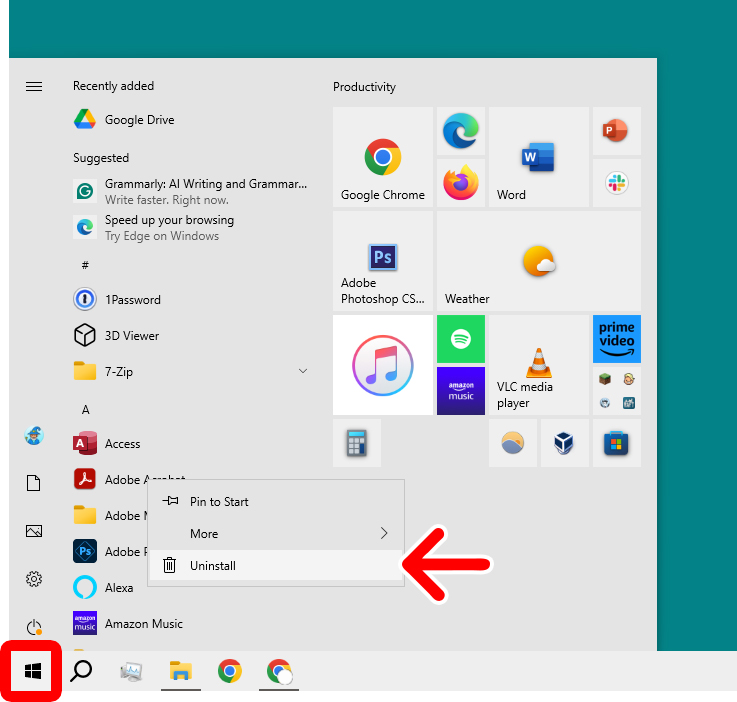
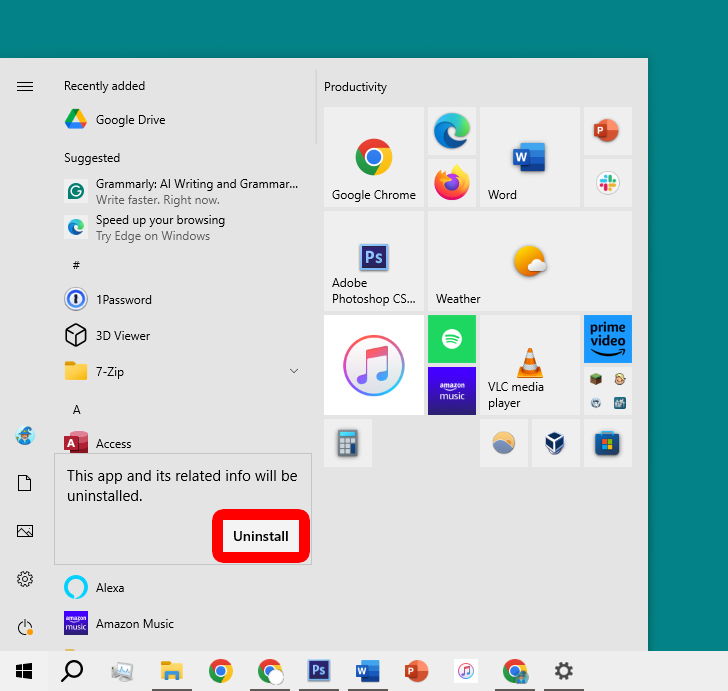
To quickly uninstall apps from a Windows 10 PC, click the Windows logo at the bottom of your screen and right-click an app from the left side of the Start Menu. Then select “Uninstall” and finally click “Uninstall” to confirm.
- Click the Windows logo at the bottom of your screen. This will open the Windows 10 Start Menu.
- Right-click an app. You can see all the apps installed on your Windows PC by scrolling down on the left side of the Start Menu.
- Then select “Uninstall.”

- Finally, select “Uninstall” to confirm.

If you’re still having trouble, another option is to uninstall apps directly from Windows 10 Settings.
How to Uninstall Apps from Settings
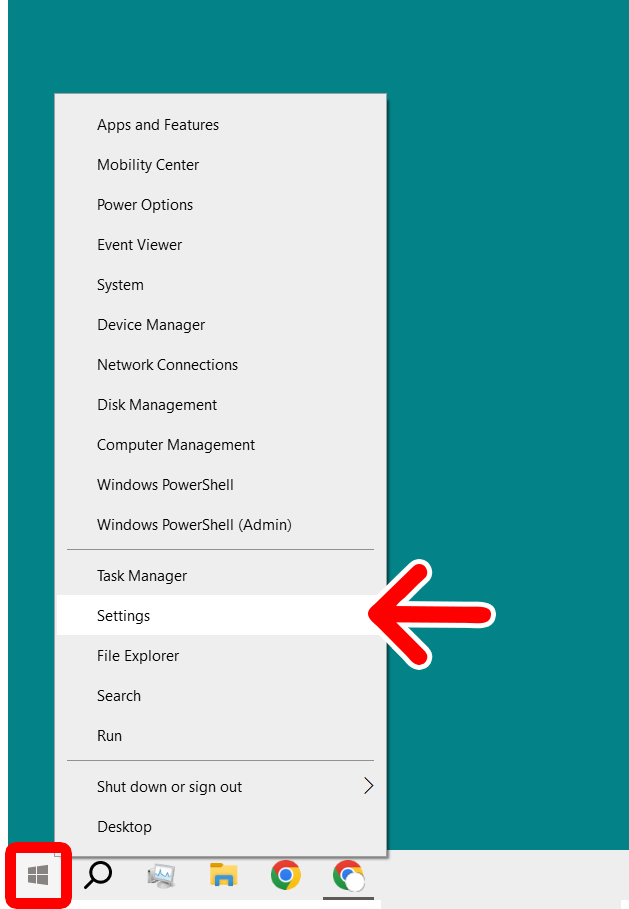
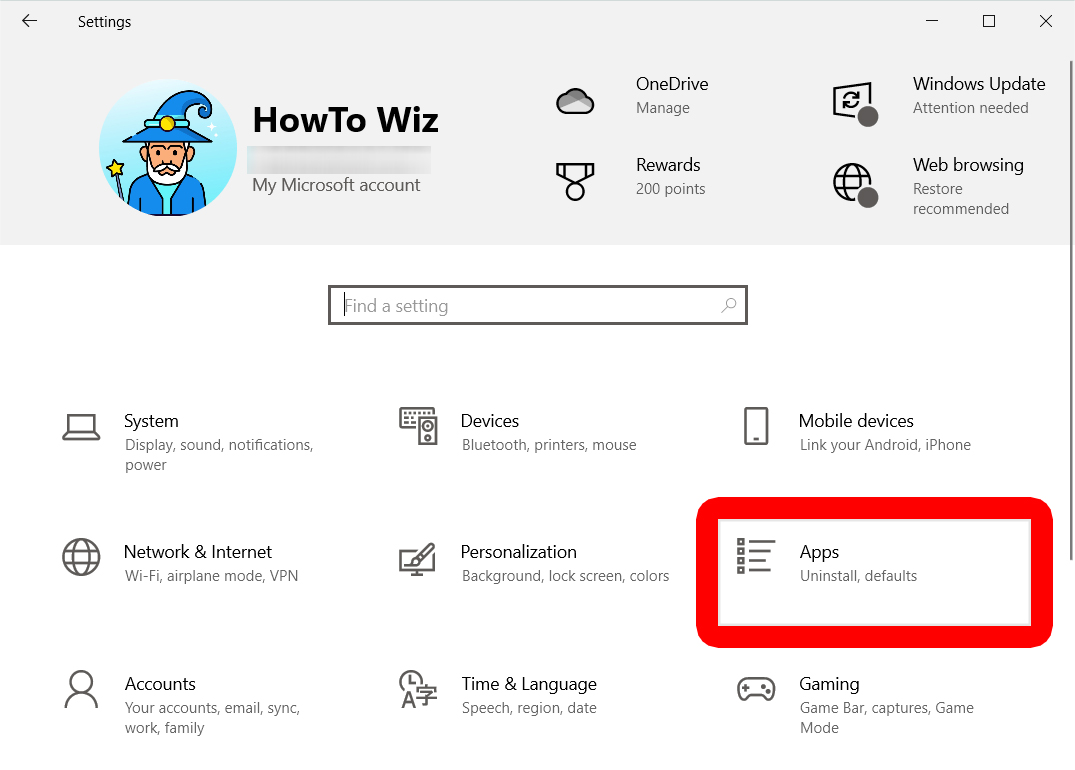
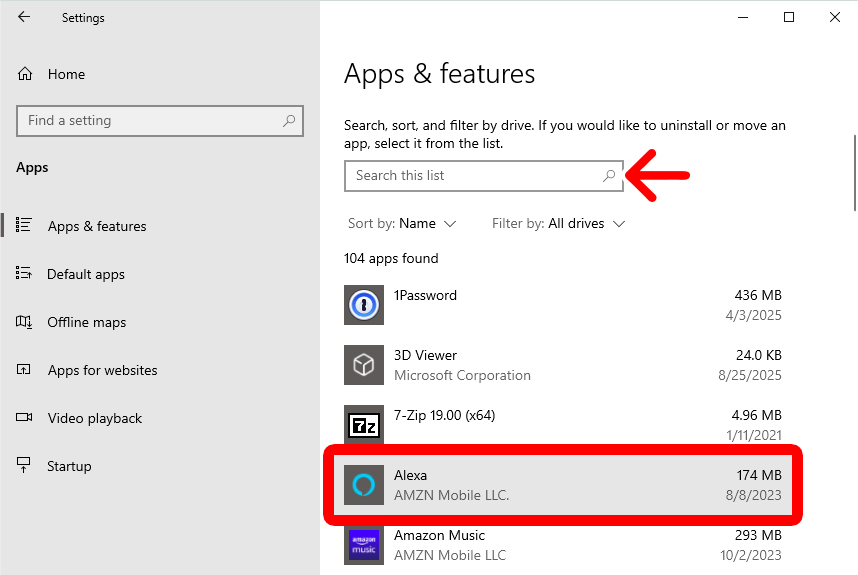
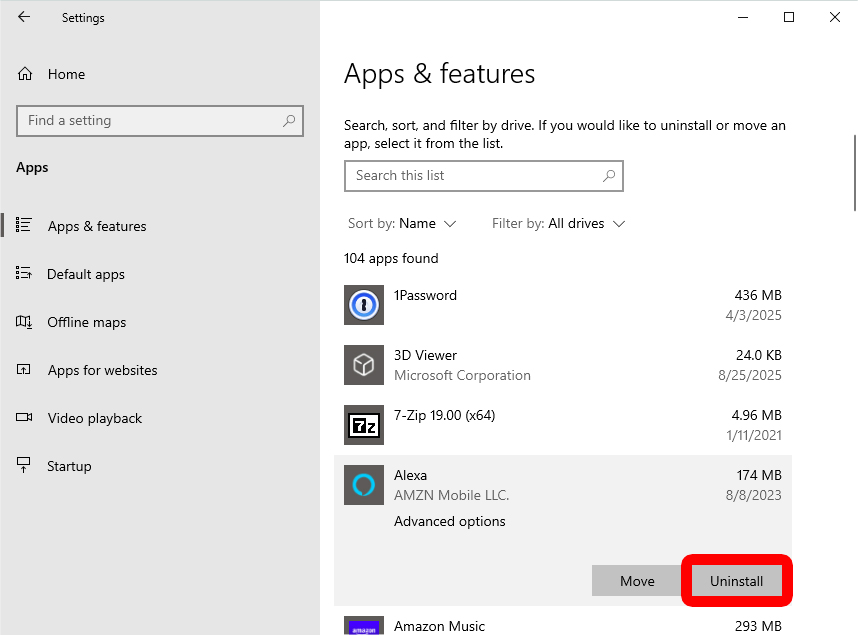
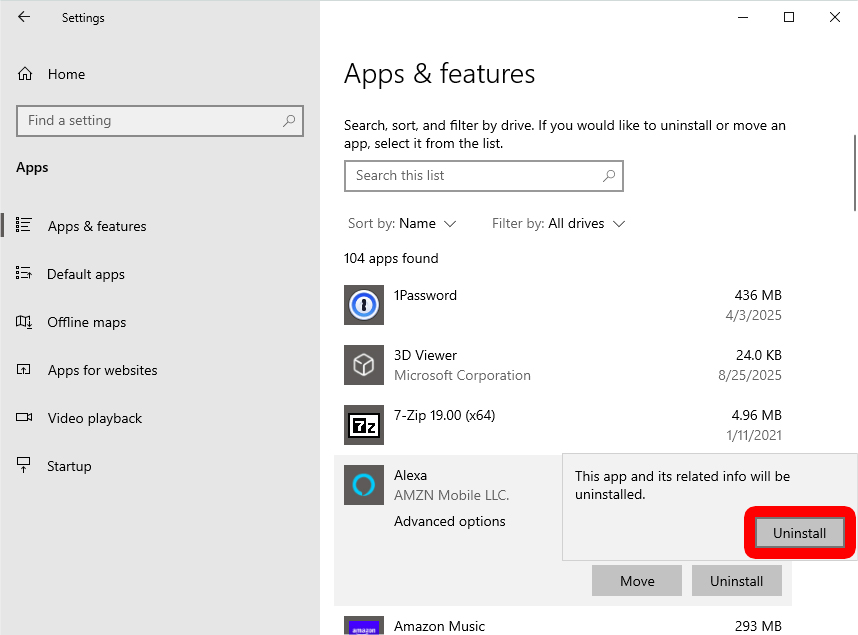
To uninstall an app in Windows 10, right-click the Windows logo at the bottom of your screen and select “Settings.” Then click “Apps” and select the app you want to uninstall. Finally, click “Uninstall” and then select “Uninstall” to confirm.
- Right-click the Windows logo at the bottom of your screen.
- Select “Settings.” You can also press the Windows + i keys on your keyboard at the same time.

- Click “Apps.” If you don’t see this option, try expanding the Settings window by clicking the square “Maximize” icon in the top-right corner.

- Select the app you want to uninstall. Scroll down to see a list of all the apps installed on your Windows 10 PC. You can also use the search bar at the top of the window to find apps.

- Select “Uninstall.”

- Finally, select “Uninstall” to confirm.
If these steps don’t work, you can find and uninstall any app on your Windows 10 PC through the Control Panel.
How to Uninstall Apps from Windows 10 Control Panel
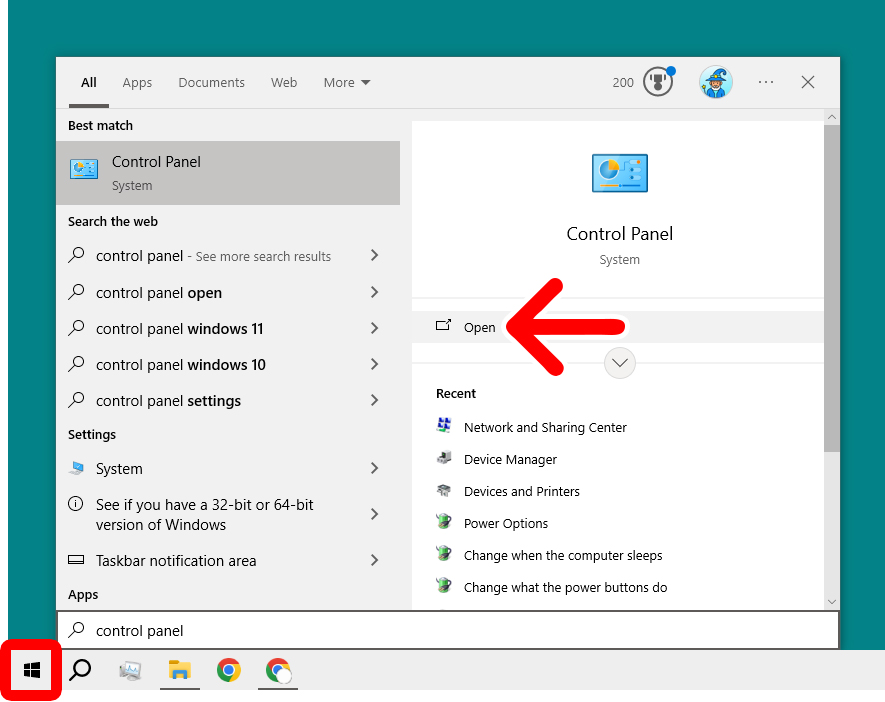
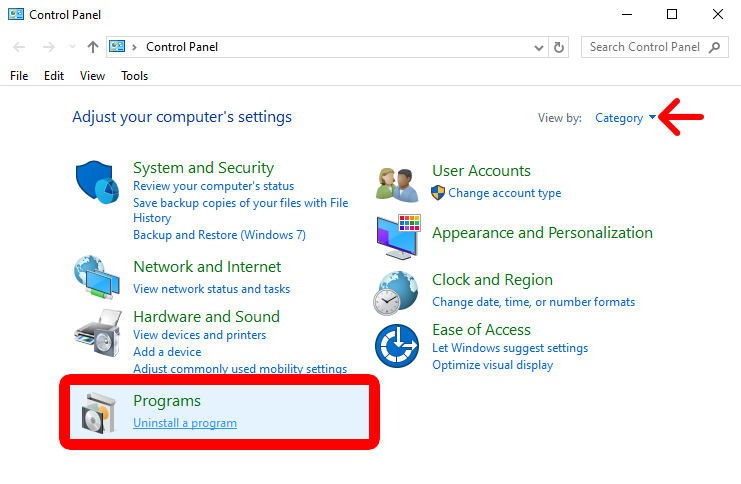
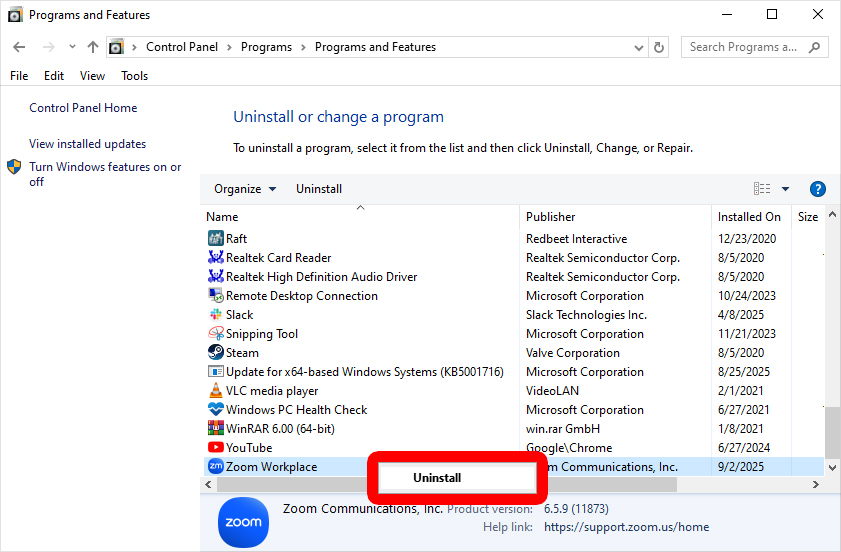
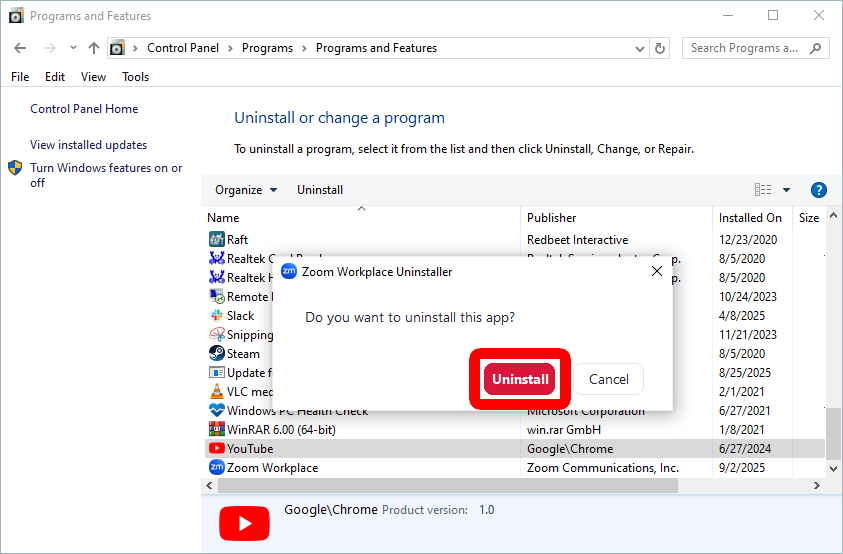
To uninstall any app on your Windows 10 PC, click the Windows logo at the bottom of your screen, type “Control Panel,” and click “Open.” Then go to “Uninstall a program” under “Programs.” Finally, right-click an app and select “Uninstall > Uninstall.”
Read More: 12 Unnecessary Windows Programs and Apps You Should Uninstall
- Click the Windows logo at the bottom of your screen.
- Type “Control Panel.” Once you click the Windows logo, you can start typing immediately.
- Click “Open.” You can also press the Enter key on your keyboard.

- Select “Uninstall a program.” You will see this under “Programs.” If you don’t see this option, make sure to change the drop-down menu in the top-right corner of the window to “Category.”

- Right-click an app and select “Uninstall.”
- Finally, click “Uninstall” to confirm.