Updating your Mac is the easiest way to keep everything running smoothly. It fixes bugs, strengthens your security, and unlocks the latest features on your Mac. Here’s everything you need to know about how to update your Mac, and what to do when your Mac won’t complete the installation.
How to Update Your Mac Through Settings
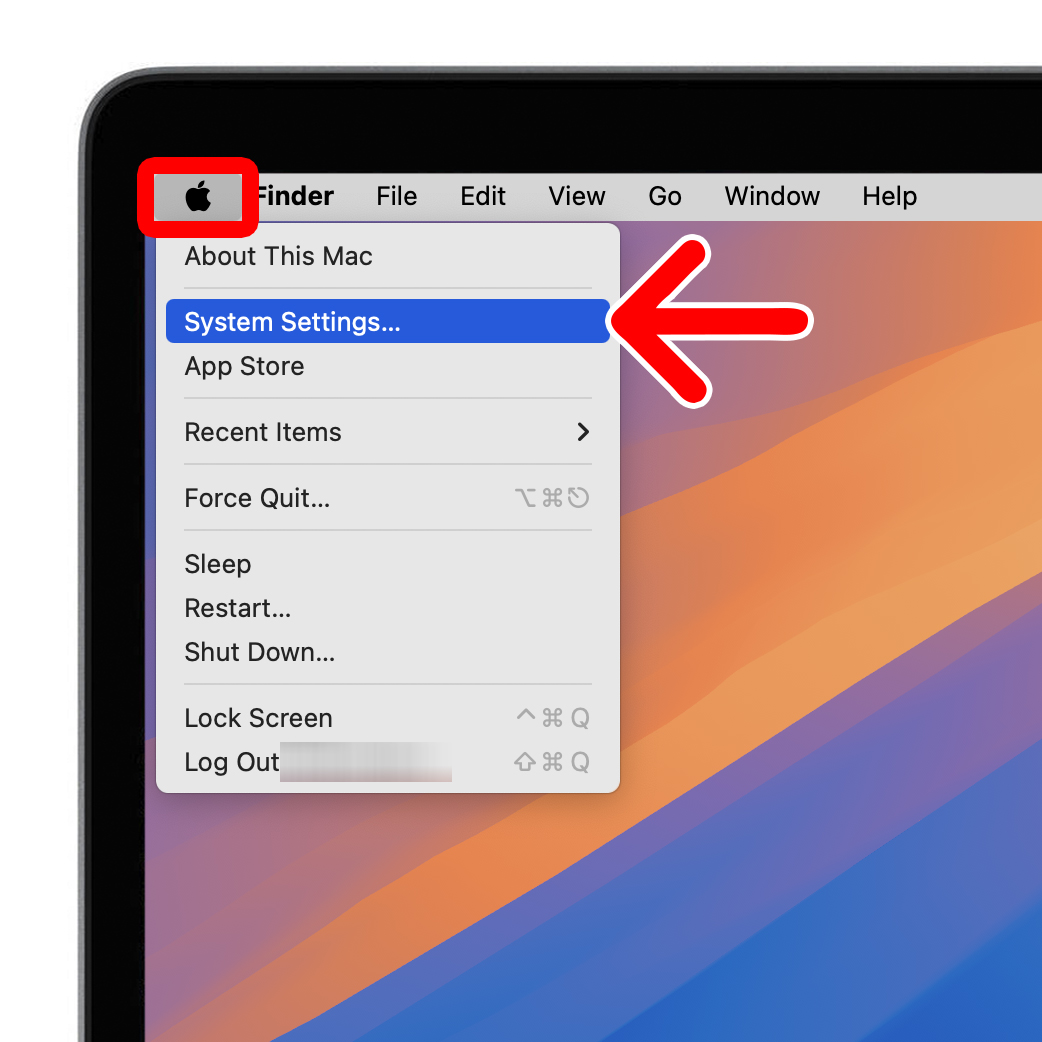
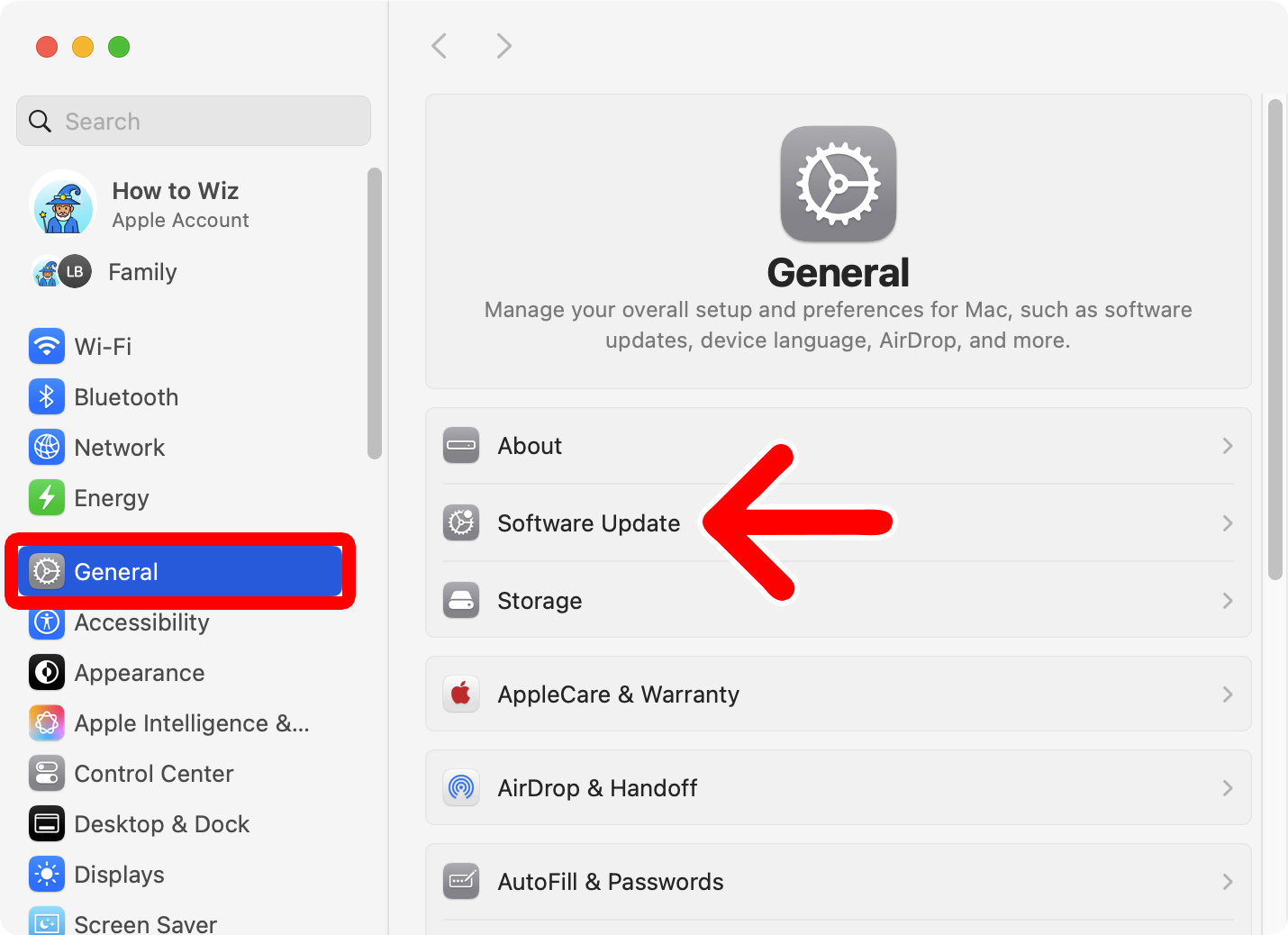
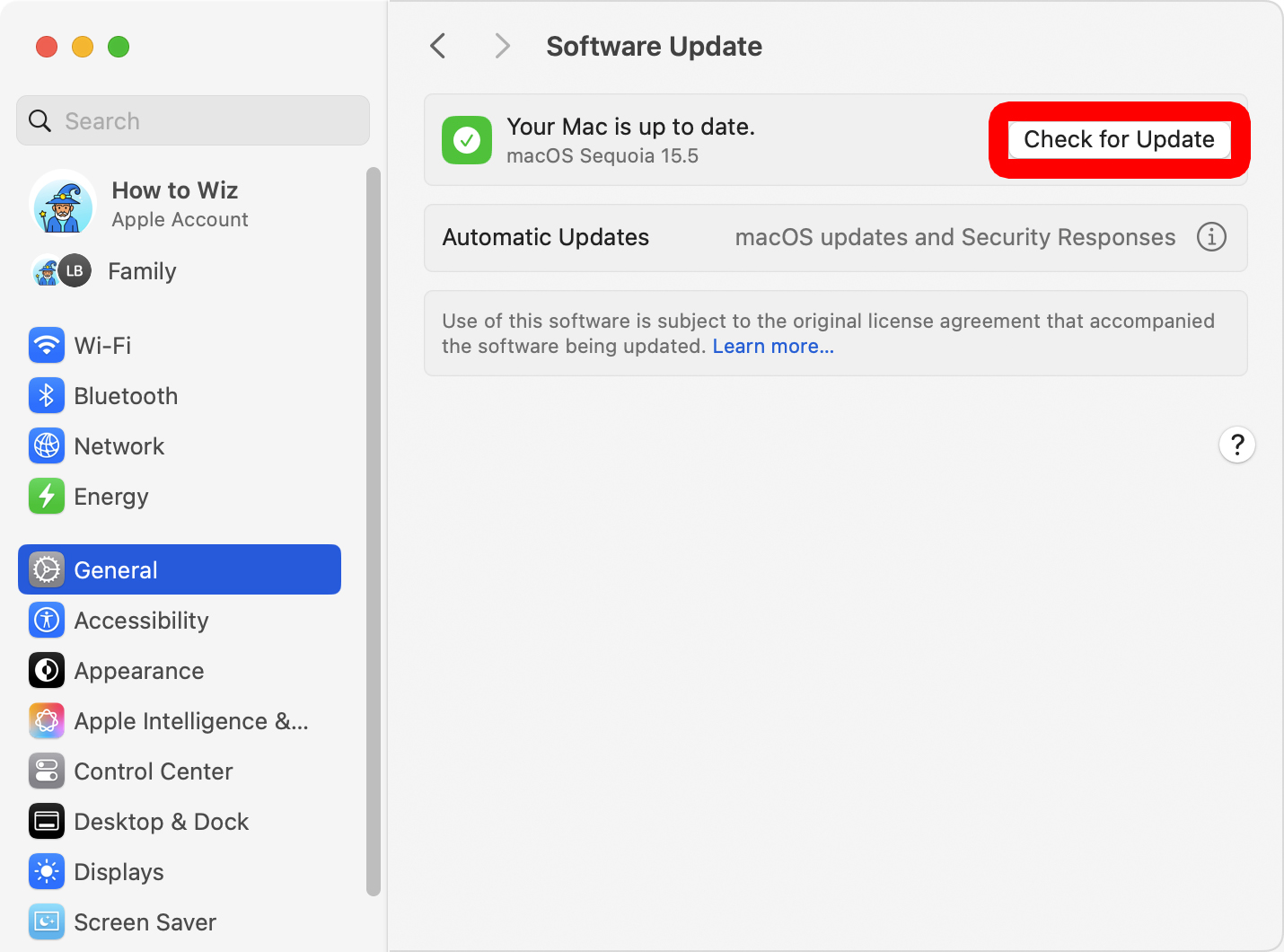
To update your Mac, click the Apple icon in the top-left corner of your screen and select “System Settings.” Then click the “General” tab in the Settings sidebar and go to “Software Update.” Finally, select “Check for Updates” and then “Update,” “Upgrade,” or “Restart.”
- Click the Apple icon in the top-left corner of your screen.
- Select “System Settings.”

- Go to “General.” You will see this in the left sidebar of the Settings window.
- Select “Software Update.”

- Click “Check for Updates.” If you don’t see this button, wait for your Mac to check for updates automatically.

- Finally, select “Update,” “Upgrade,” or “Restart.”

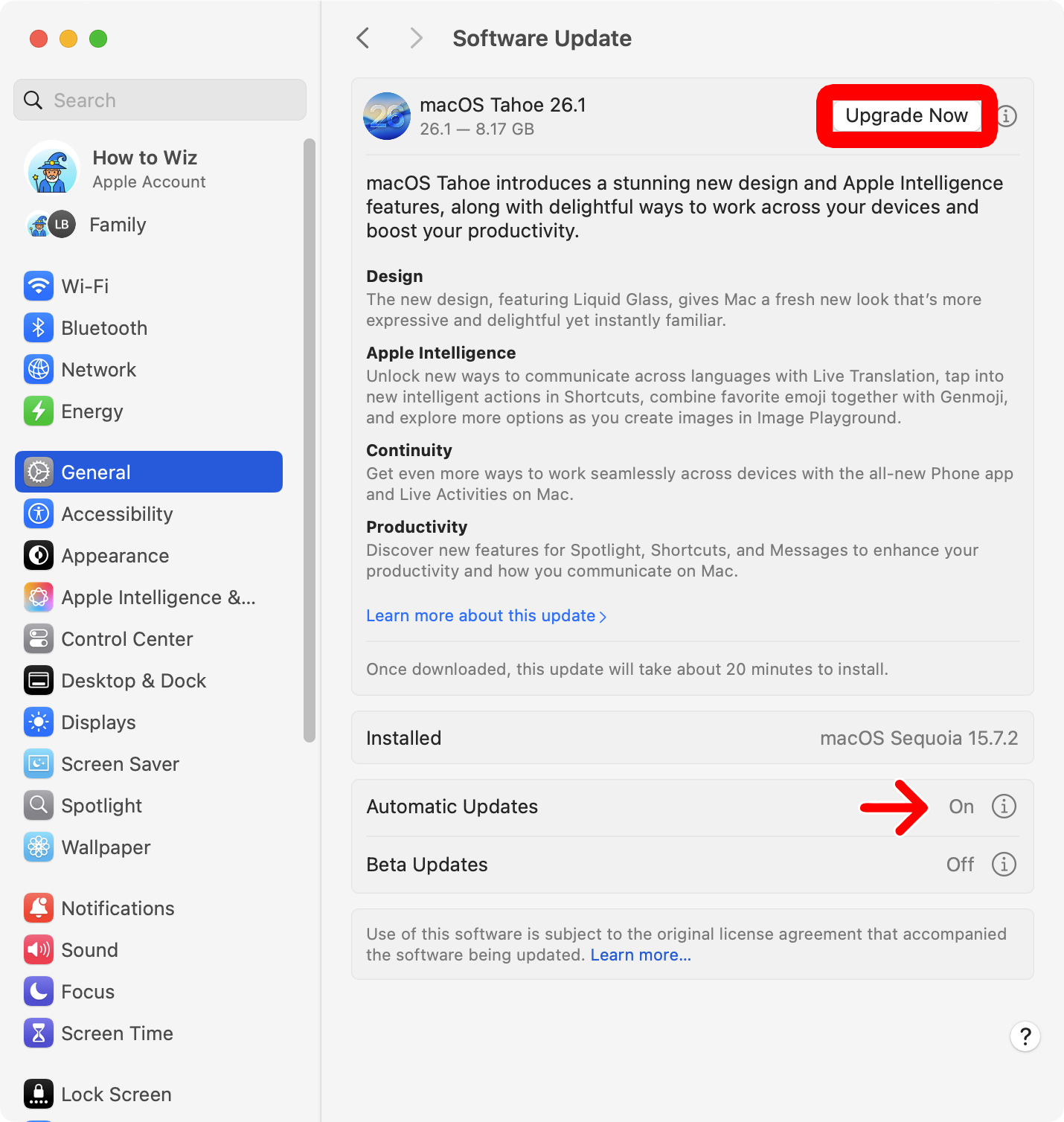
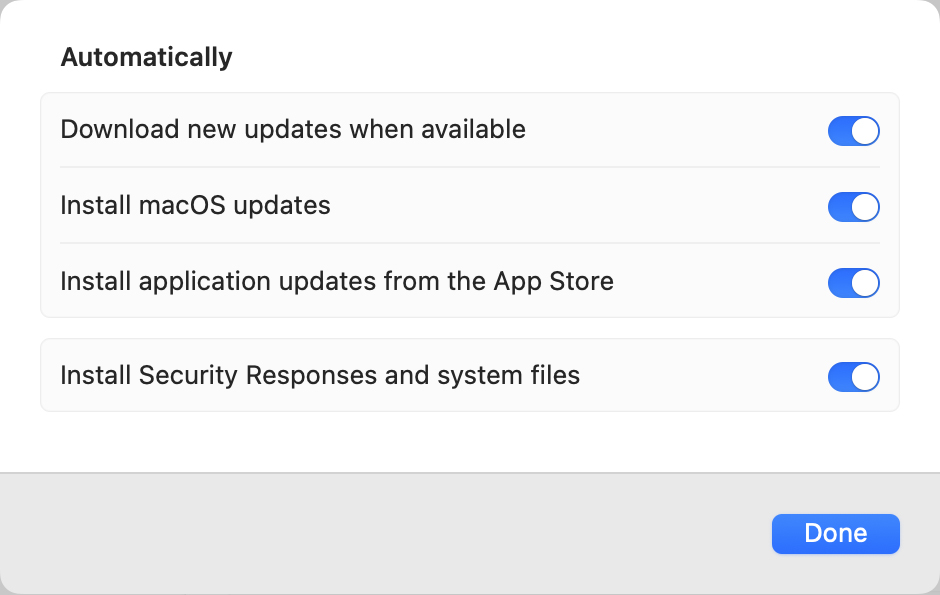
If you don’t want to update your Mac manually every time, scroll down and click the “i” icon next to “Automatic Updates.” Then turn all of the options on.
Why Won’t Your Mac Update?
If your Mac won’t update, start by restarting it or moving it closer to your Wi‑Fi router. Next, make sure your Mac is compatible with the latest updates and that you have at least 50GB of free space. If it still won’t update, try starting your Mac in Safe Mode or use macOS Recovery to reinstall the operating system.
Restart Your Mac
Restarting your Mac will quit processes and clean up temporary files that might be preventing it from updating. To restart your Mac, simply click the Apple icon in the top-left corner of your screen and select “Restart.” Then try to update your Mac again.
Is Your Mac Compatible?
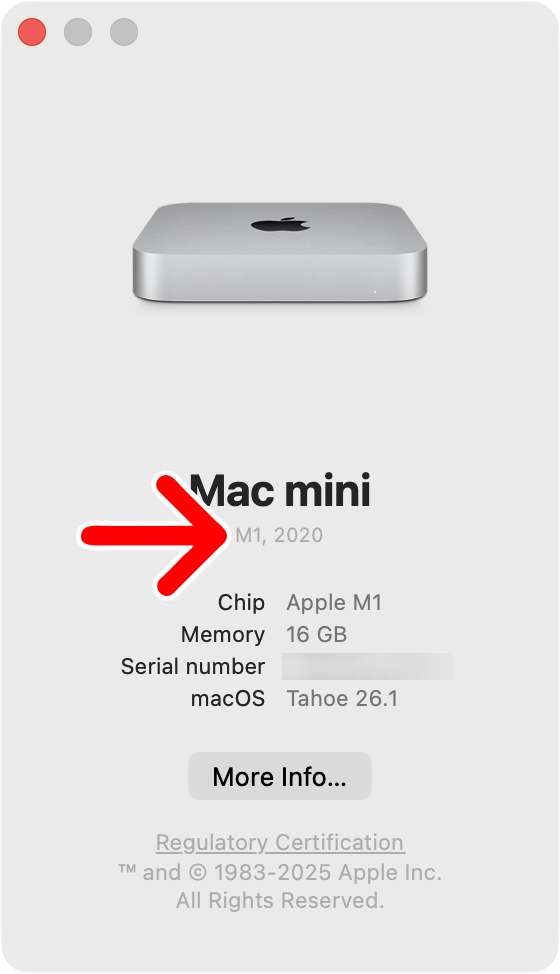
If you don’t see any updates available, your Mac might not be compatible with the latest operating systems. To find out if your Mac is compatible, click the Apple icon in the top-left corner of your screen and select “About This Mac.” Then compare your Mac model to this list from Apple.
Check Your Internet Connection
Your Mac needs a solid internet connection, so make sure to choose the fastest available network, move your computer close to your WiFi router, or use an Ethernet cable if possible. You can also try turning your WiFi off and on again or restart your WiFi router.
Read More: How to Factory Reset a WiFi Router
To find out how fast your WiFi networks are, use a speed test like Ookla. For reference, the median download speed in the US is currently around 300Mbps, according to Ookla.
Free Up Disk Space
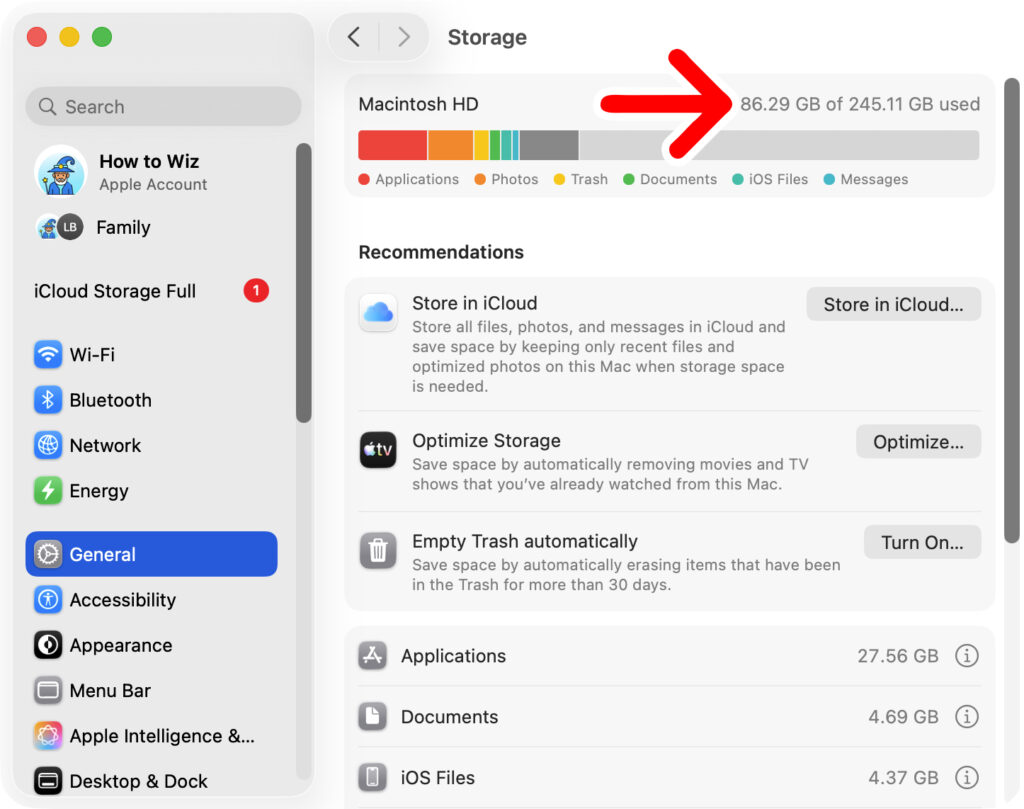
You won’t be able to download and install new updates if your Mac doesn’t have enough free space. To check your available hard drive storage, click the Apple logo in the top-left corner of your screen and go to “System Settings > General > Storage.”
From here, you’ll see your total storage space in the top-right corner. To free up space on your Mac, you can manually delete photos, videos, and other large files from your computer.
Start in Safe Mode
Starting your Mac in Safe Mode will disable third-party software that might be preventing you from installing the latest update.
To start your Mac in Safe Mode, turn your computer off and then press and hold the power button until you see the “Options” icon. Finally, select your hard drive while holding the Shift key on your keyboard and click “Continue in Safe Mode.”
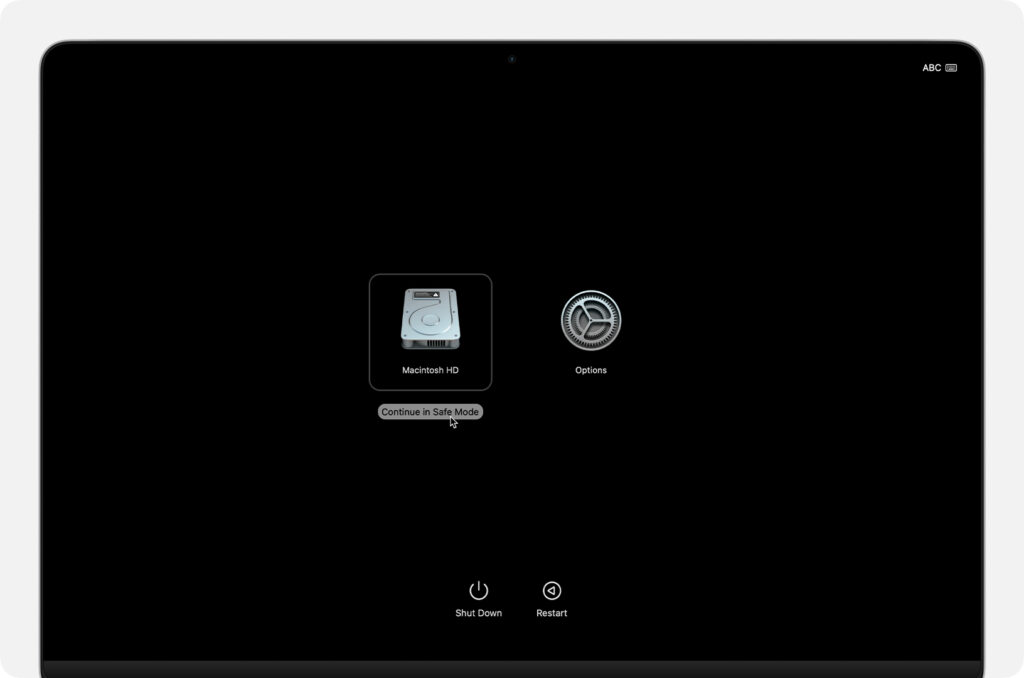
When your Mac turns on, you might see “Safe Boot” in the top-right corner. Then try to update your Mac using the steps in the first section above.
How to Update Your Mac Using Terminal
If you can’t update your Mac the normal way, open a Finder window and select “Applications” in the left sidebar. Then go to the “Utilities” folder and open the Terminal app. Finally, paste the following command and press Enter.
softwareupdate --fetch-full-installer --full-installer-version <NUMBER>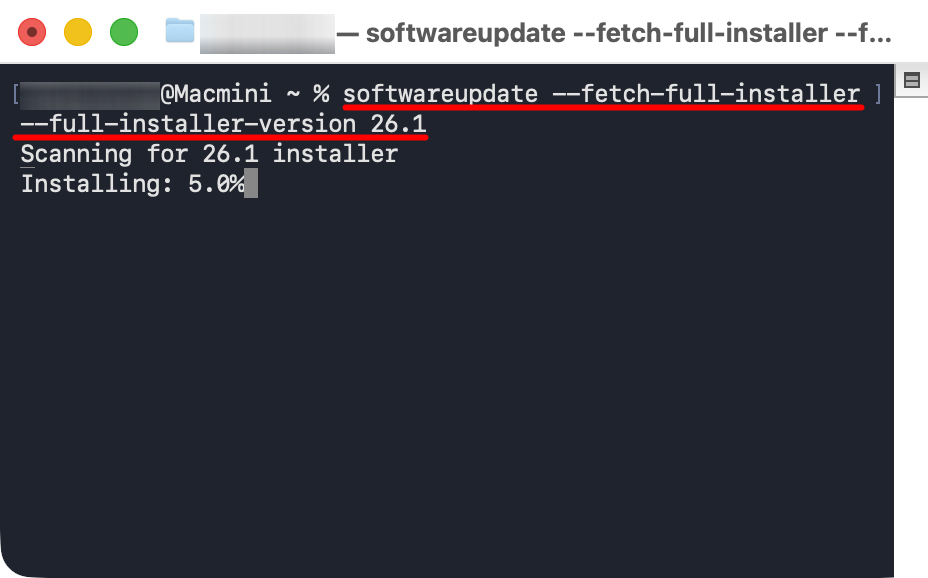
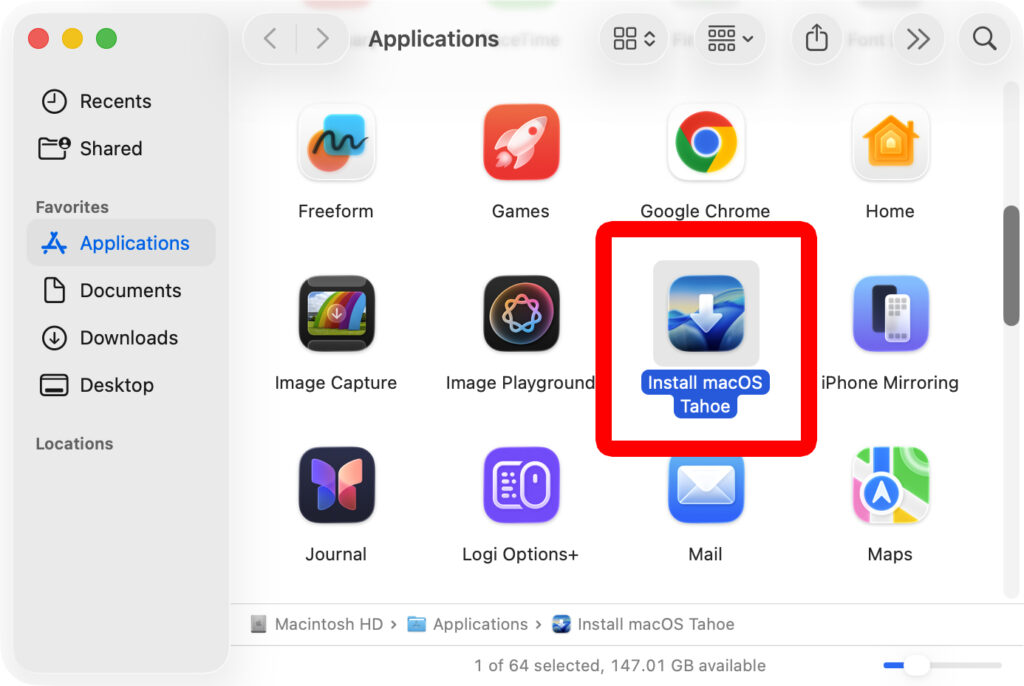
Once the update is finished installing, you can find it in the Applications folder with a name like “Install [macOS version]”. Simply double-click it and follow the on-screen instructions to begin the installation.
Use macOS Recovery
If you are not able to update your Mac the regular way, you might need to reinstall your current operating system. This will ensure that no other software on your Mac interferes with the installation.
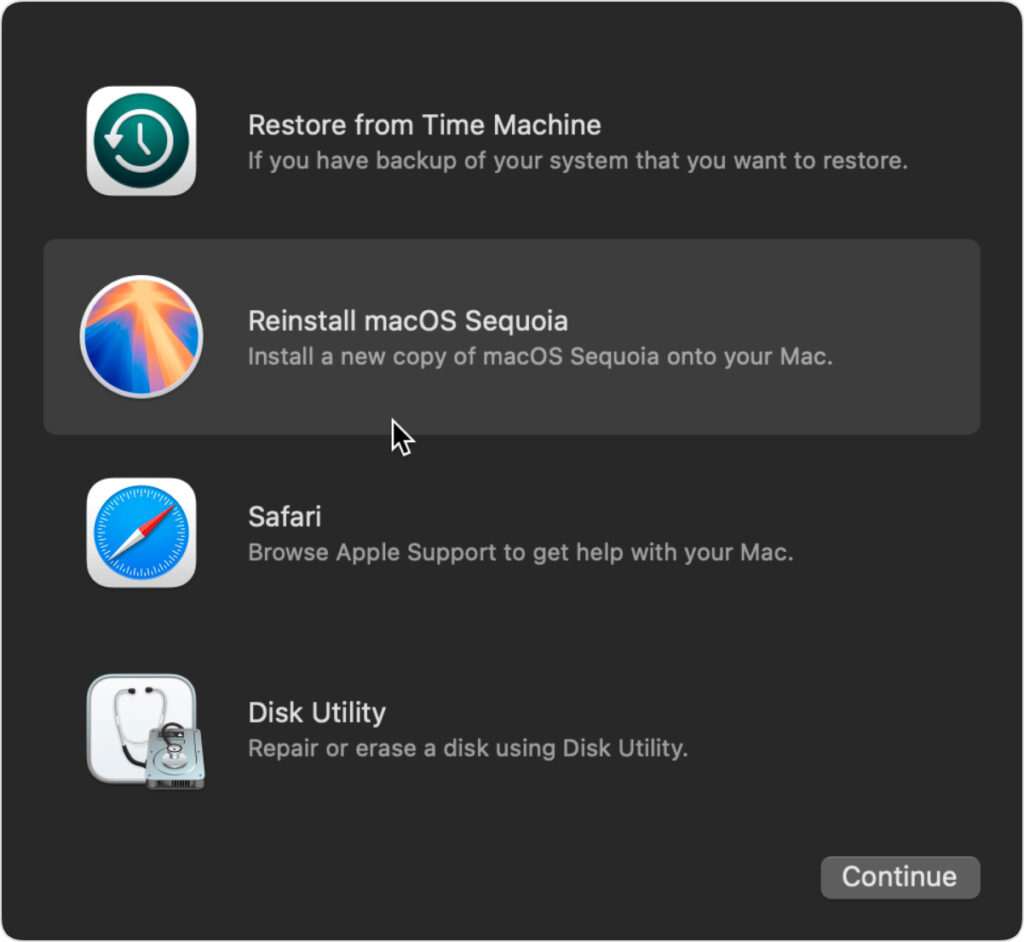
To reinstall your operating system, turn off your Mac and then press and hold the power button until you see the startup options screen. Then go to “Options” and select your startup disk (i.e. “Macintosh HD”). Finally, select “Reinstall macOS” and follow the on-screen instructions.