Nothing is worse than sitting down to watch a movie and realizing your Fire TV is lagging or stuttering. Don’t worry—you probably don’t need to buy a new device yet. Here’s everything you need to know about how to speed up your Fire TV streaming device when it starts acting slow.
Restart Fire TV
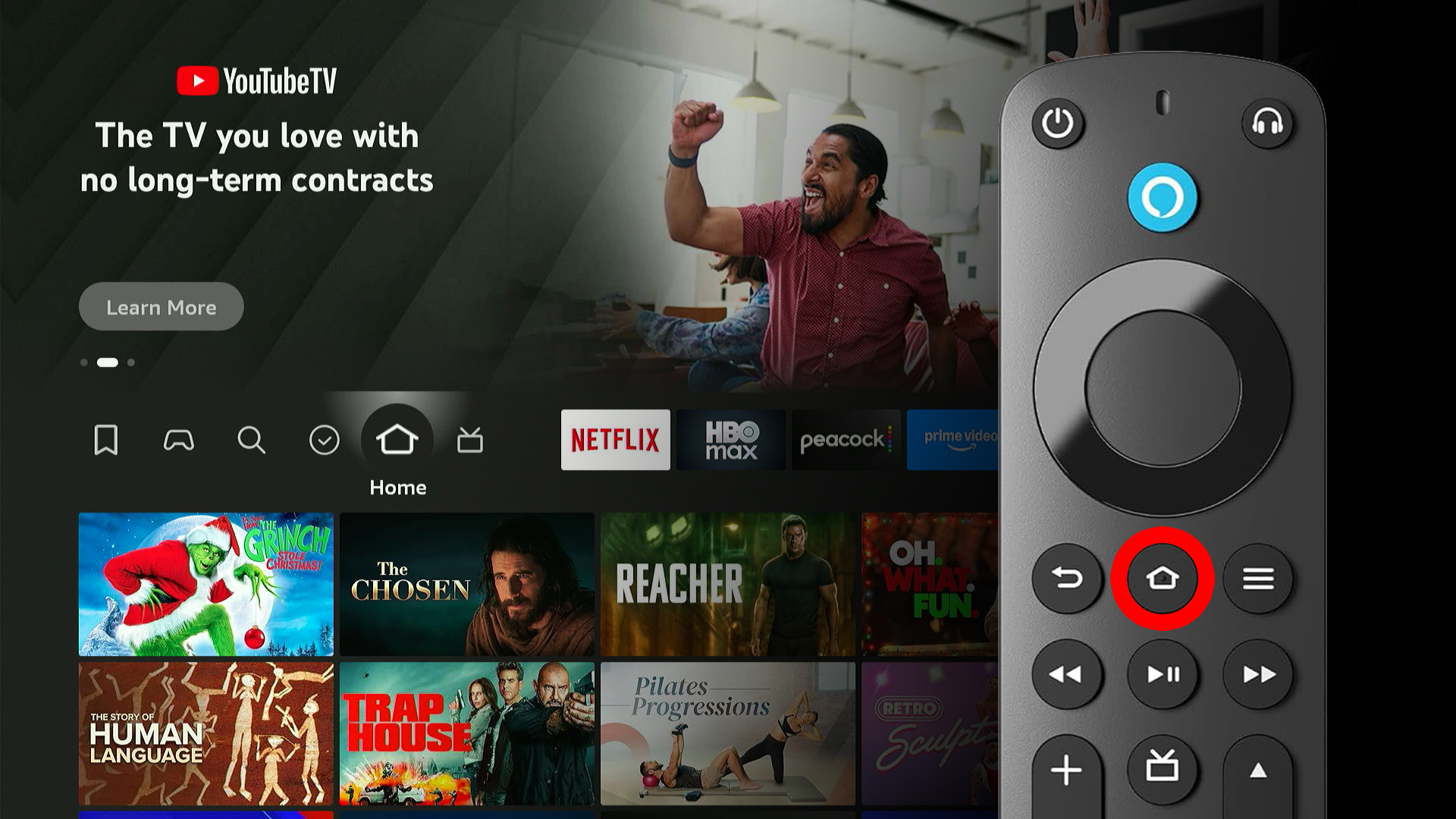
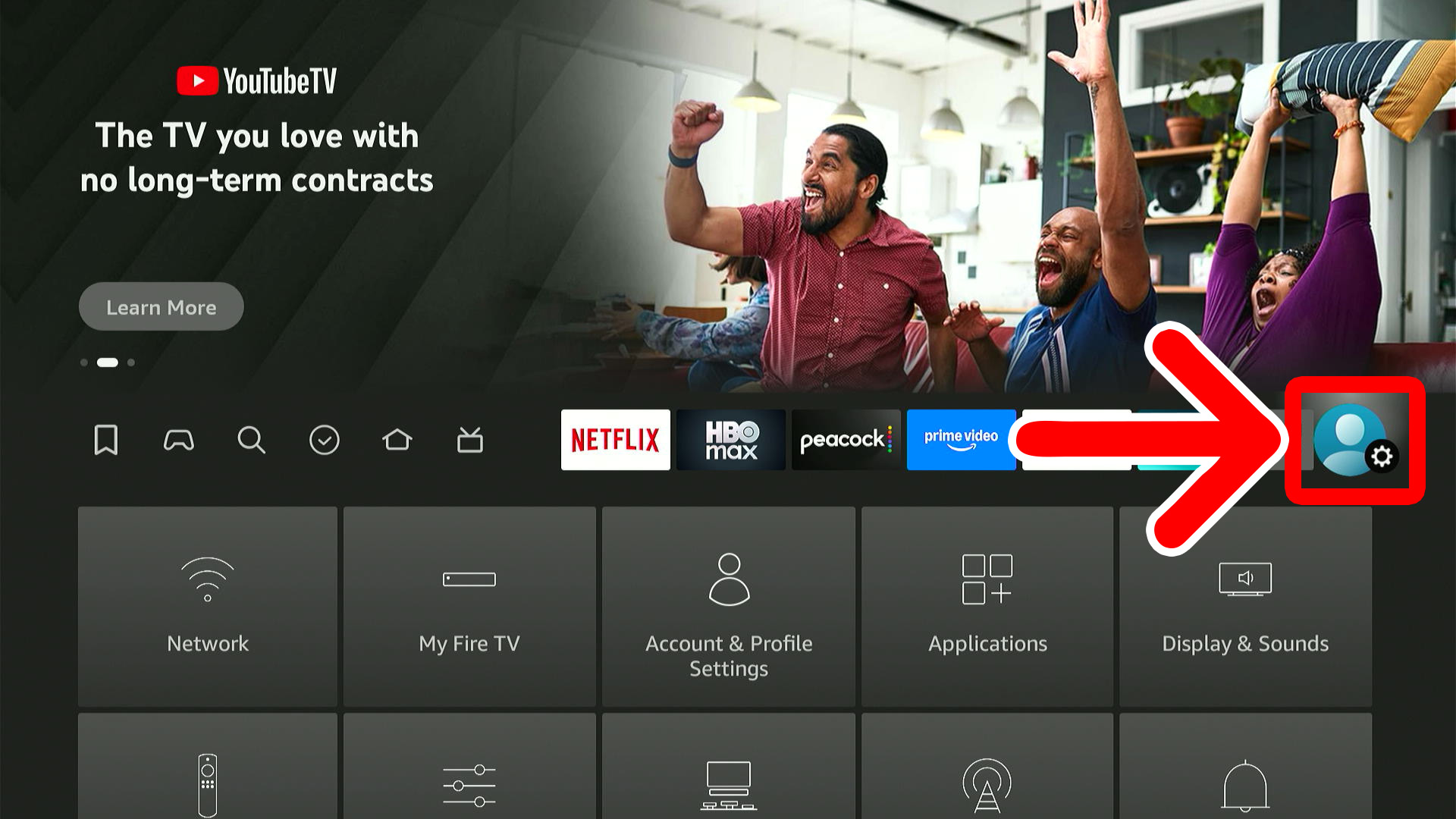
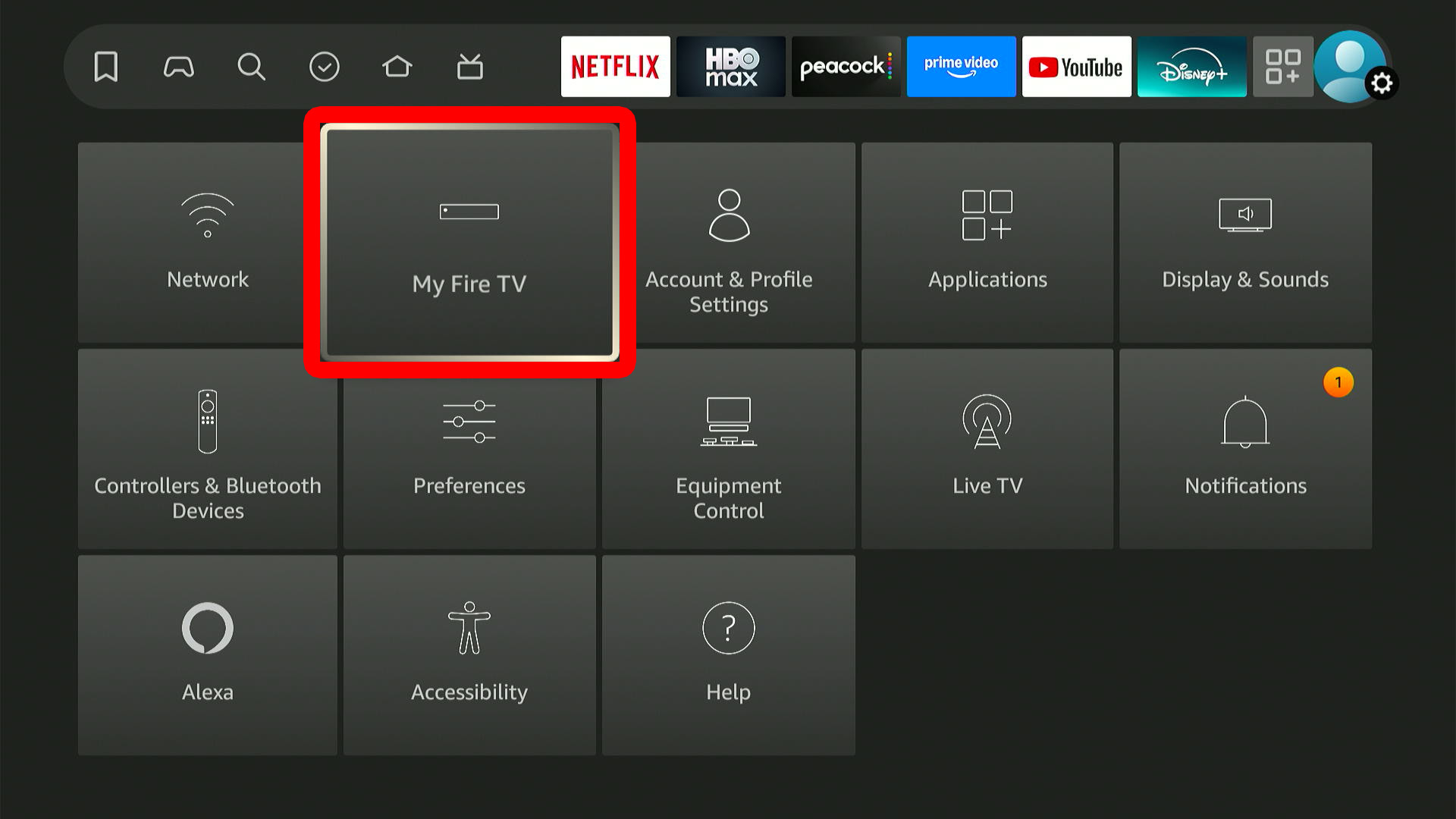
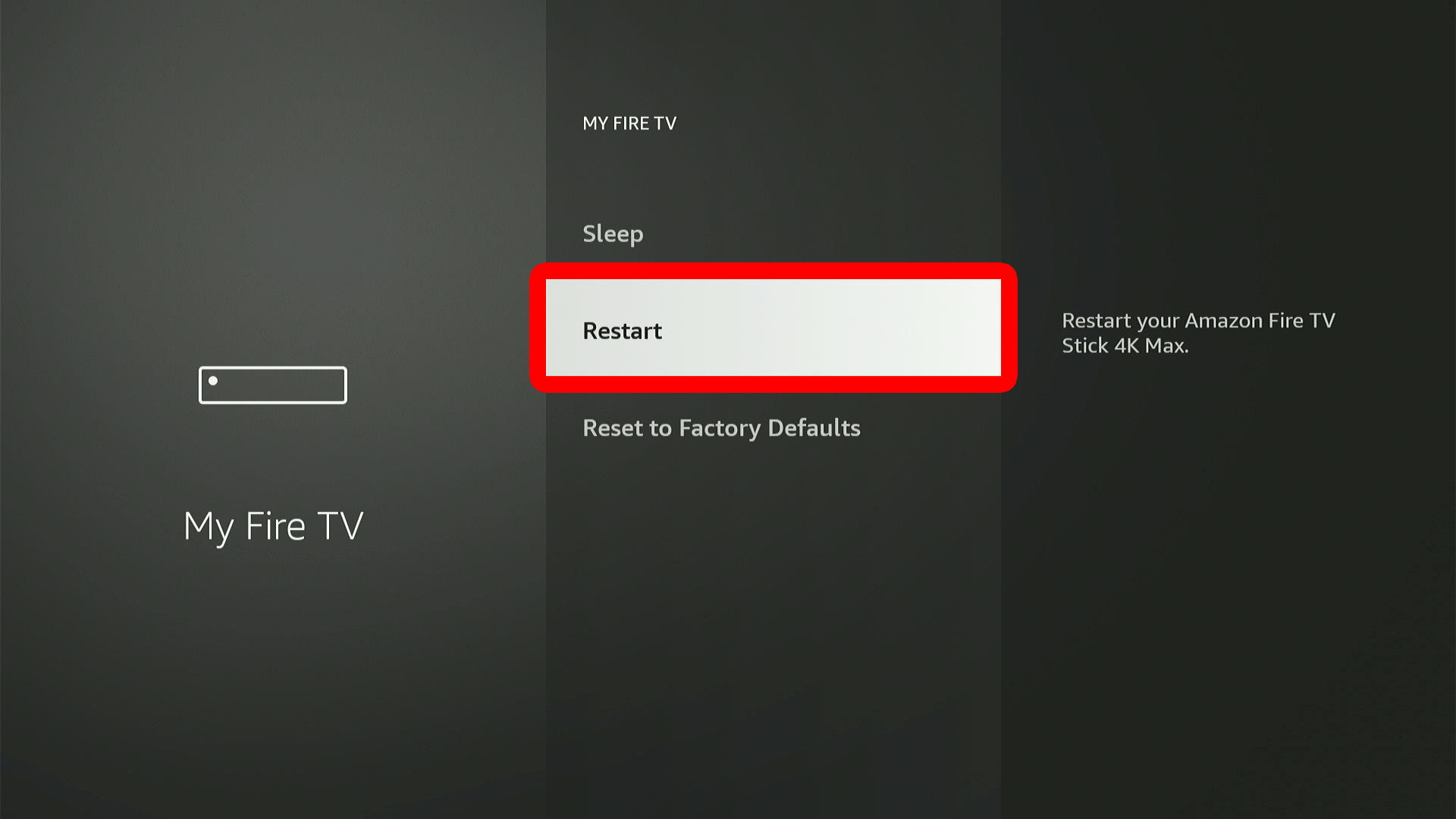
To restart your Fire TV, you can unplug it from power for 10 seconds, then plug it back in and wait for it to start up. Alternatively, you can restart your Fire TV by pressing the Home button on your remote and going to “Settings > My Fire TV > Restart.”
Read More: How to Restart Fire TV
- Press the Home button on your Fire TV remote.

- Go to “Settings.”
- Select “My Fire TV.”
- Finally, select “Restart.”
Do a WiFi Speed Test on Fire TV
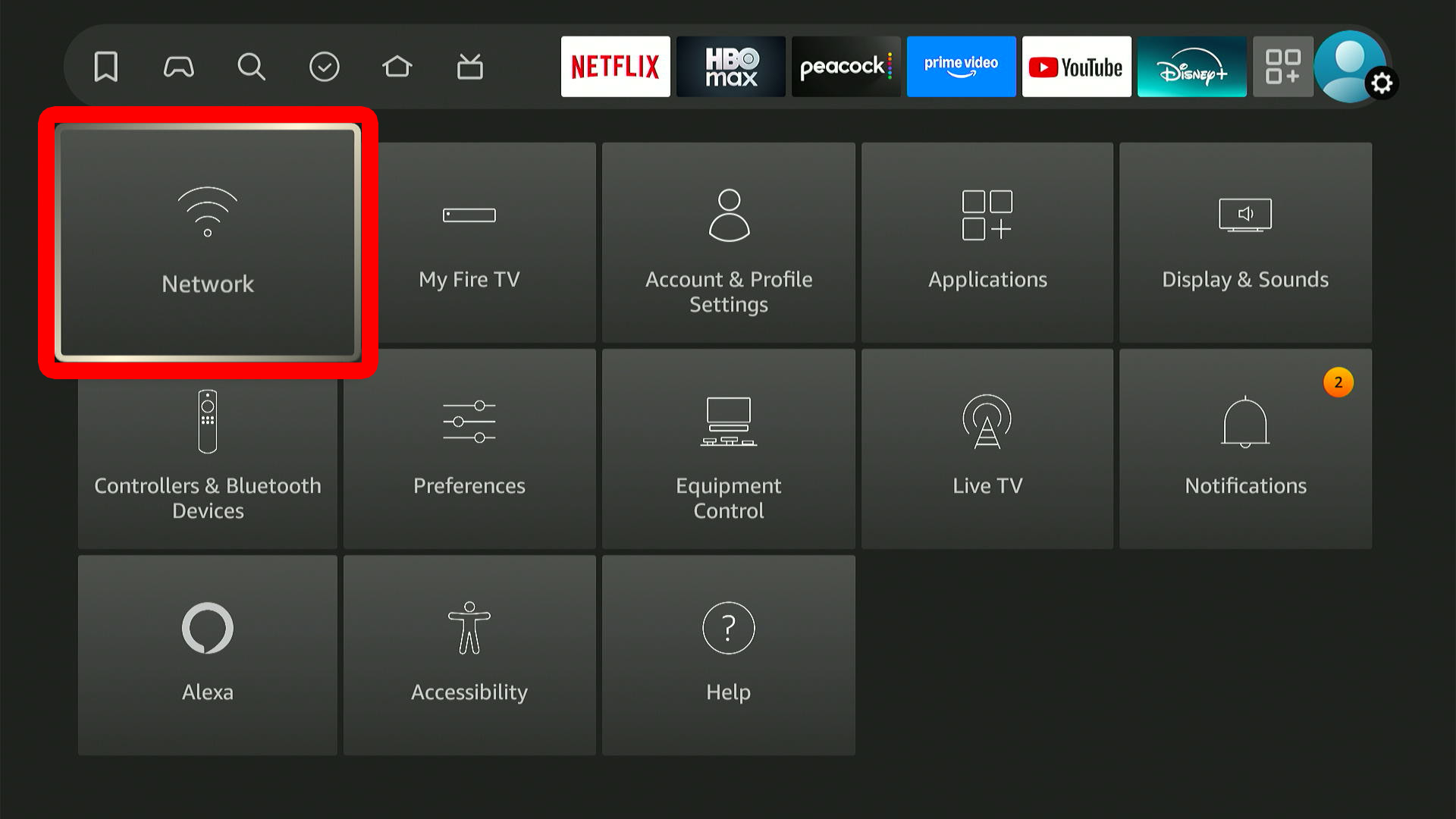
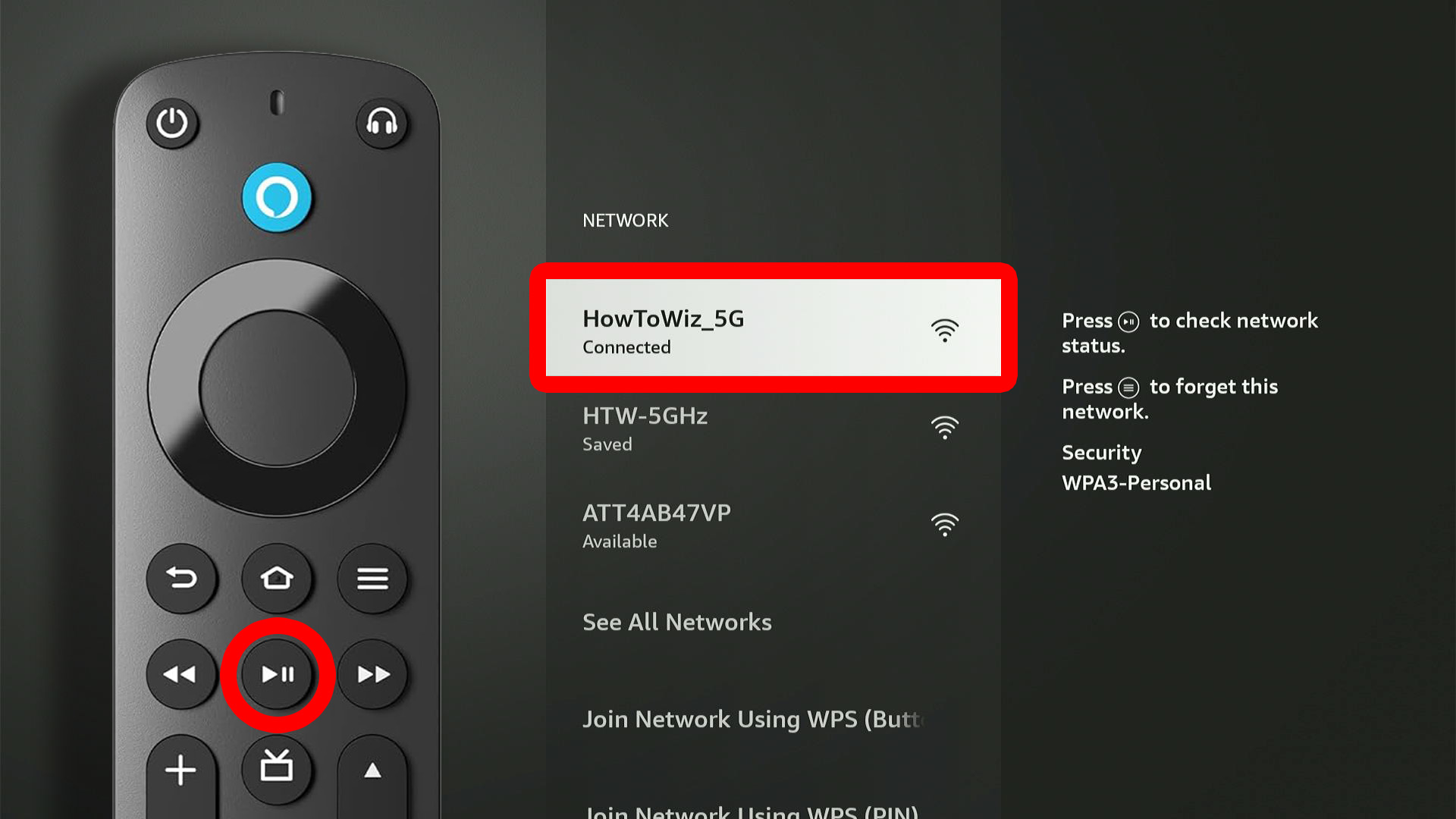
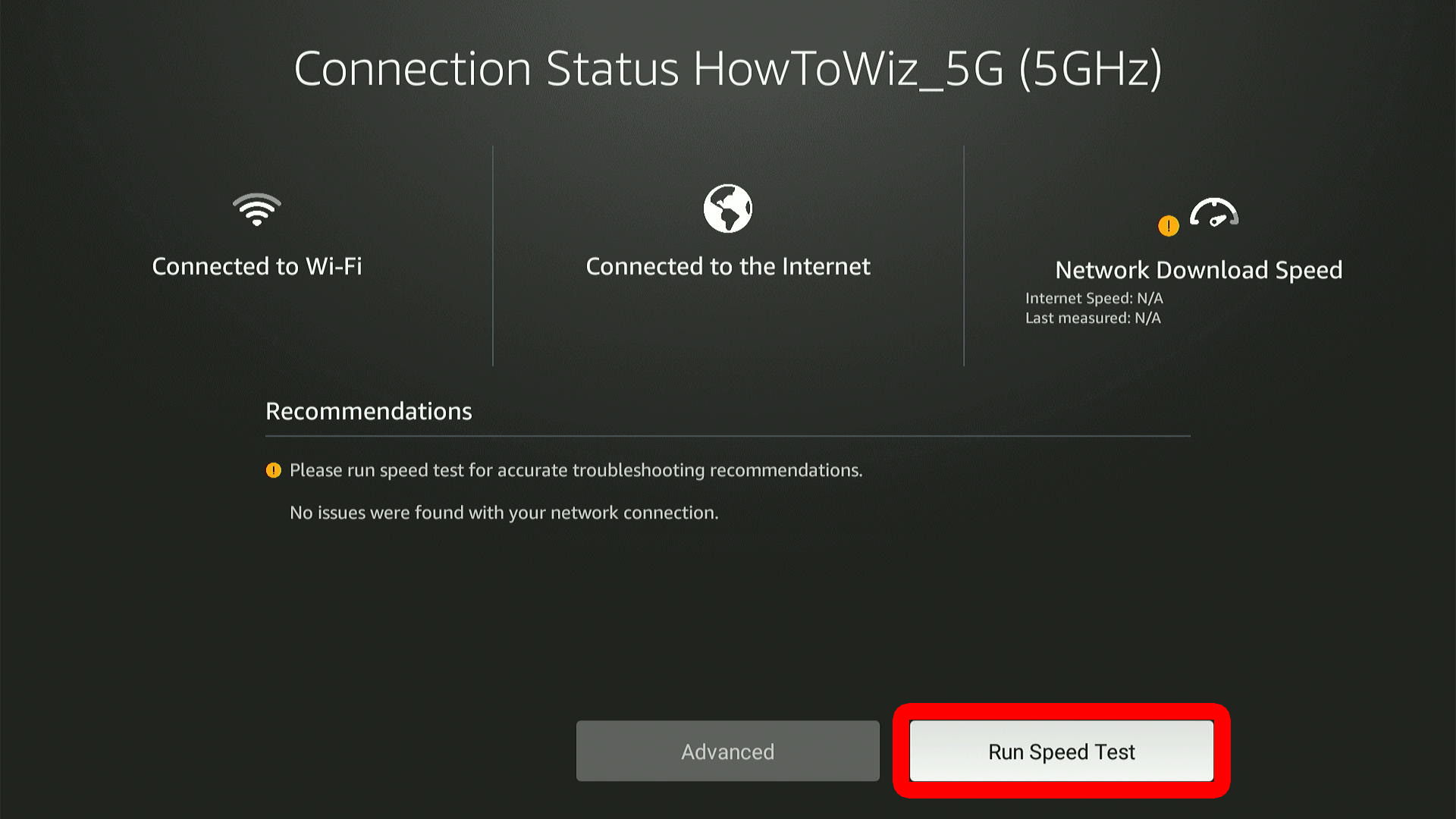
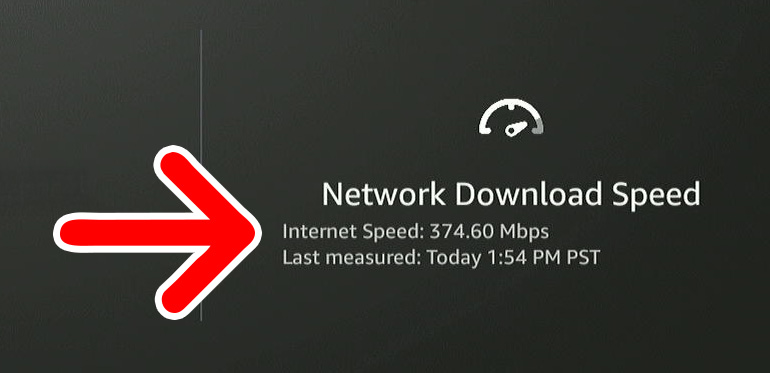
To test your WiFi speed on a Fire TV device, press the Home button on your Fire TV remote and go to “Settings > Network.” Then highlight your WiFi connection and press the Play/Pause button on your remote. Finally, select “Run Speed Test” and wait for the results.
- Press the Home button on your Fire TV remote.
- Go to “Settings.”
- Select “Network.”
- Highlight your WiFi network and press Play/Pause on your remote.
- Select “Run Speed Test.”
- Finally, you will see your Fire TV WiFi speed in the top-right corner of the screen. Your speed will be measured in Mbps (Megabits per second). According to Netflix, you need at least 15 Mbps to stream movies and shows in 4K. However, Amazon only says you need 5 Mbps to stream HD content.

Connect to the Fastest WiFi Band & Channel
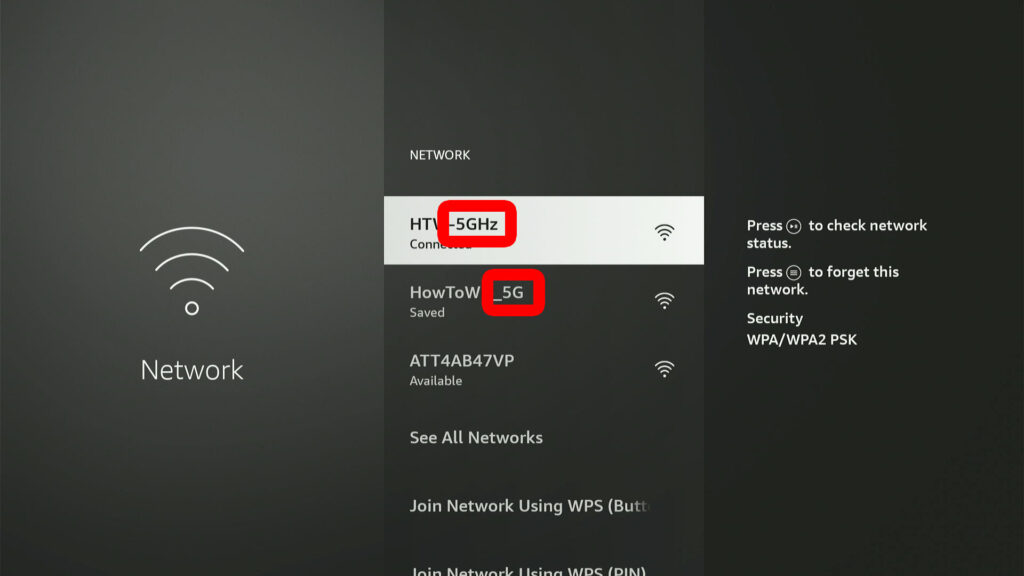
If you have a dual-band or tri-band router, you’ll usually get a better connection on the 5 GHz or 6 GHz bands. To do this, go to “Settings > Network > Set up connection” and choose “Wireless.” Usually, you’ll want to connect to a network name that ends in “5G” or “6G.”
Turn WiFi Off and On
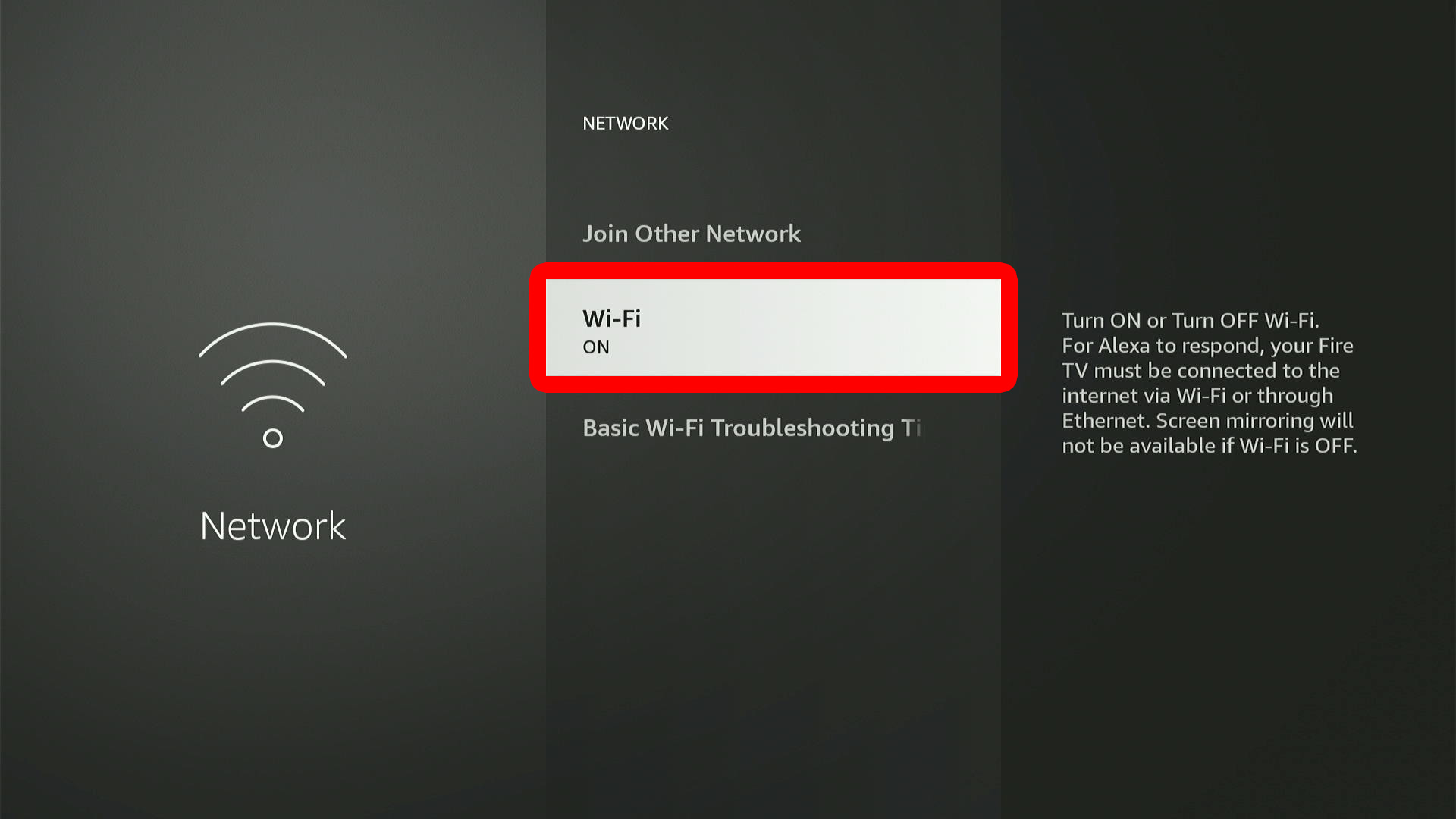
If your Fire TV device is acting slow, Amazon recommends turning your Wi-Fi off and back on to reset its network connection. This can help fix buffering, lag, or slow loading.
- Press the Home button on your Fire TV remote.
- Go to “Settings.”
- Select “Network.”
- Scroll down to “Wi-Fi.”
- Turn WiFi off and then back on again.

Restart Your WiFi Router
Restarting your WiFi router can reset the connection to your devices and fix common network glitches. To do this, unplug your modem and router for at least 30 seconds. Then plug the modem back in and wait another 30 seconds before plugging the router back in.
Move Your Fire TV
If your Fire TV still doesn’t have a strong WiFi signal, try moving it closer to your router. You should also avoid placing it inside a cabinet, behind thick walls, or near metal, water, or microwaves, since these can interfere with the signal.
If you have a Fire TV Stick, you can often improve the signal by using an HDMI extender, which usually comes included with the device.

Uninstall Apps
Deleting unnecessary apps from your Fire TV can free up space and help your other apps run more smoothly. Plus, having fewer apps means your Fire TV spends less time checking for updates in the background.
- Press the Home button on your Fire TV remote.
- Go to “Settings.”
- Select “Applications.”
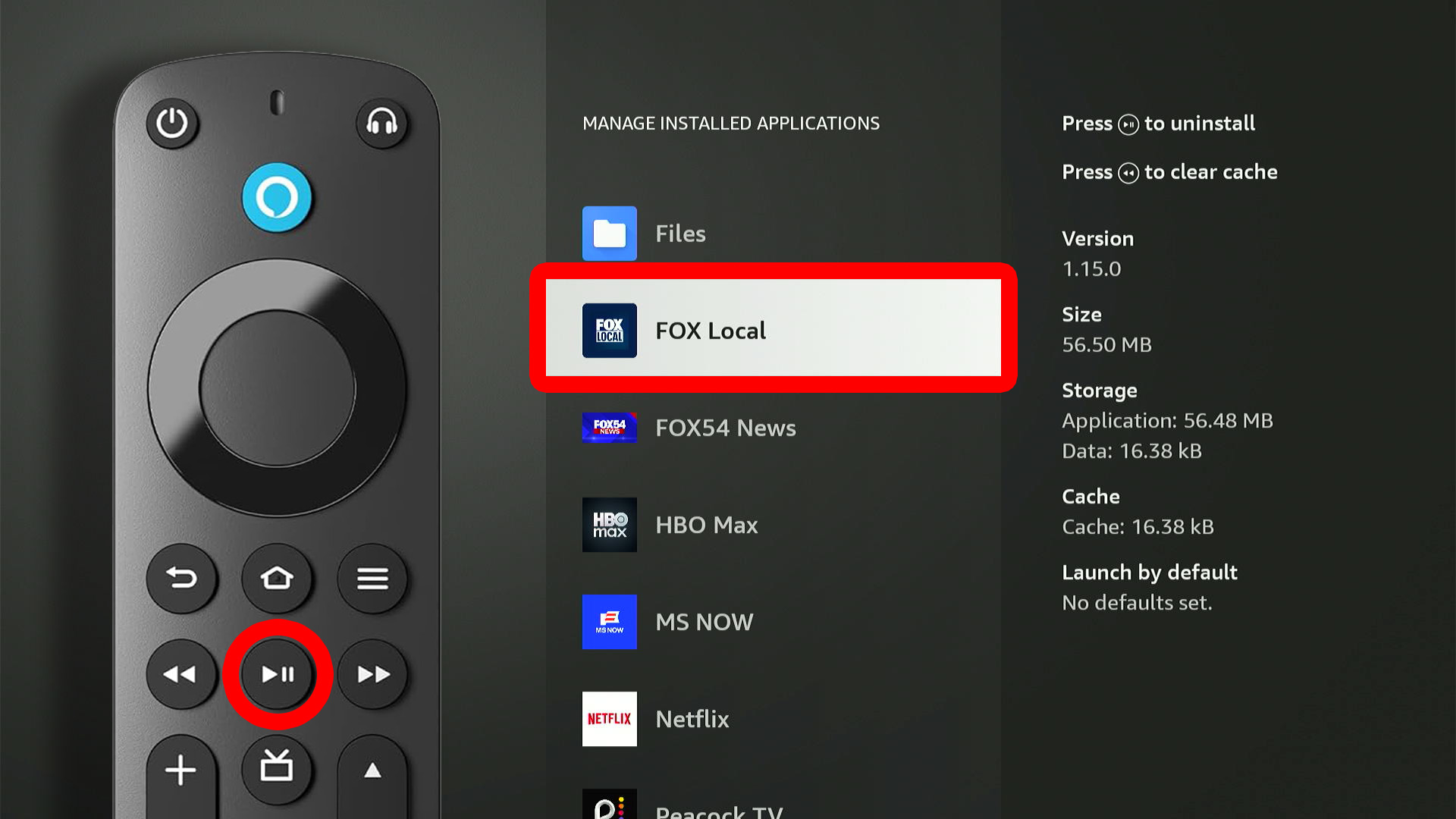
- Go to “Manage Installed Applications.” On the right side of the screen you will see how much free space you have remaining.
- Highlight an app and press the Play/Pause button on your remote to uninstall it. You will then see how much space it will free up when you remove the app.
Read More: How to Add Apps to Fire TV
Lower the Video Resolution
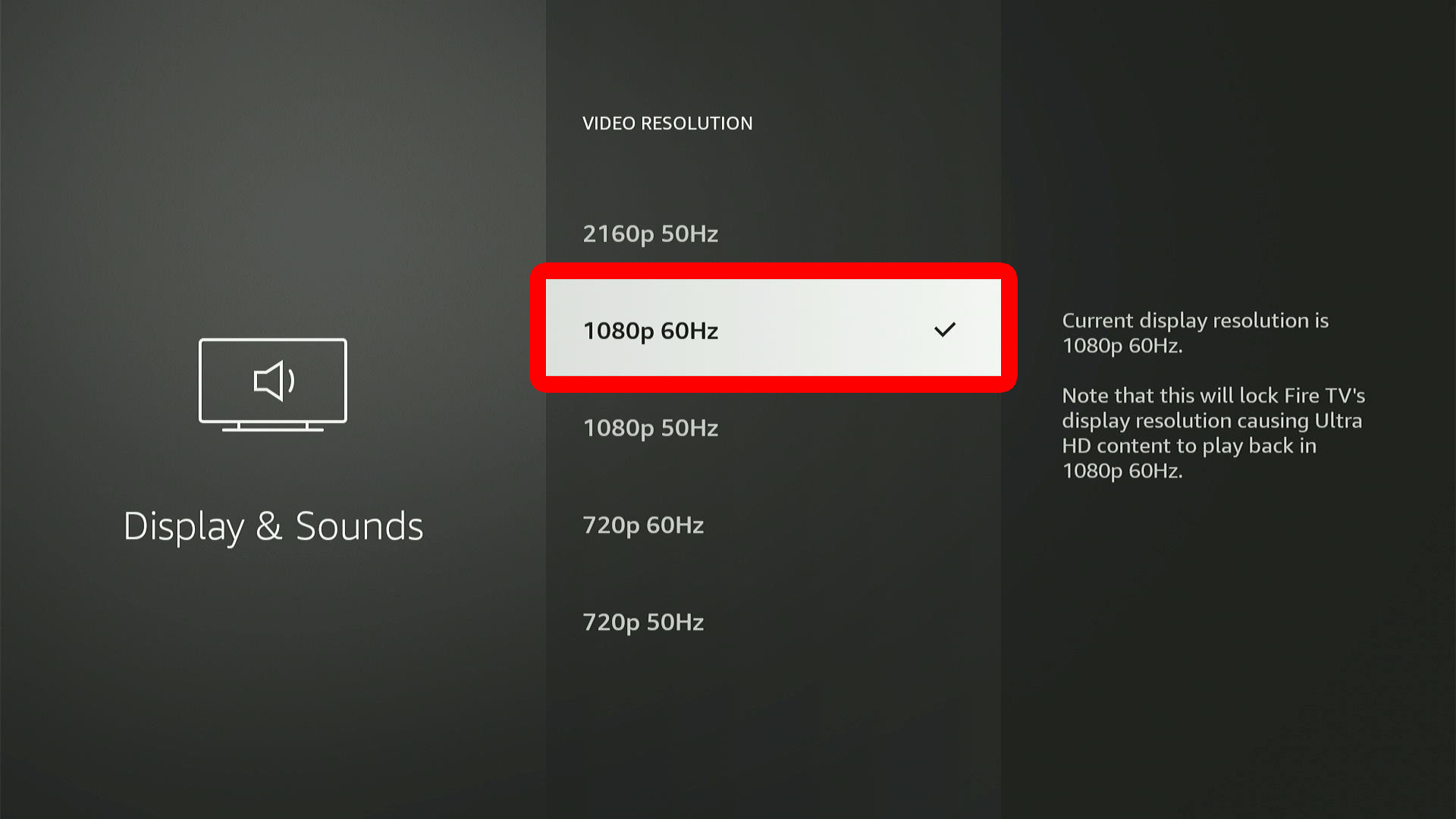
Lowering the resolution on your Fire TV can help older or slower devices run faster by reducing processing load. Your apps should launch more quickly and run more smoothly, though high-end 4K devices may not notice much difference.
- Press the Home button on your Fire TV remote.
- Go to “Settings.”
- Select “Display & Sounds.”
- Go to “Display.”
- Select “Video Resolution.”
- Finally, choose a lower resolution. Then choose “Confirm” to cap the resolution.
Clear Cache
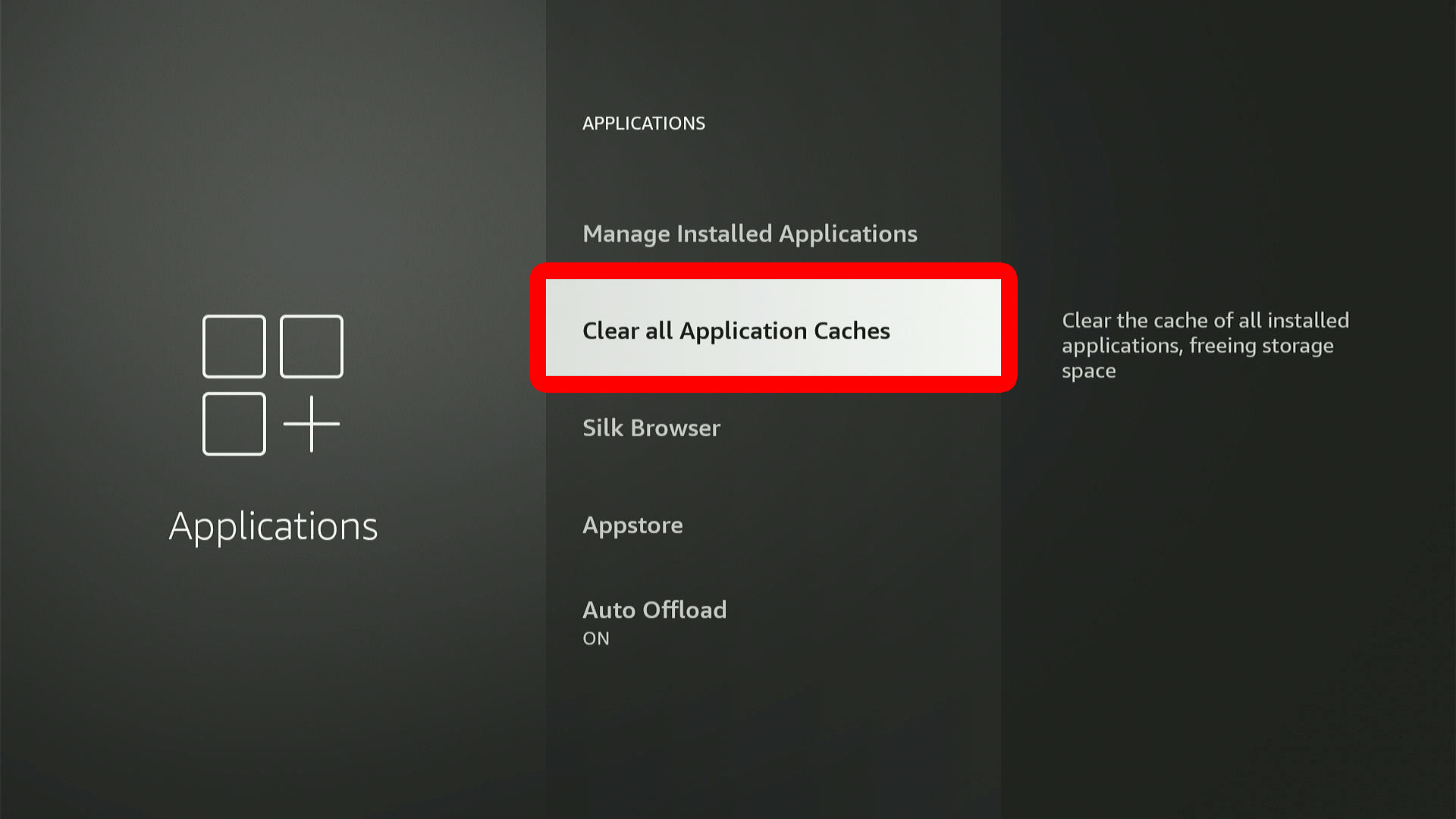
Clearing the cache on your Fire TV removes temporary files, which can build up over time and slow things down. Clearing the cache won’t delete your apps, settings, or account information.
- Press the Home button on your Fire TV remote.
- Go to “Settings.”
- Select “Applications.”
- Go to “Clear all Application Caches.”
- Finally, select “Confirm.” This will tell you how much space will be freed up by clearing your cache.
Turn Off Video Autoplay
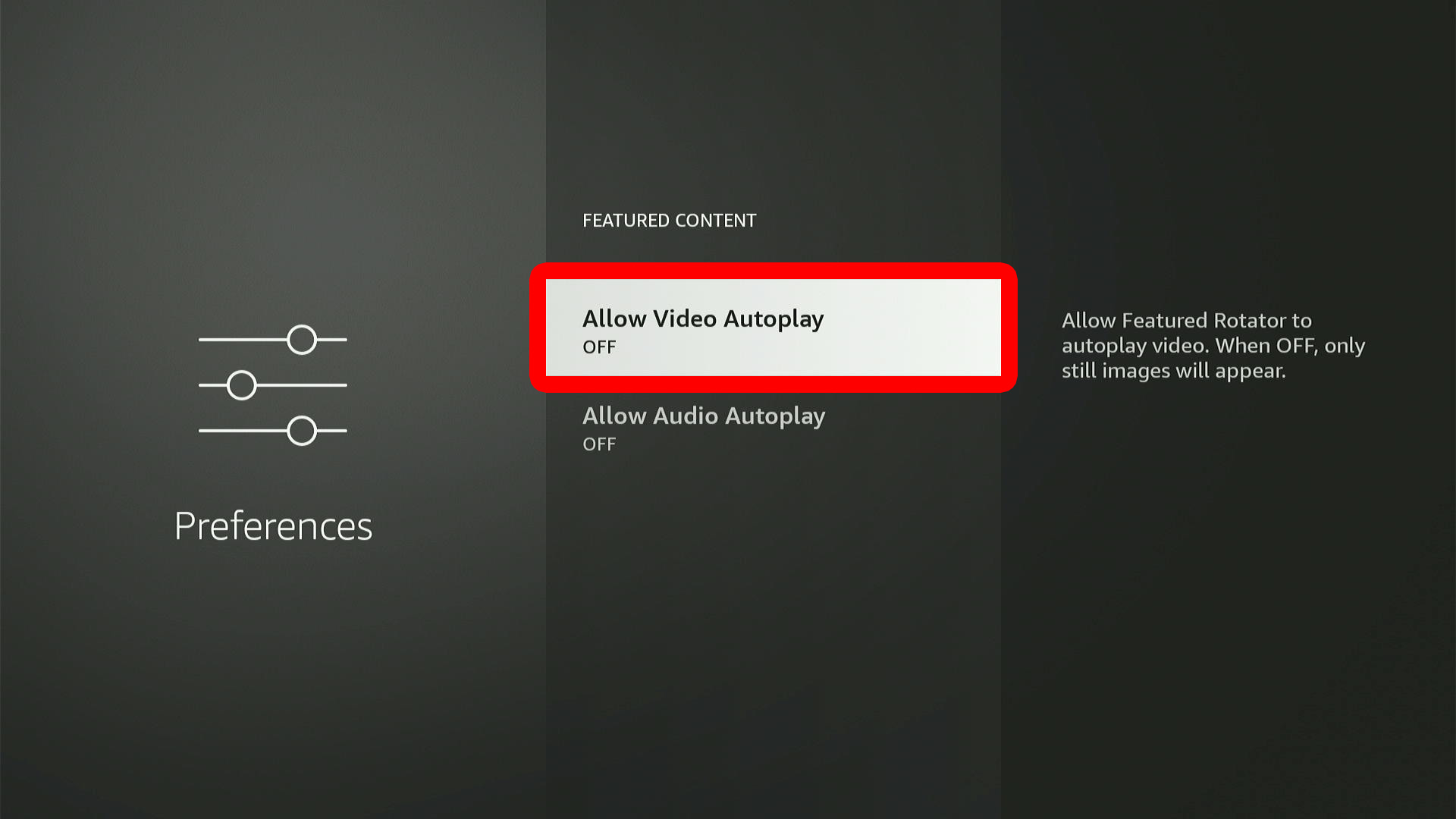
Turning off autoplay can make your Fire TV faster by stopping videos from preloading on the home screen. This reduces background data usage and helps the interface load more smoothly.
- Press the Home button on your Fire TV remote.
- Go to “Settings.”
- Select “Preferences.”
- Go to “Featured Content.”
- Turn off “Allow Video Autoplay” and “Allow Audio Autoplay.”
Turn Off Usage Data
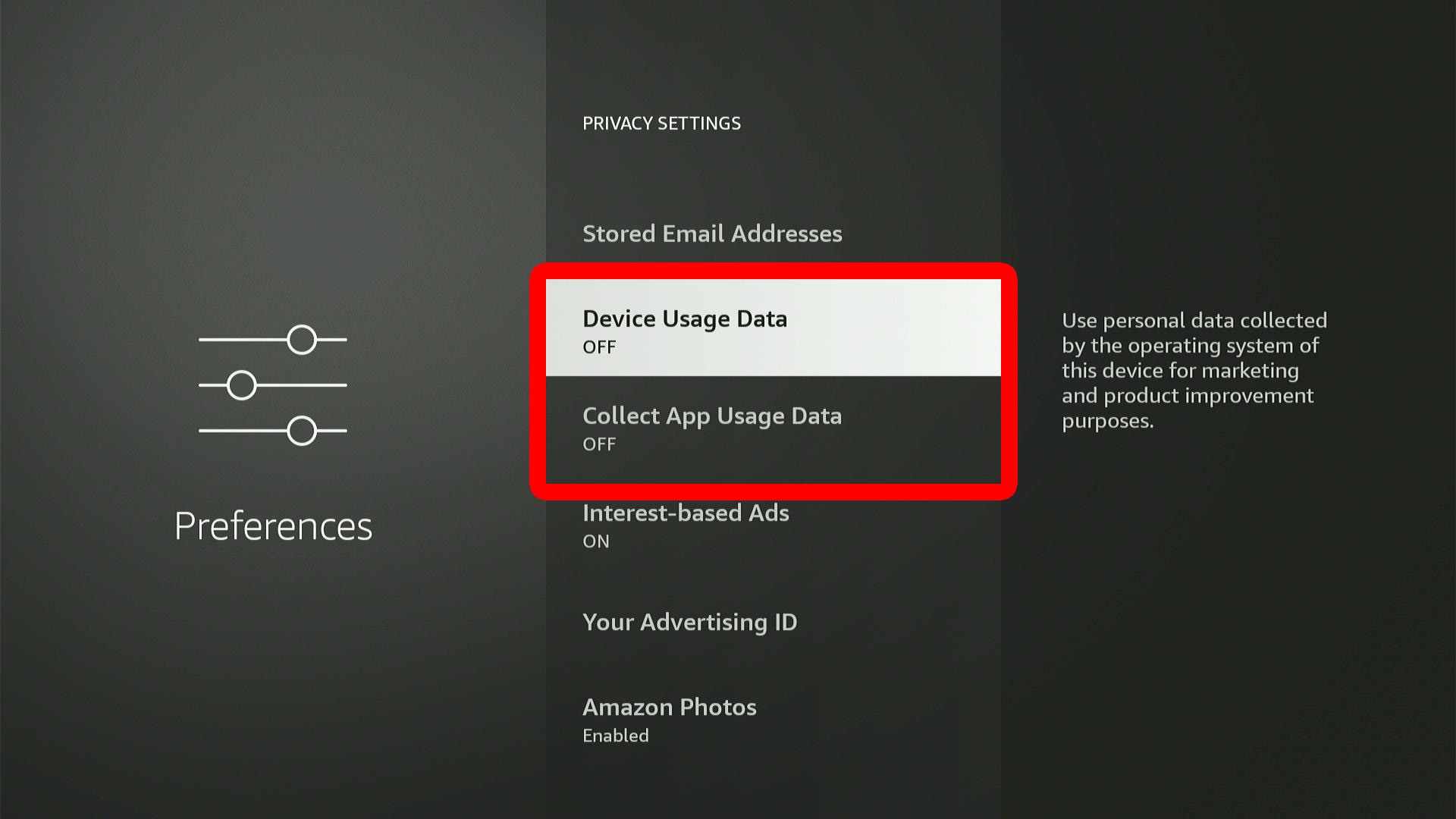
Amazon collects information about how you navigate the home screen, open apps, and adjust settings. This background activity can slightly slow down your Fire TV. Turning off usage data can help your device run a bit faster and protect your privacy.
- Press the Home button on your Fire TV remote.
- Go to “Settings.”
- Select “Preferences.”
- Turn off “Device Usage Data” and “Collect App Usage Data.”
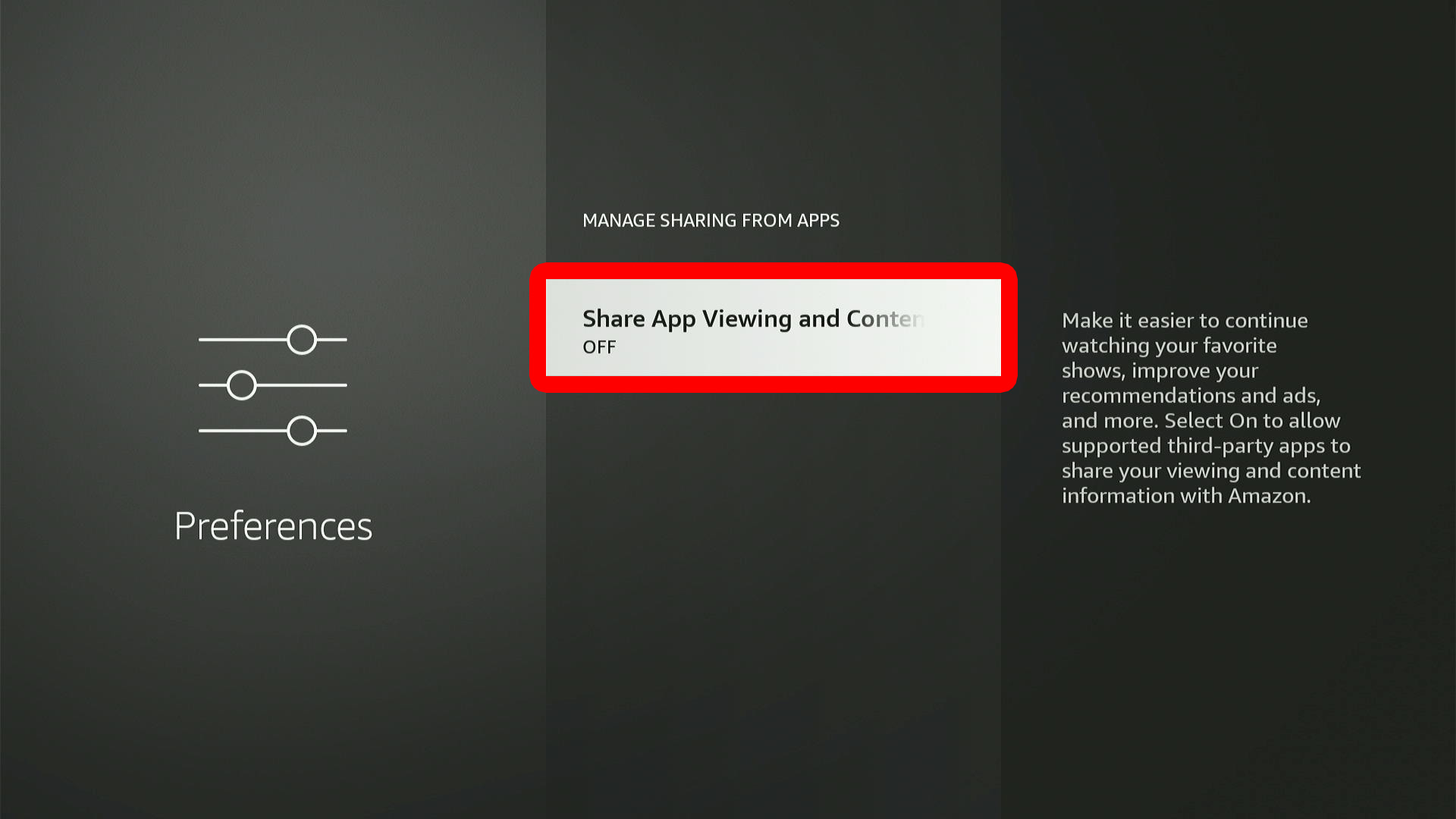
Turn Off Sharing from Apps
By default, your Fire TV shares viewing content with Amazon to improve recommendations and personalized ads. Turning this off reduces the data your Fire TV sends, protecting your privacy and slightly improving performance.
- Press the Home button on your Fire TV remote.
- Go to “Settings.”
- Select “Preferences.”
- Go to “Privacy Settings.”
- Select “Manage Sharing from Apps.”
- Finally, turn off “Share App Viewing and Content Info.”
Update Your Fire TV
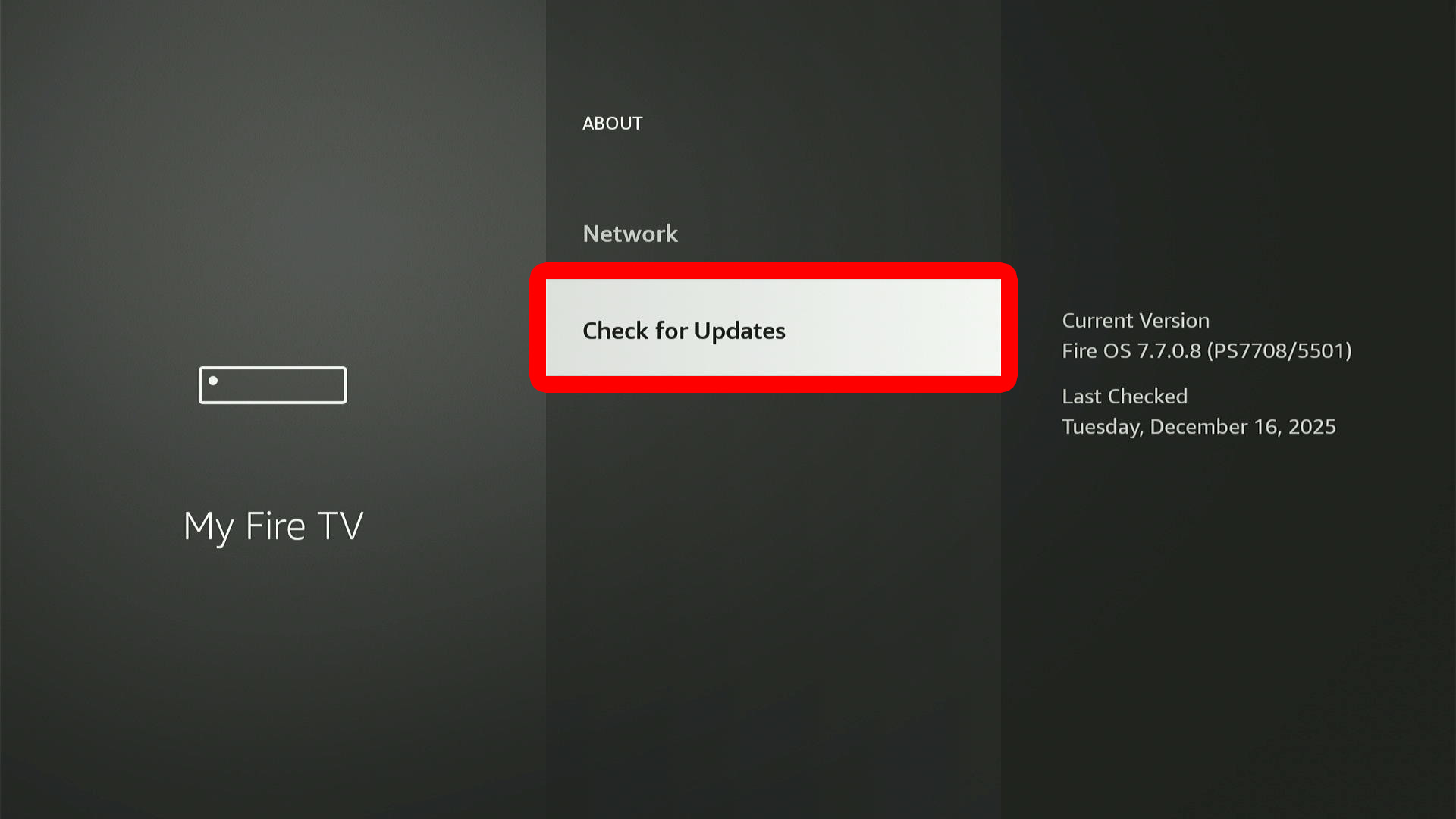
Manually updating your Fire TV installs new features, fixes bugs, and improves security. Keeping it up to date helps your device run smoothly and stay secure.
Read More: How to Update Fire TV and Apps
- Press the Home button on your Fire TV remote.
- Go to “Settings.”
- Select “My Fire TV.”
- Go to “About.”
- Select “Check for Updates.” If an update is available, select “Install Update.” If you don’t see this option, it means your device is already up to date.
Factory Reset Your Fire TV
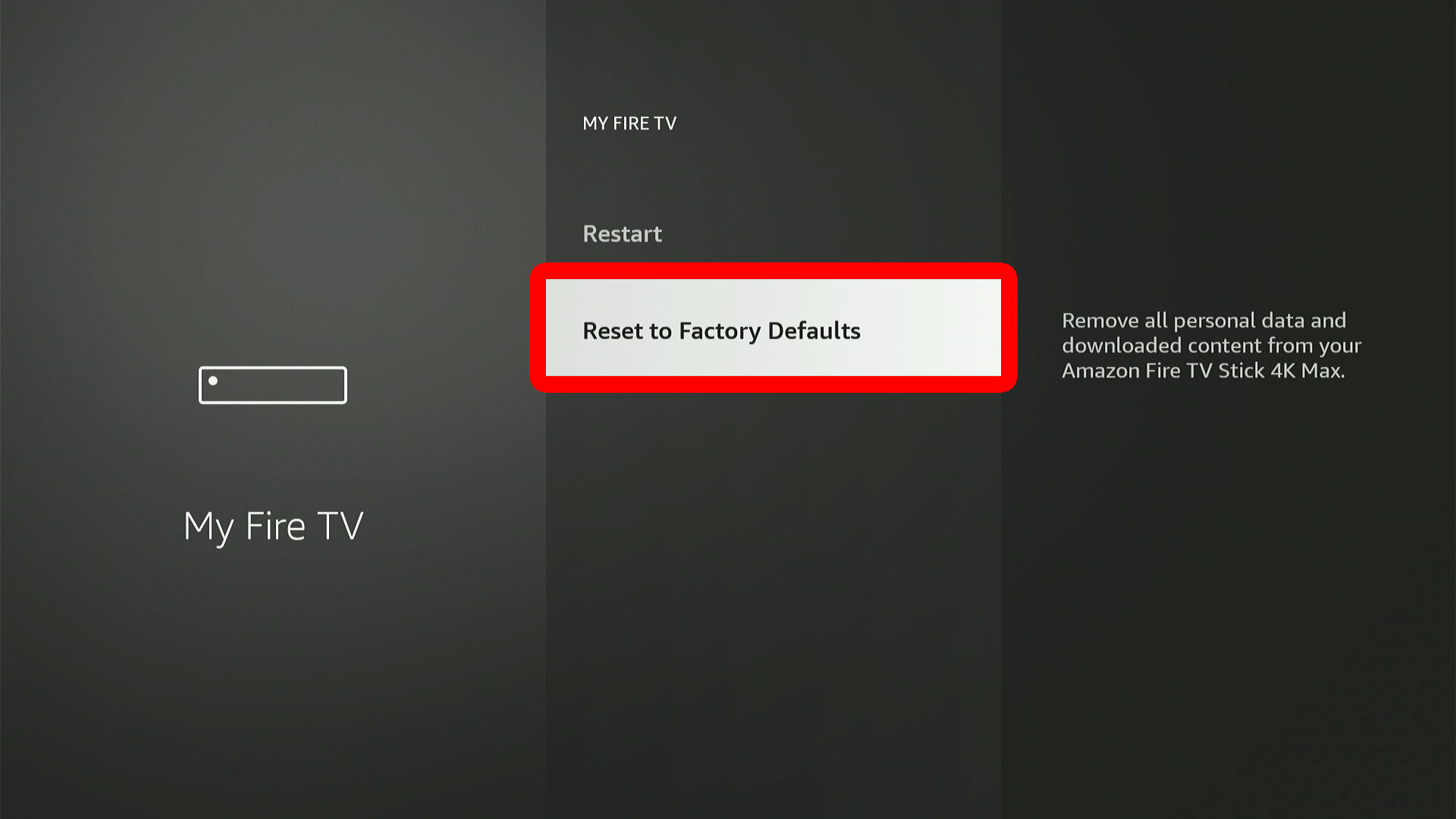
If all else fails, you can reset your Fire TV to factory settings to speed it up. This will erase all apps, settings, and personal data, so you’ll need to set it up again from scratch. Only do this if nothing else works.
Read More: How to Factory Reset Fire TV
- Press the Home button on your Fire TV remote.
- Go to “Settings.”
- Select “My Fire TV.”
- Choose “Reset to Factory Defaults.”