Can’t remember your WiFi password? Your Mac automatically saves all the networks you’ve joined, so your passwords are always just a few clicks away. Here’s everything you need to know about how to find any WiFi passwords saved on your Mac and share them with your friends and family.
Read More: How to Change Your WiFi Password
How to Quickly Find WiFi Passwords on a Mac
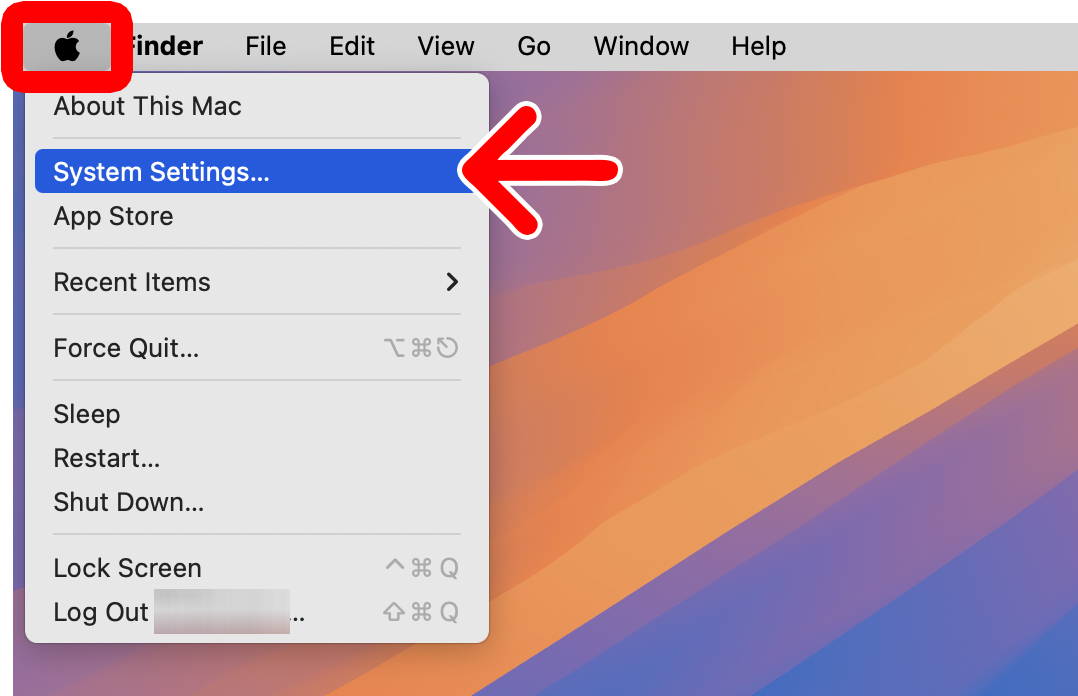
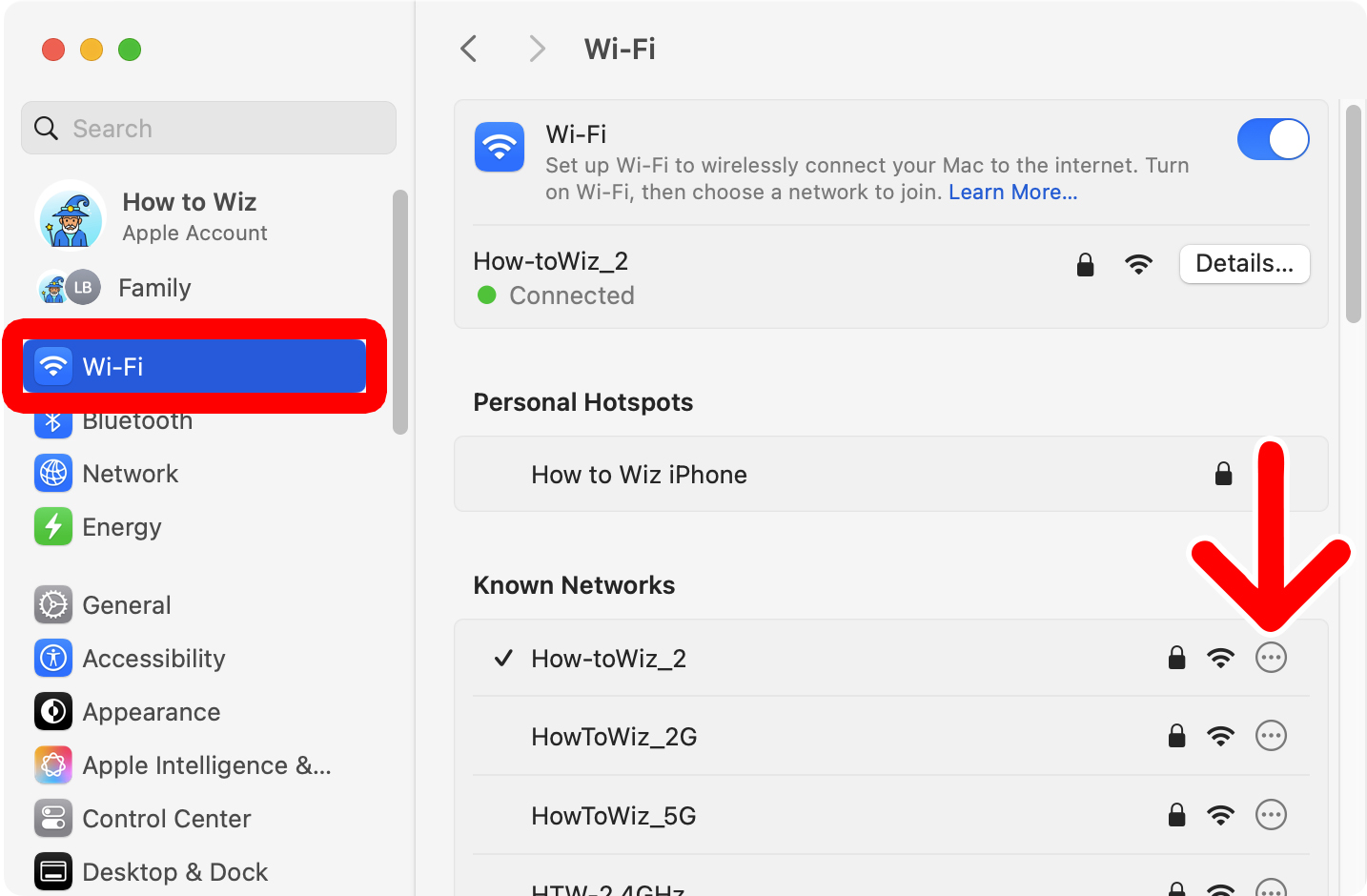
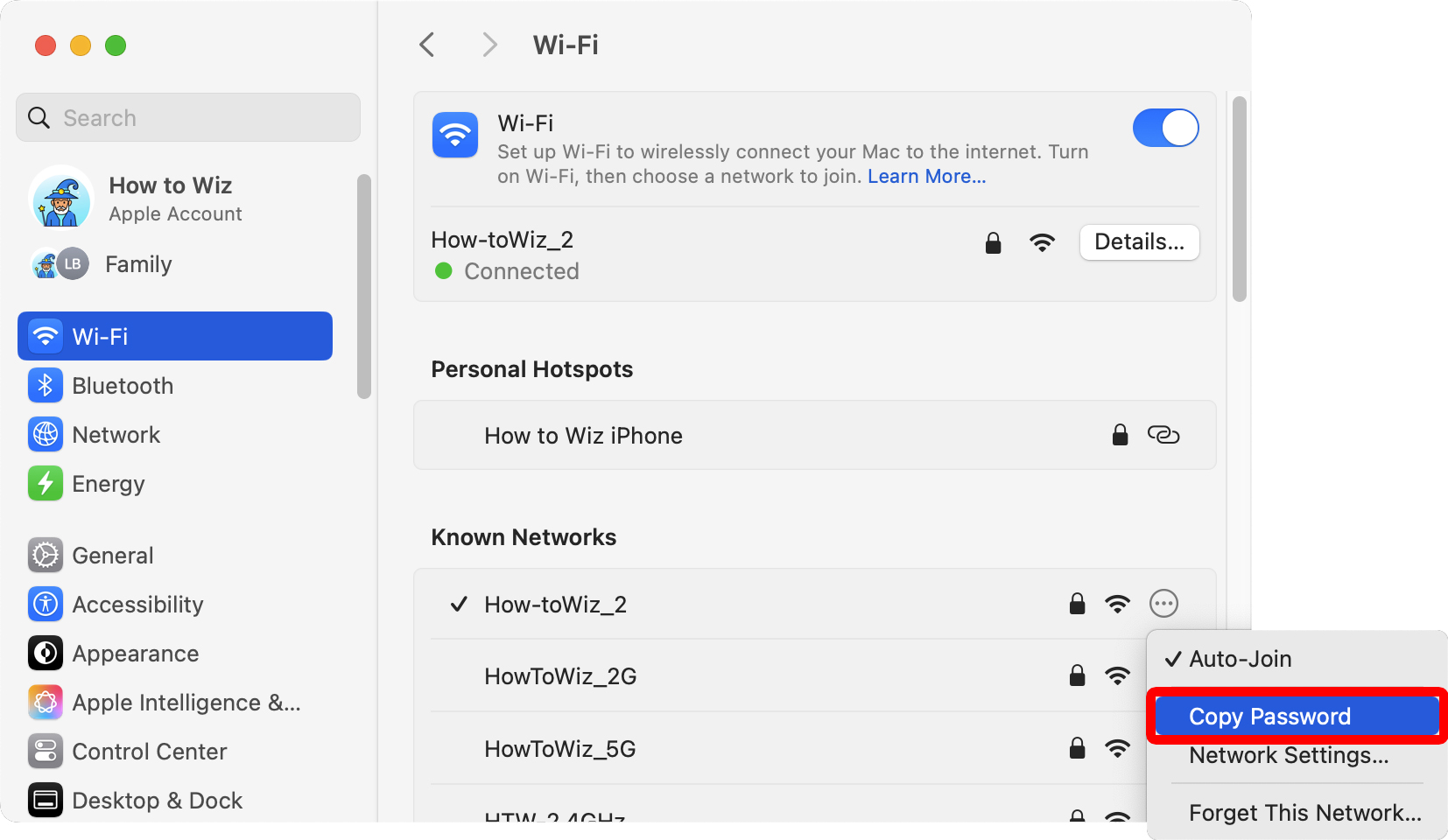
To quickly find and copy your WiFi passwords on a Mac, click the Apple logo in the top-left corner of your screen and select “System Settings.” Then select “Wi-Fi” in the left sidebar and click the three-dot icon next to a network. Finally, select “Copy Password.”
- Click the Apple logo in the top-left corner of your screen.
- Select “System Settings.”

- Go to “Wi-Fi.” You will see this in the left sidebar.
- Click the three-dot icon next to a WiFi network.

- Finally, click “Copy Password.” This will copy your WiFi password to the clipboard.

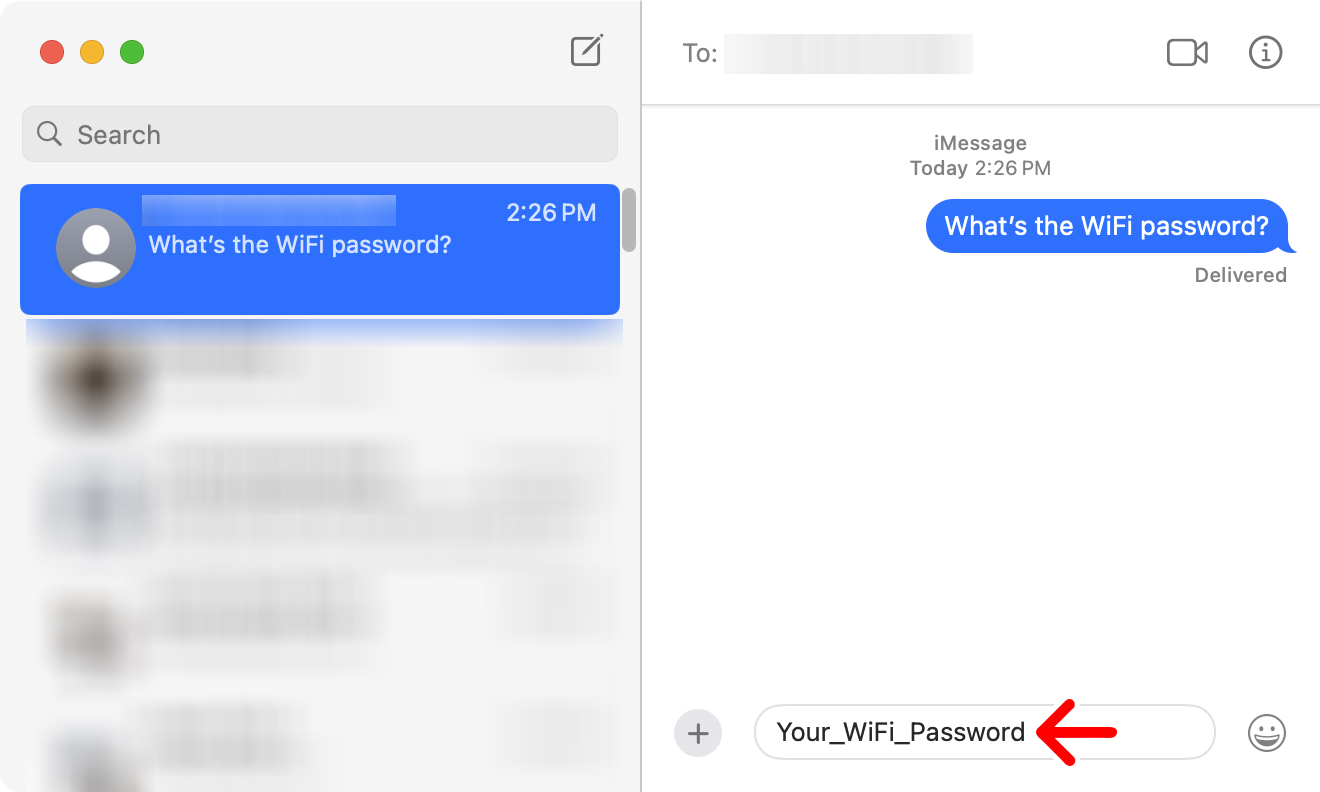
To see your WiFi password, open another app on your Mac and paste it in any text field by pressing the Command (⌘) + Vkeys on your keyboard at the same time. For example, you can use the Messages app to paste your WiFi password and share it with someone else.
If you don’t see your WiFi network listed, scroll to the bottom of the window and click “Advanced.”
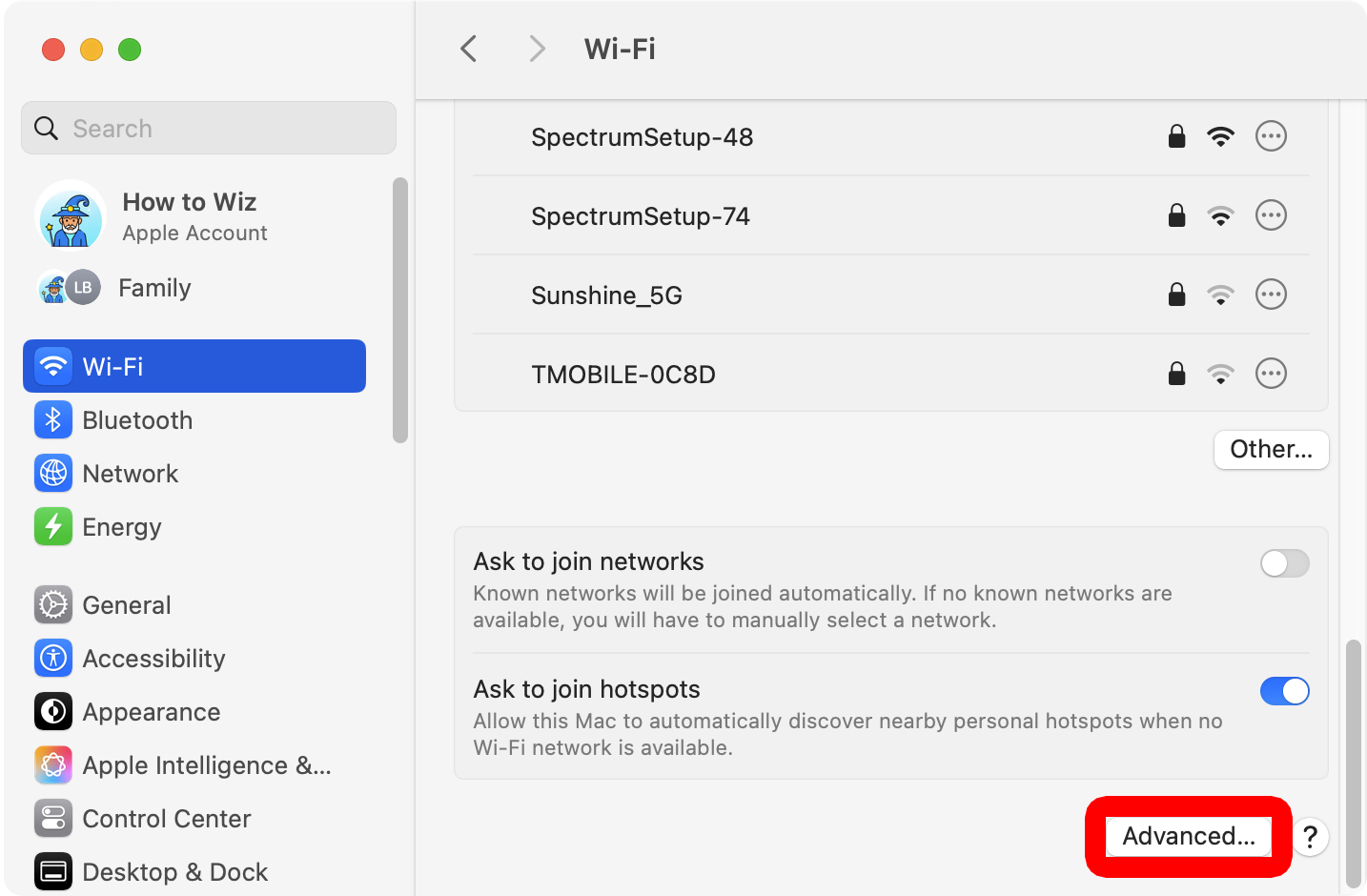
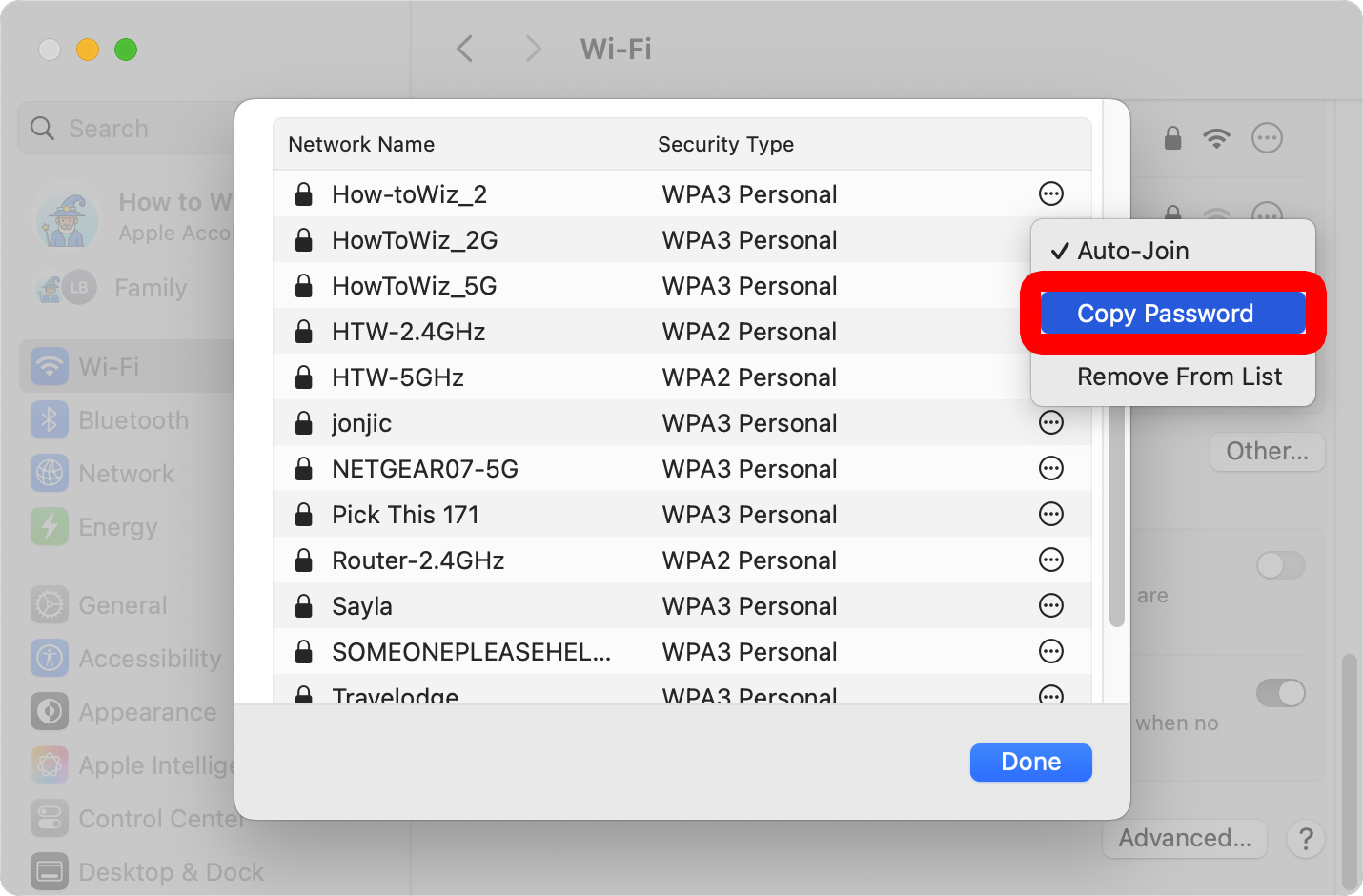
Then click the three-dot icon next to a WiFi network and select “Copy Password.”
If you still don’t see your WiFi network listed, you can also reset your router and sign in to your network using the default password.
Read More: How to Factory Reset a WiFi Router
How to Find Any WiFi Passwords on a Mac
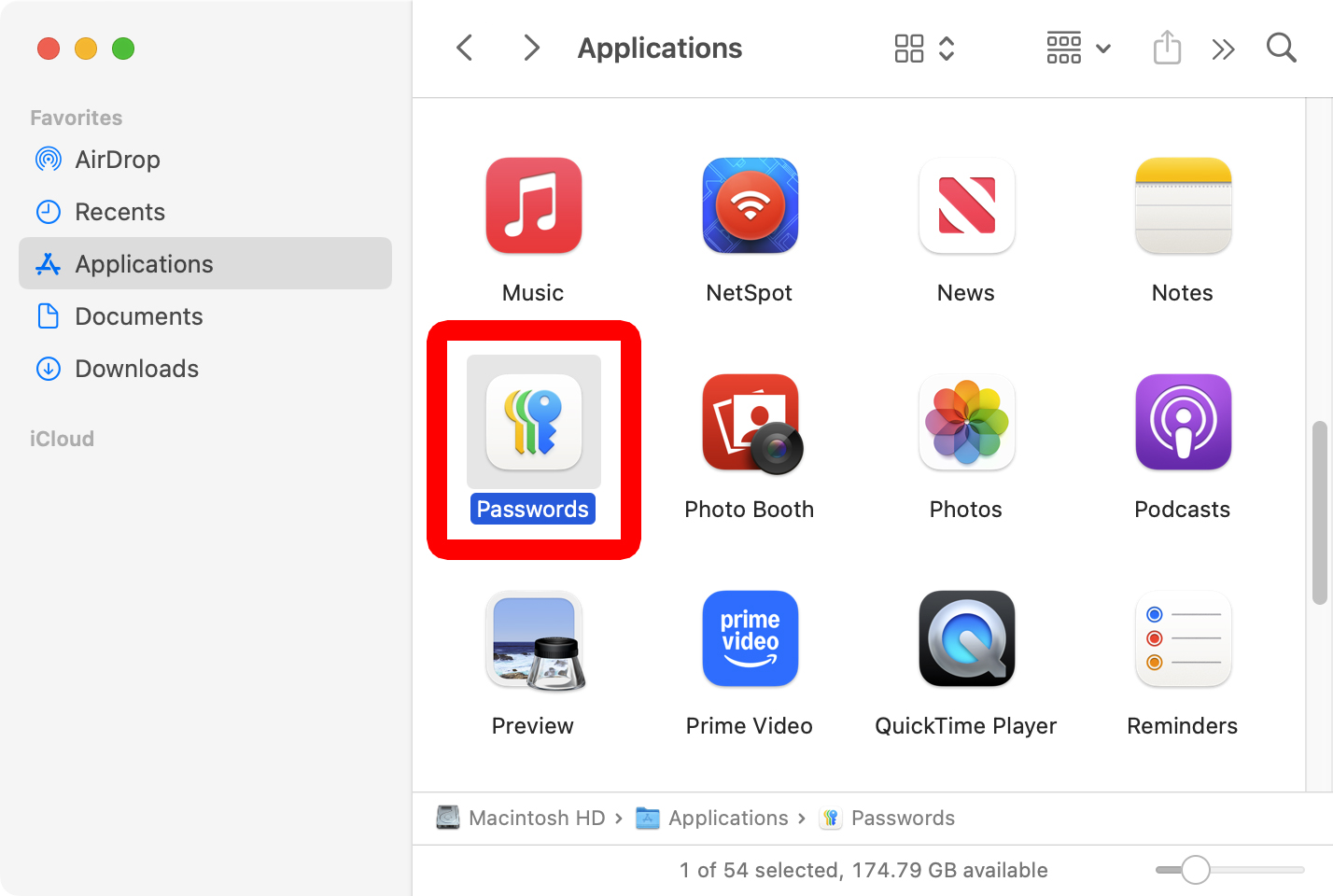
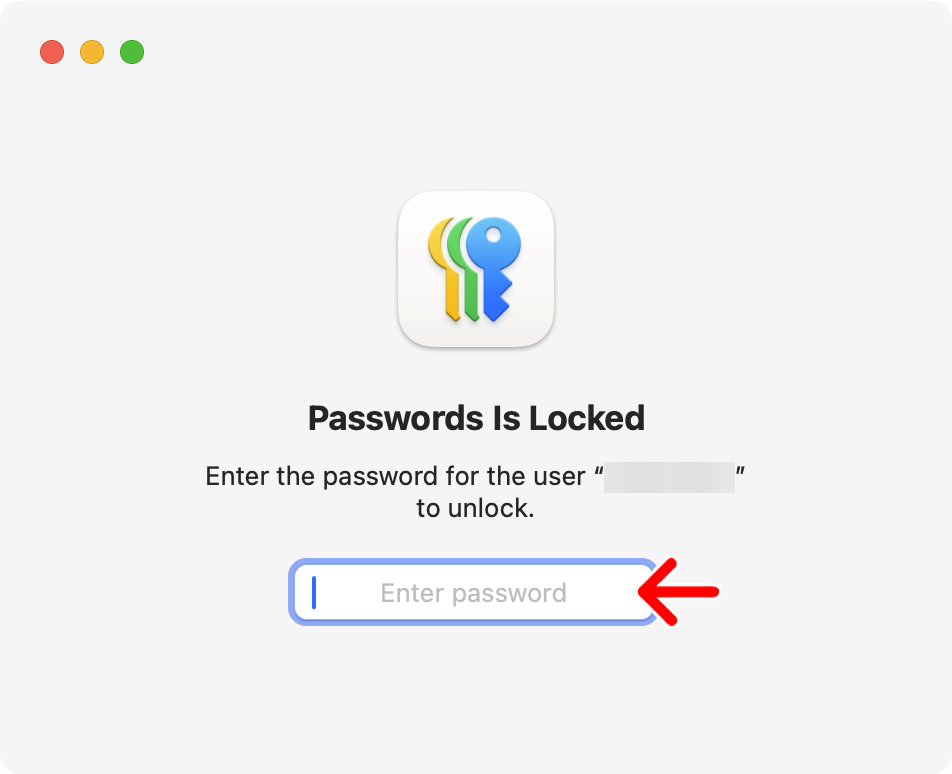
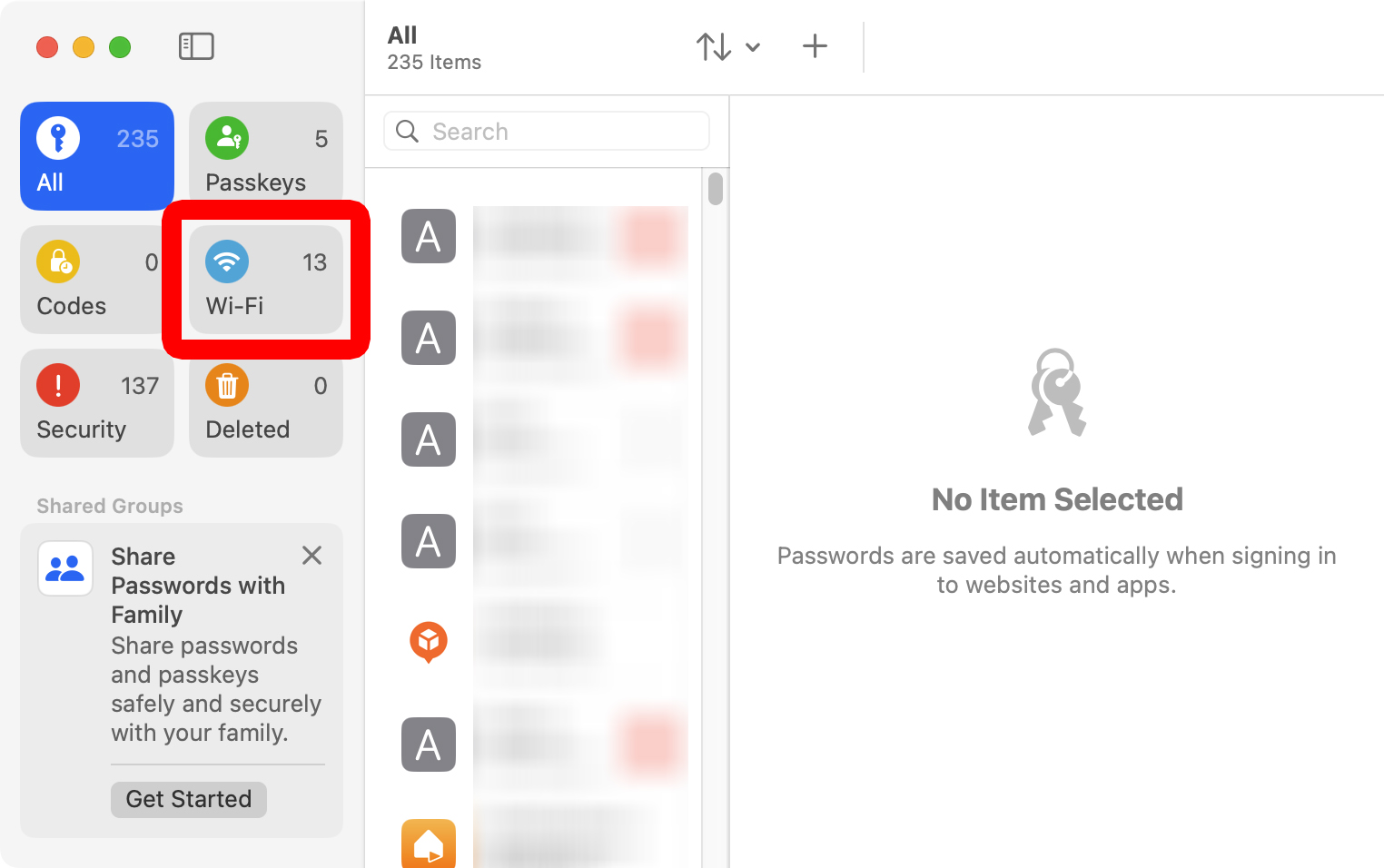
To find any password on your Mac, open a Finder window and go to Applications. Then open the Passwords app and sign in. Next, click “Wi-Fi” from the left sidebar and select a WiFi network on the right. Finally, hover your mouse over “Password” to see it or click to copy it.
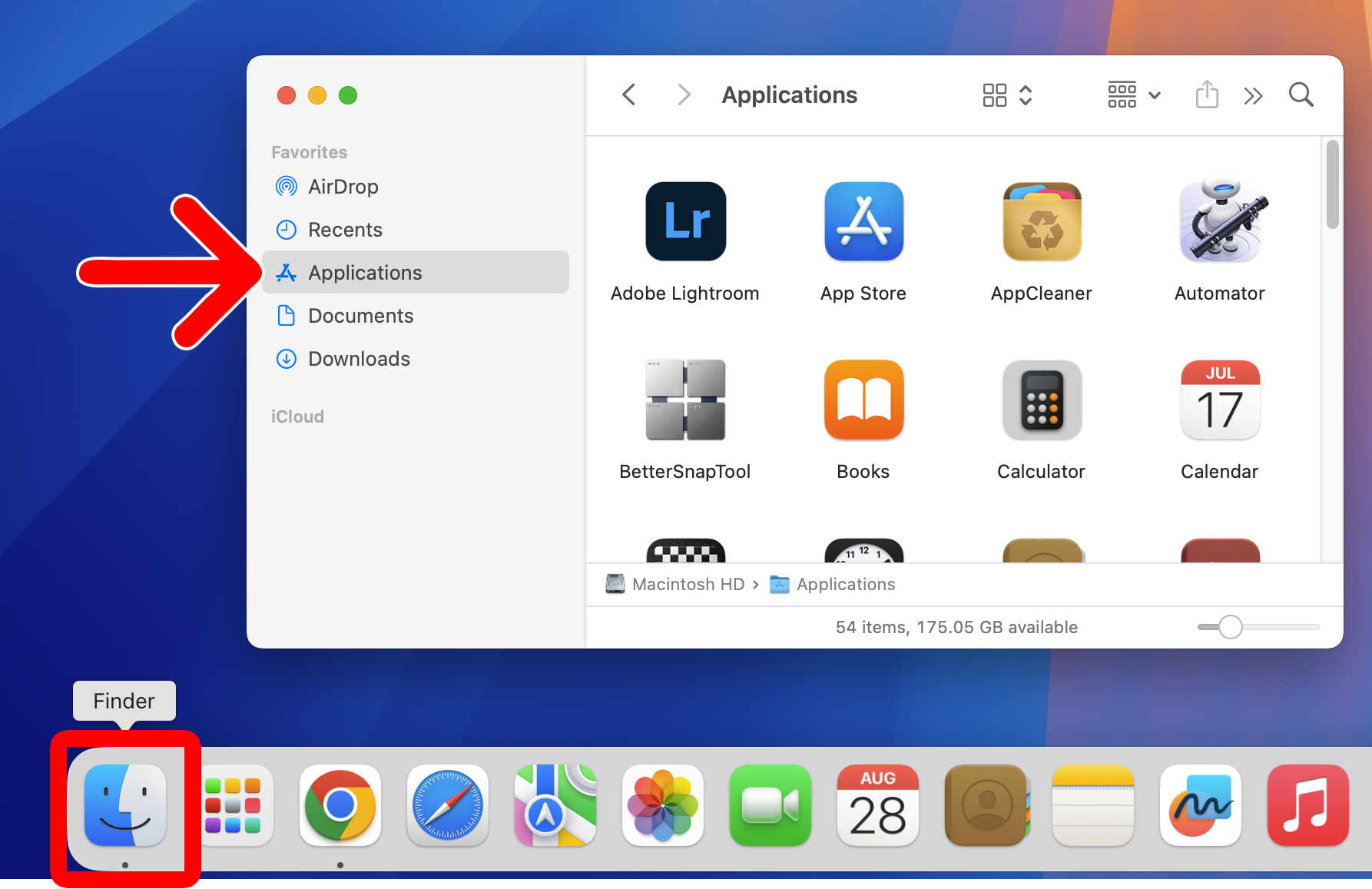
- Open a Finder window. To do this, click the half-blue, half-gray face icon in the dock. Or you can click the desktop and press the Command (⌘) + N keys on your keyboard at the same time.
- Go to “Applications.” You will see this in the left sidebar of a Finder window.

- Open the Passwords app.
- Enter your password. This is the same password you use to sign in to your Mac. You can also use Touch ID or your Apple Watch to sign in if prompted.
- Select “Wi-Fi.” You will see this in the left sidebar. If you don’t see these options, click the “Show/Hide Sidebar” button in the top-left corner.
- Select a WiFi network. You can also use the search bar at the top of the list to find any WiFi network you have connected to before.
- Finally, hover your mouse over the password to see it.
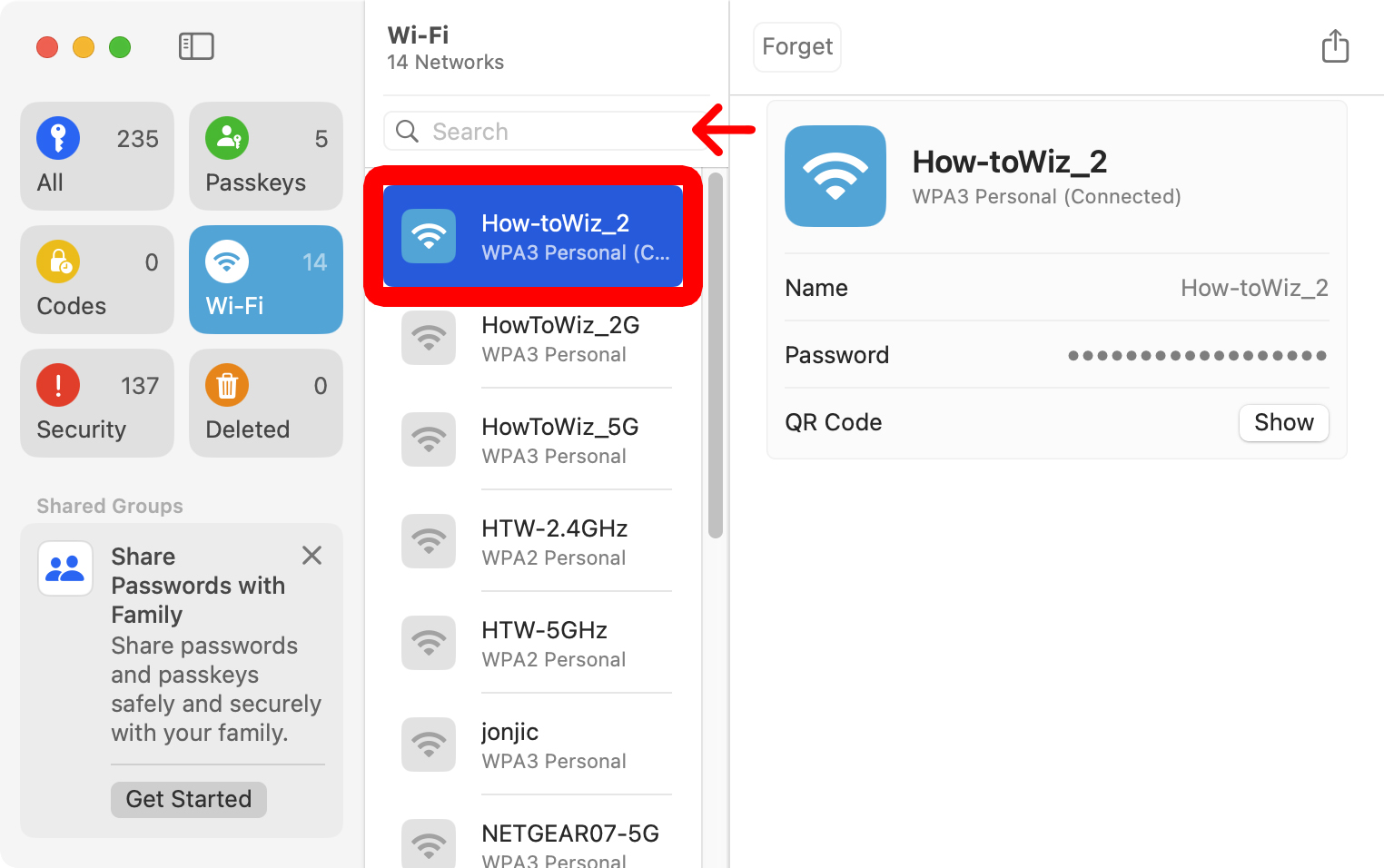
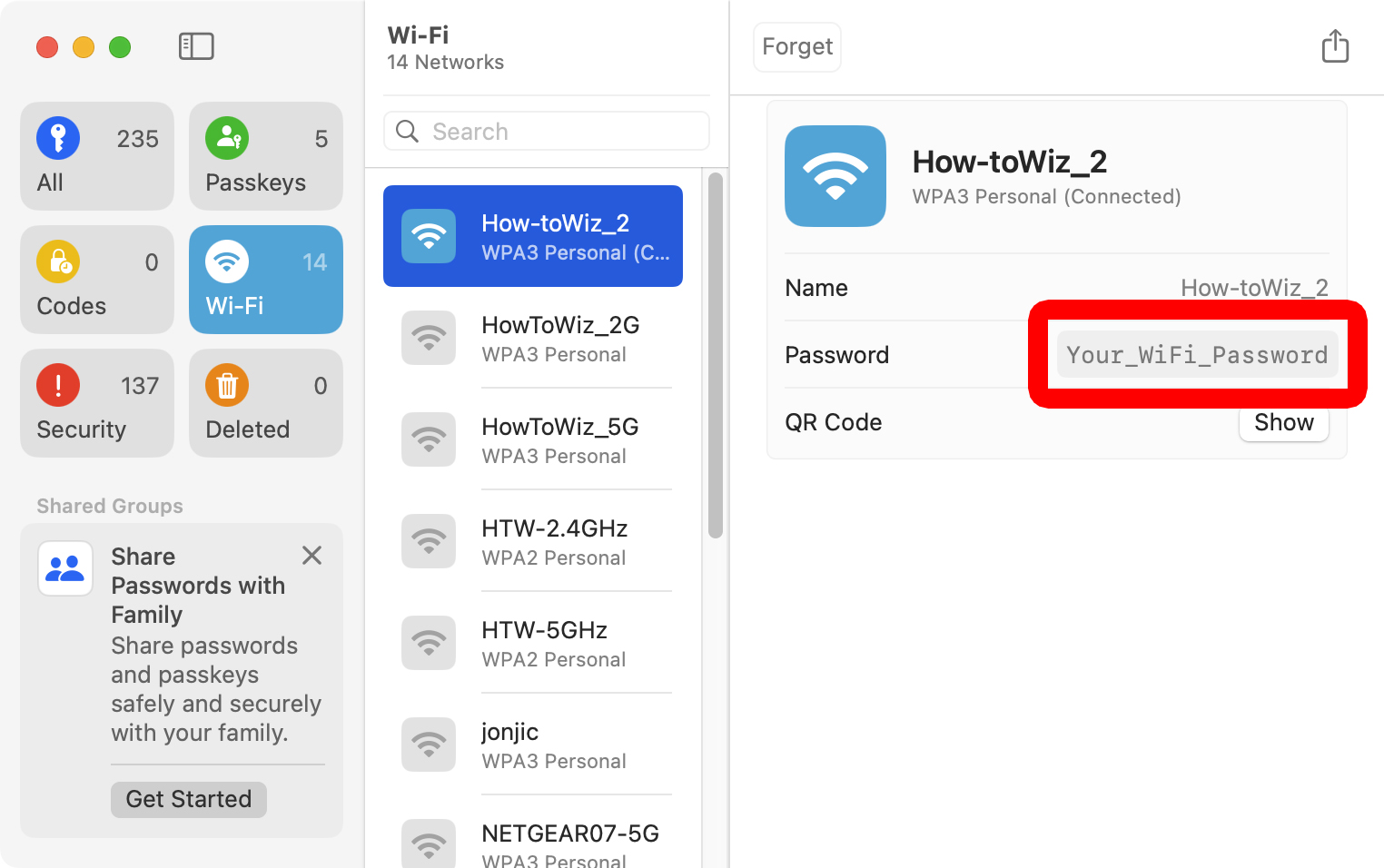
You can also click the password to copy it to your clipboard.
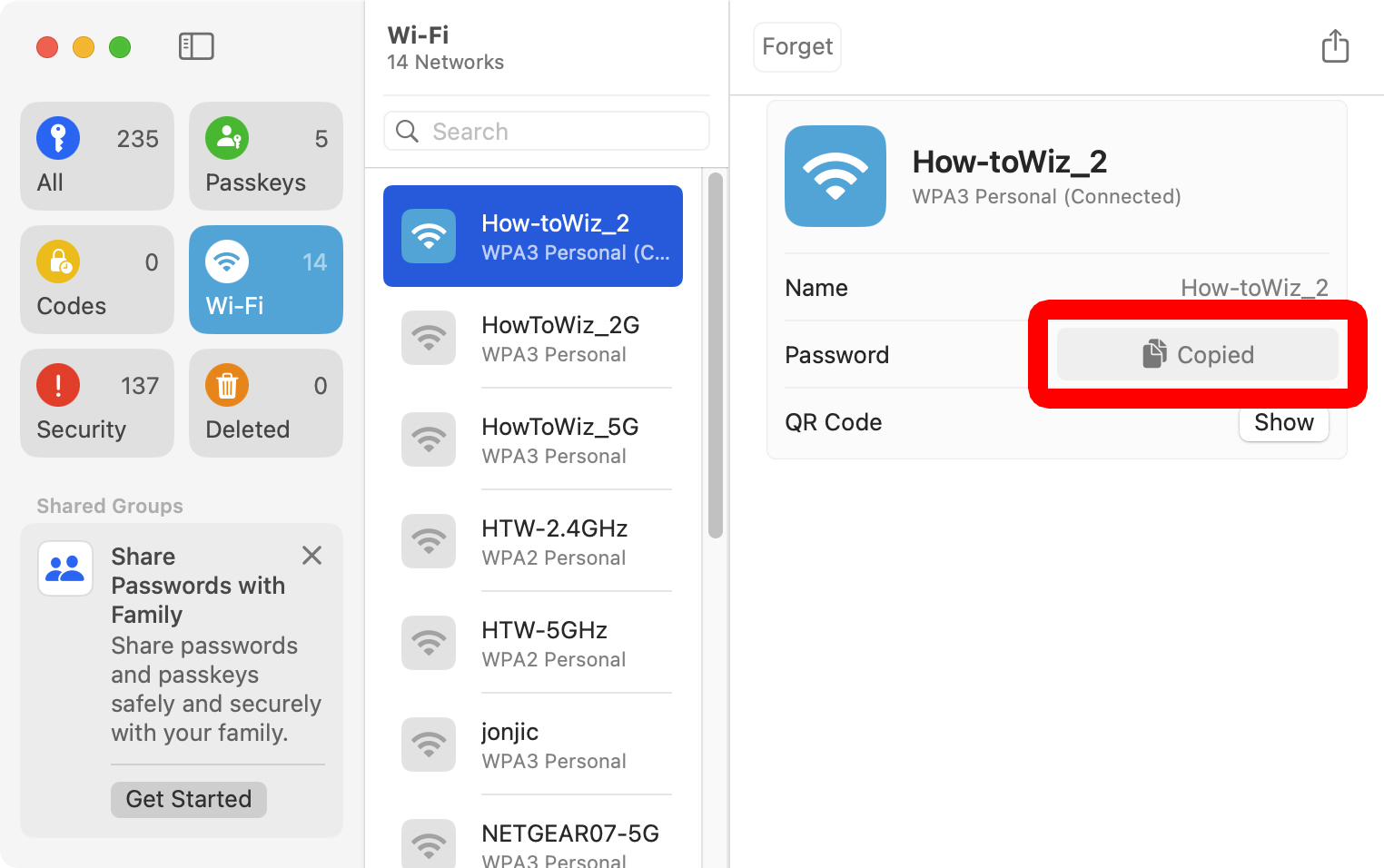
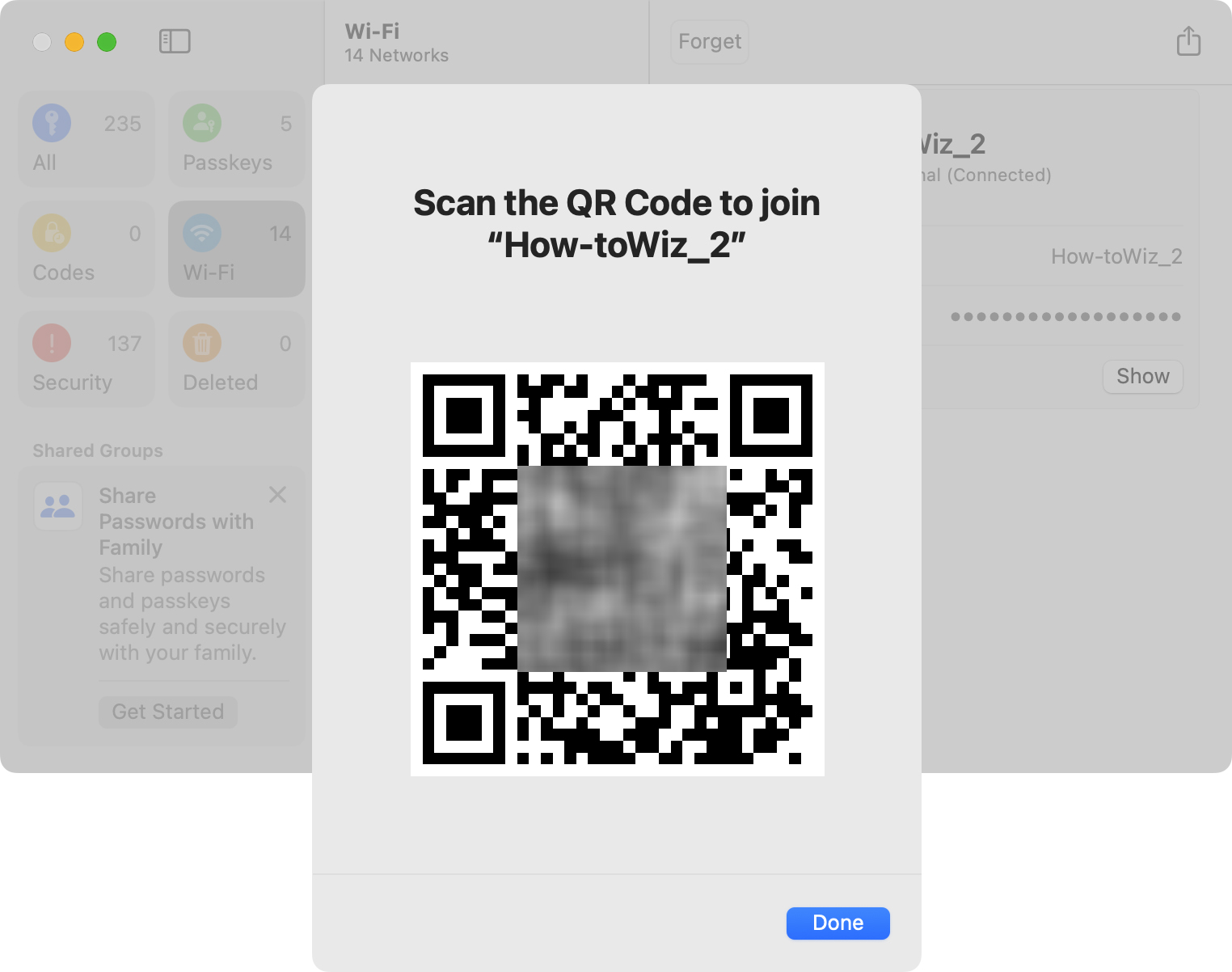
Or you can click “Show” next to “QR Code” to scan with your smartphone. This will automatically enter the WiFi password and connect your device to the network.