Forgot your Wi-Fi password again? Don’t worry—Windows remembers all the networks you’ve connected to. Here’s how to find any WiFi passwords saved to your Windows 11 PC, either through Settings or the Control Panel.
Read More: How to Change Your WiFi Password
How to Find Any WiFi Password in Windows 11
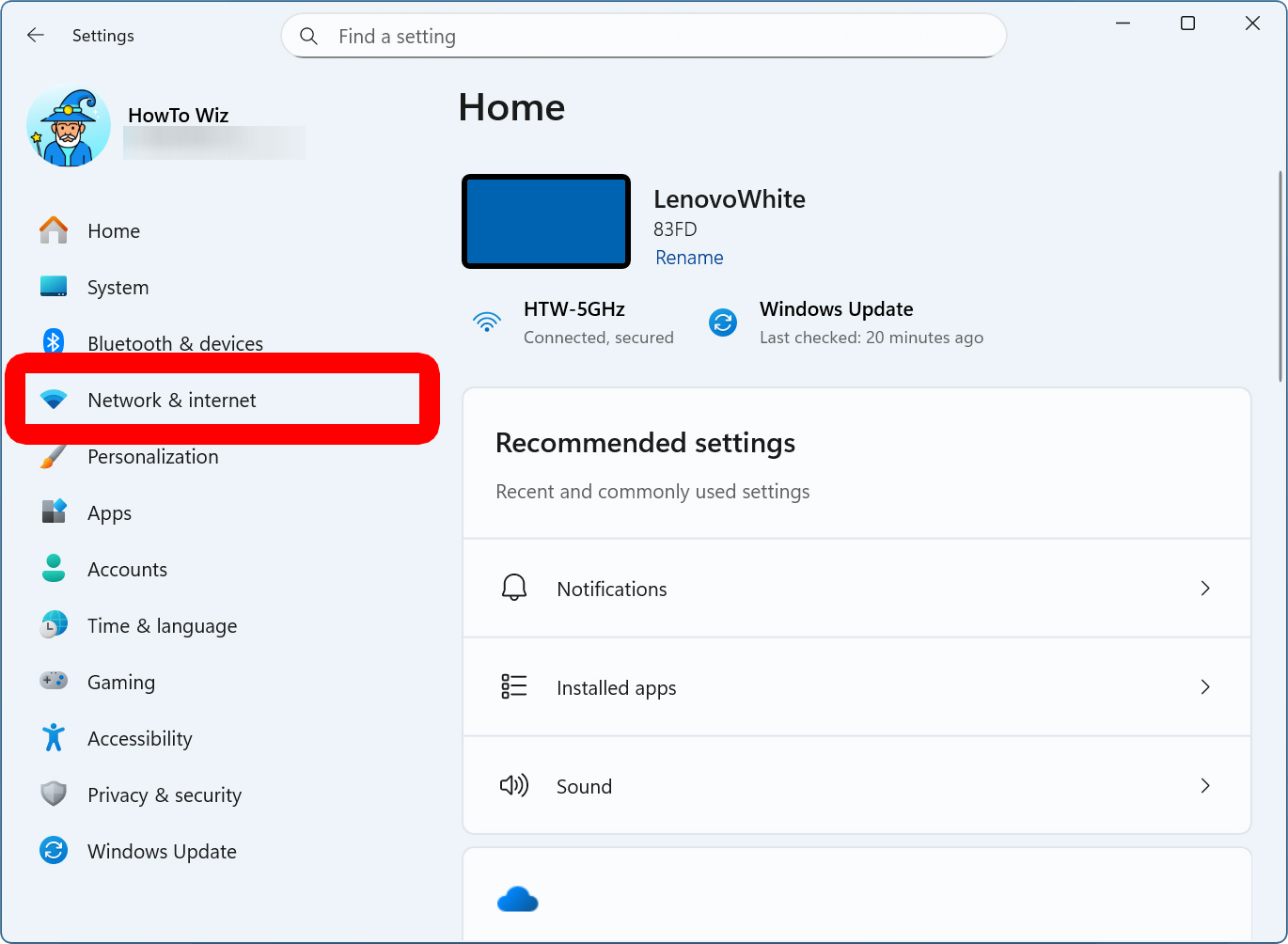
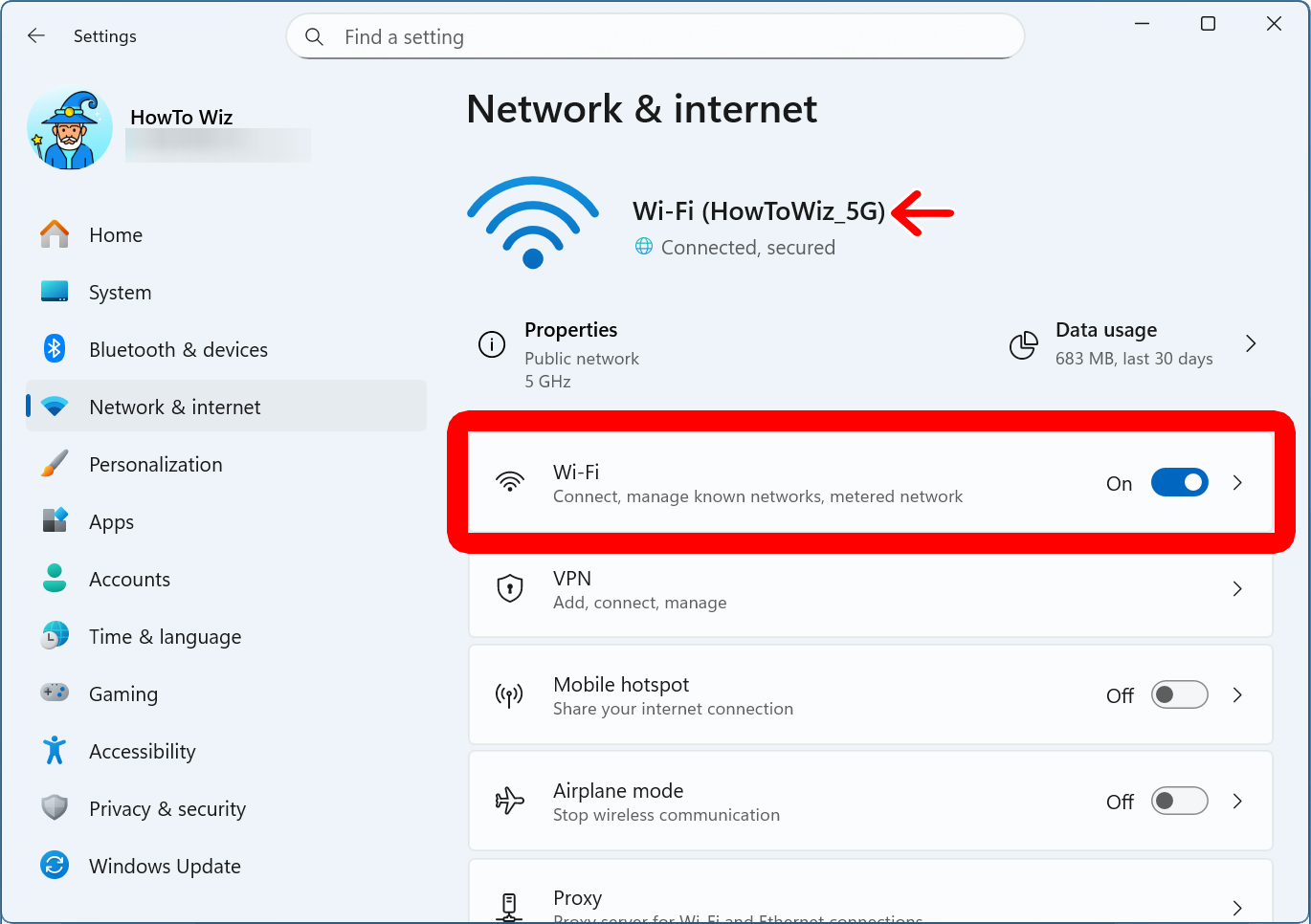
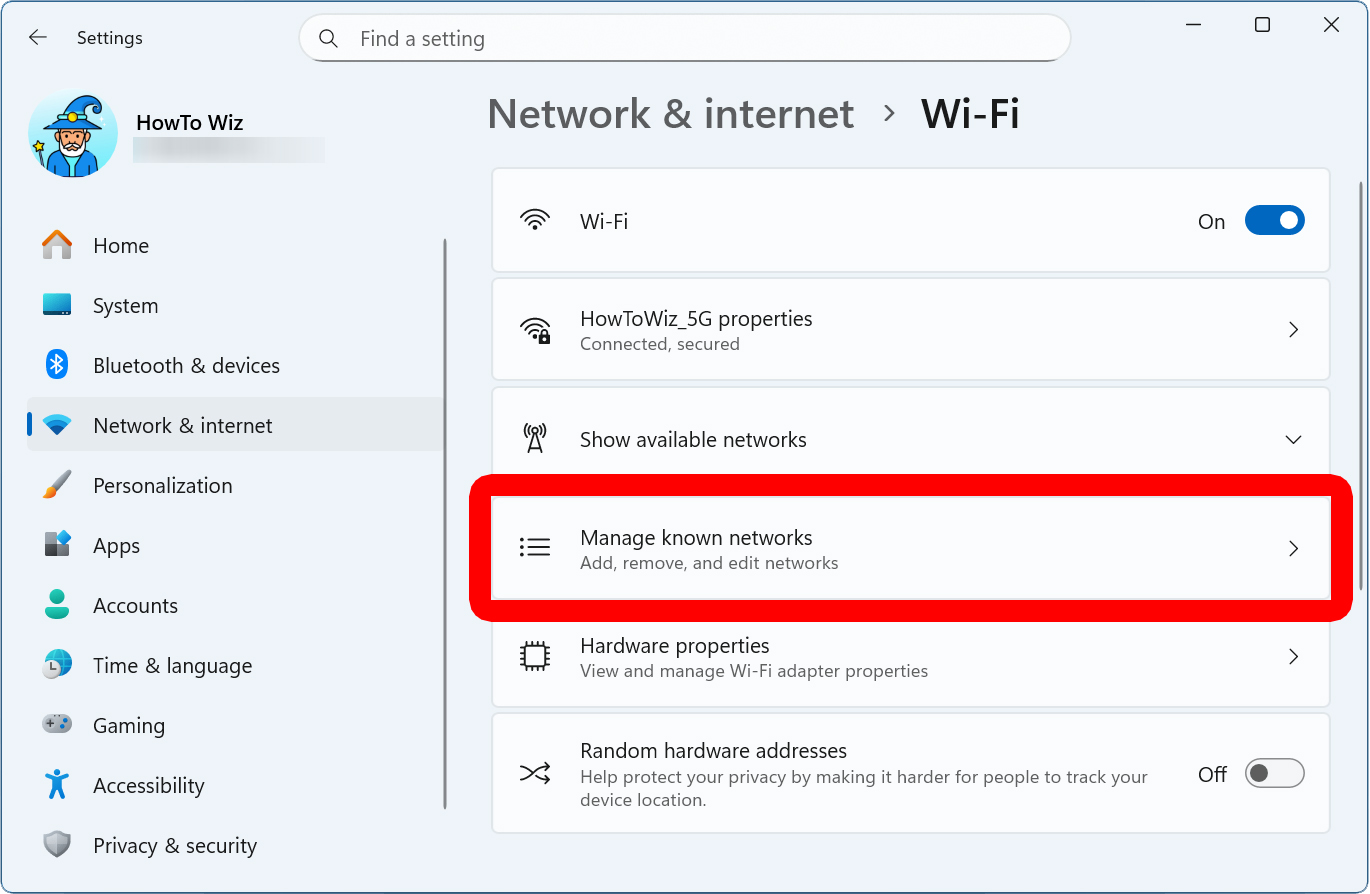
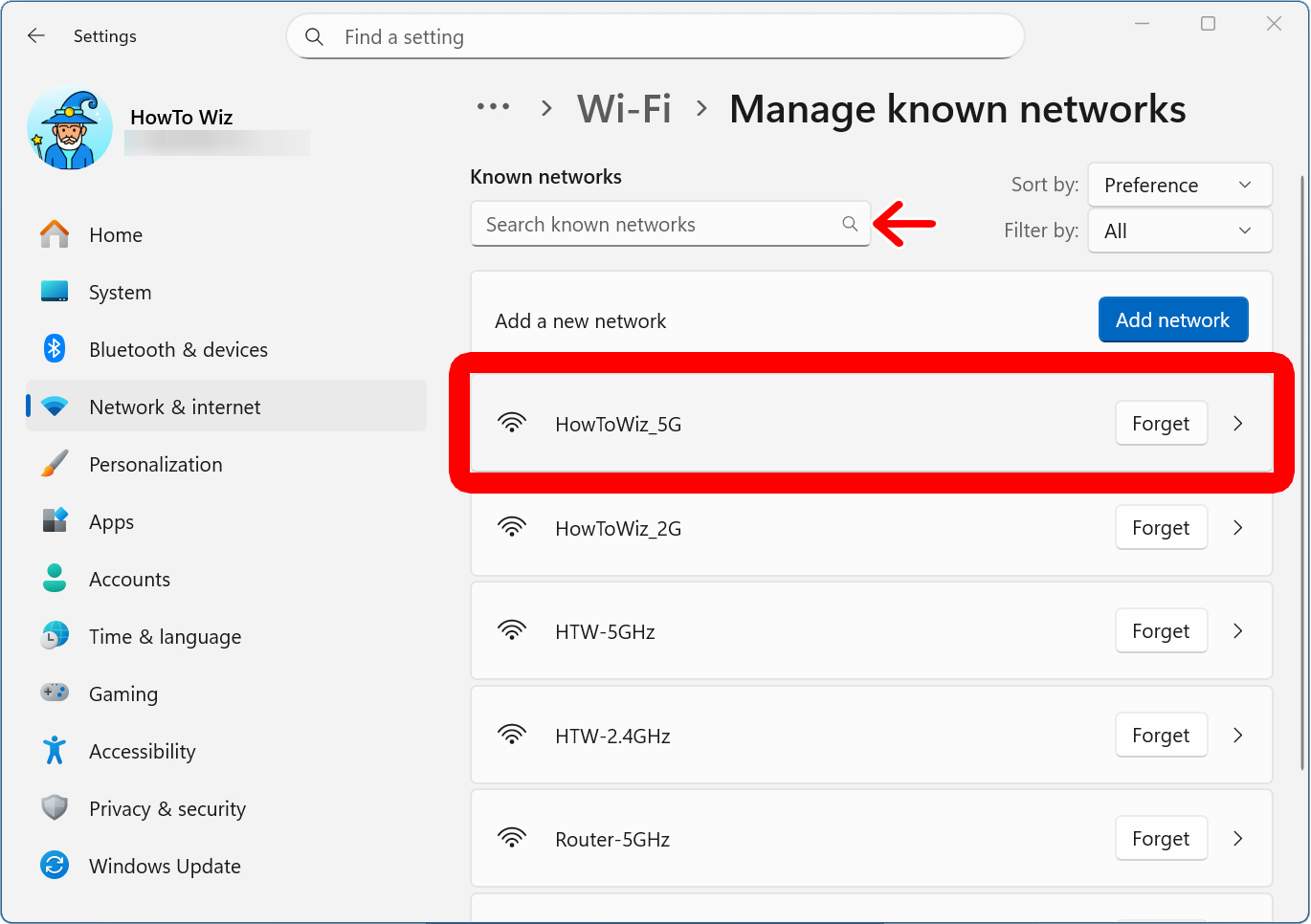
To find any saved WiFi password on your Windows 11 PC, right-click the Windows logo at the bottom of your screen and select “Settings.” Then go to “Network & internet > Wi-Fi > Manage known networks” and select a WiFi network. Finally, click “Show” next to “Wi-Fi network password.”
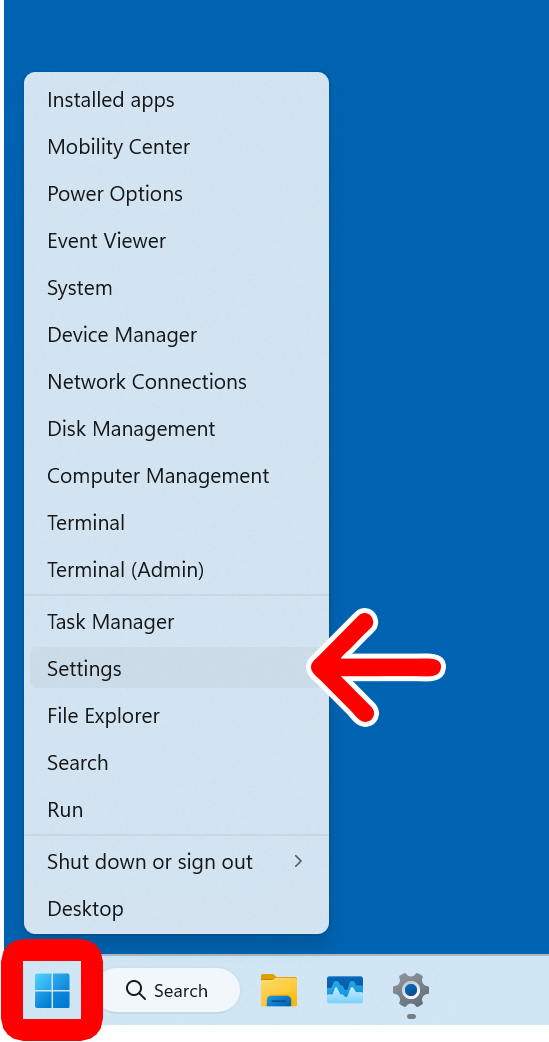
- Right-click the Windows logo at the bottom of your screen.
- Select “Settings.”

- Go to “Network & internet.” You will see this in the left sidebar menu. If you don’t see it, expand the Settings window.

- Select “Wi-Fi.” You will see this on the right side of the window.

- Click “Manage known networks.” This allows you to see all the networks you have connected to before.

- Select a WiFi network. Don’t click “Forget” or your Windows 11 computer will forget the password for that WiFi network.
- Click “Show” next to “Wi-Fi network password.”

- Finally, you will see your WiFi password next to “Password.”

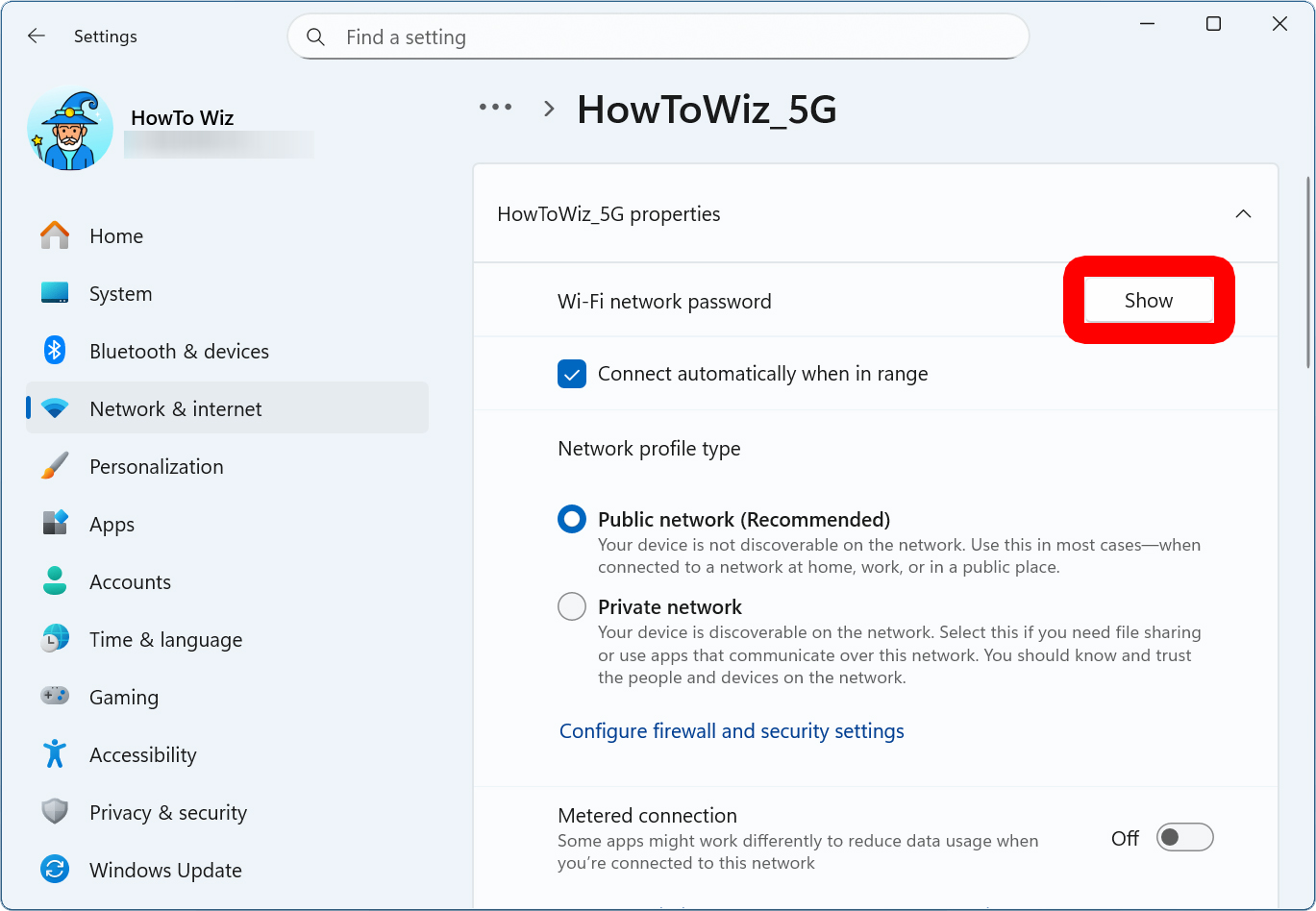
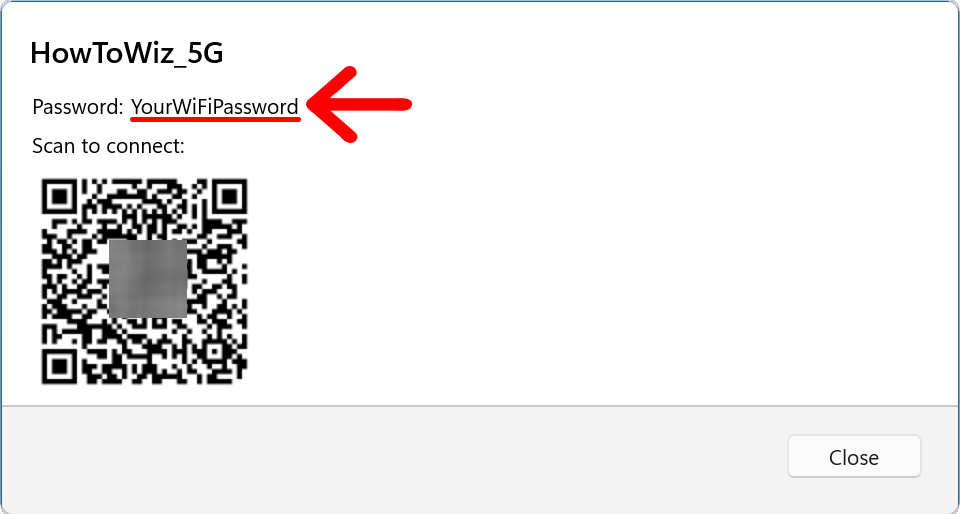
From here, you can use a smartphone or tablet to scan the QR code. Simply open your camera app on your device and point it at the QR code. Then tap the pop-up to automatically connect to the network.
Read More: How to Factory Reset a WiFi Router
How to Find Your WiFi Password in the Control Panel
To find your WiFi password on a Windows 11 PC, open the Control Panel and go to “View network status and tasks.” Then click on your WiFi network and go to “Wireless Properties > Security.” Finally, check the box next to “Show Characters” to reveal your WiFi password.
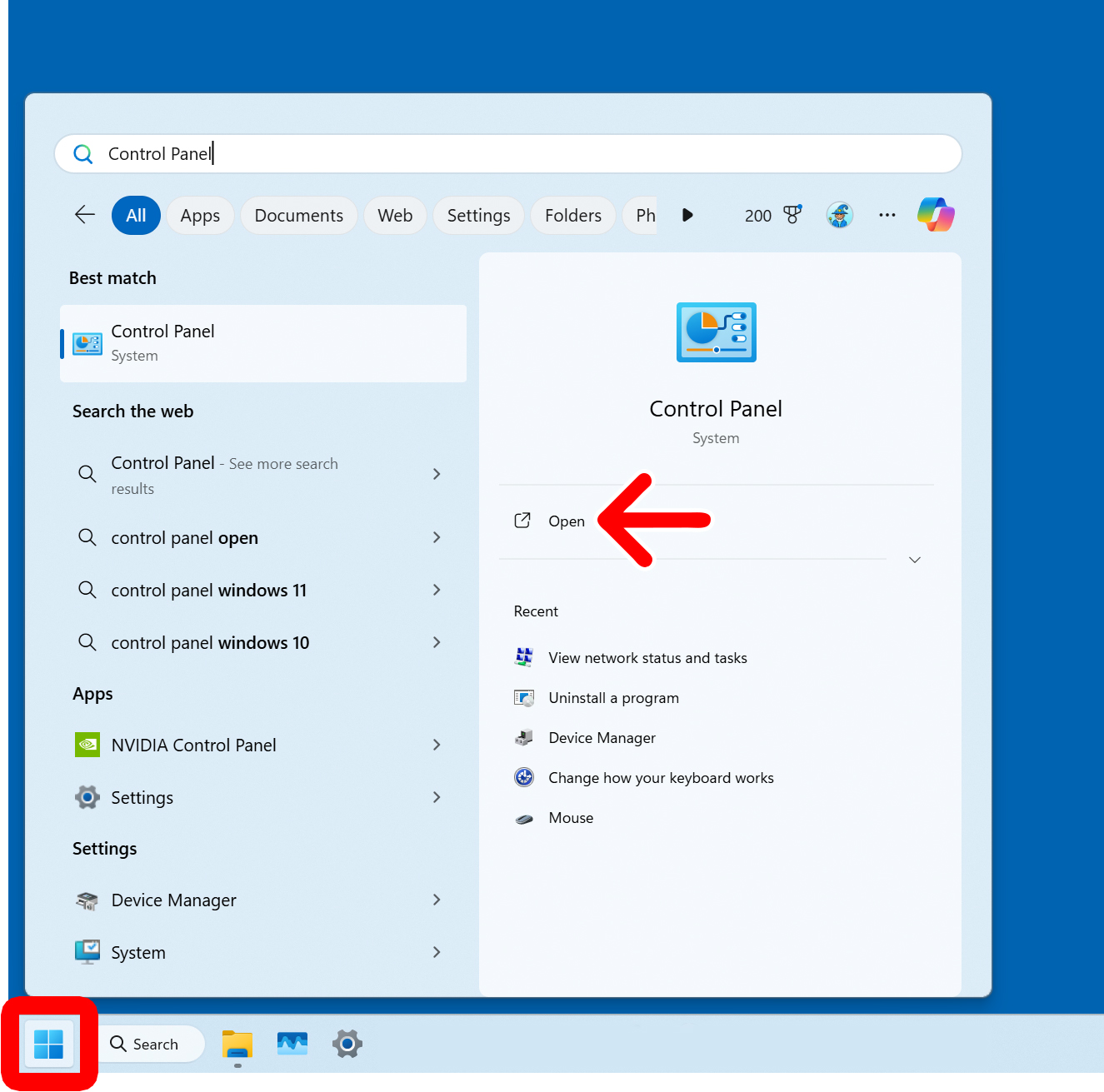
- Left-click the Windows logo at the bottom of your screen.
- Type “Control Panel” into the search bar.
- Select “Open.” You can also press the Enter button on your keyboard.

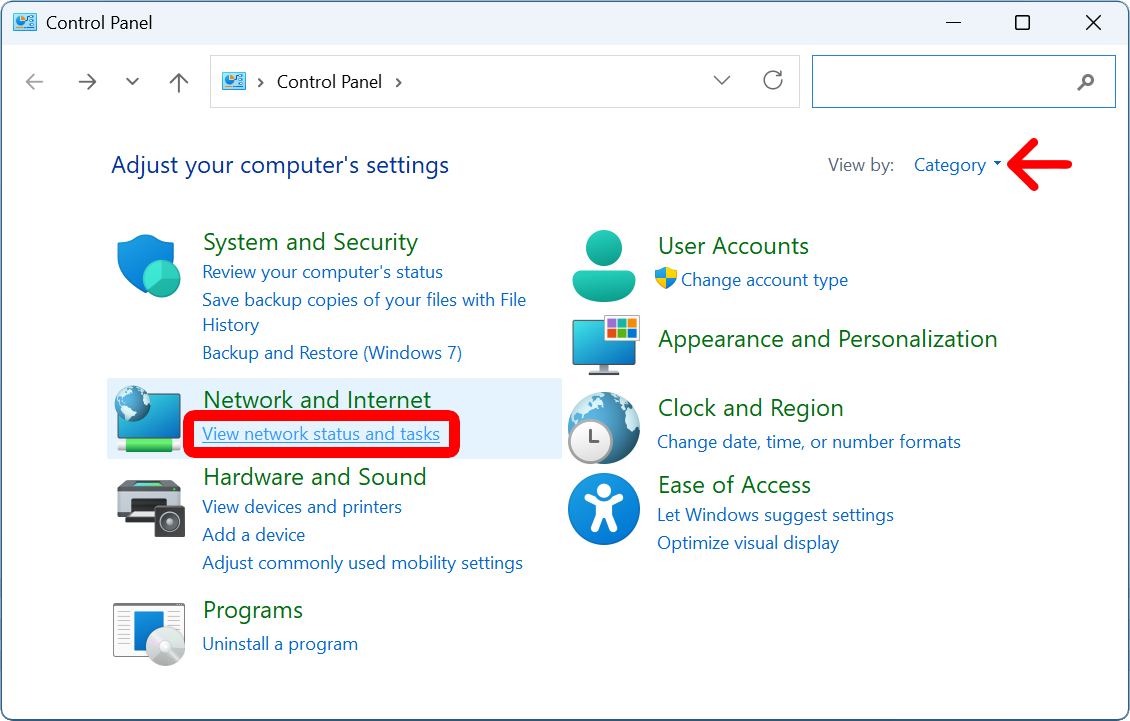
- Select “View network status and tasks.” You will see this under “Network and Internet.”

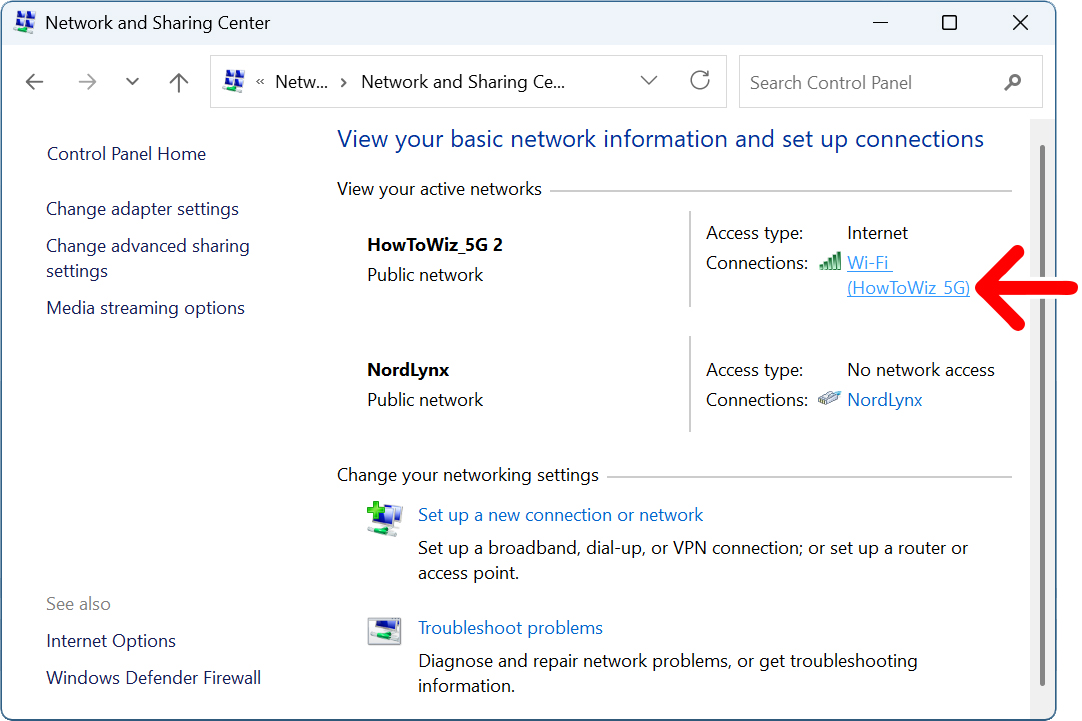
- Click on your WiFi network. You will see this under “Connections: Wi-Fi.”
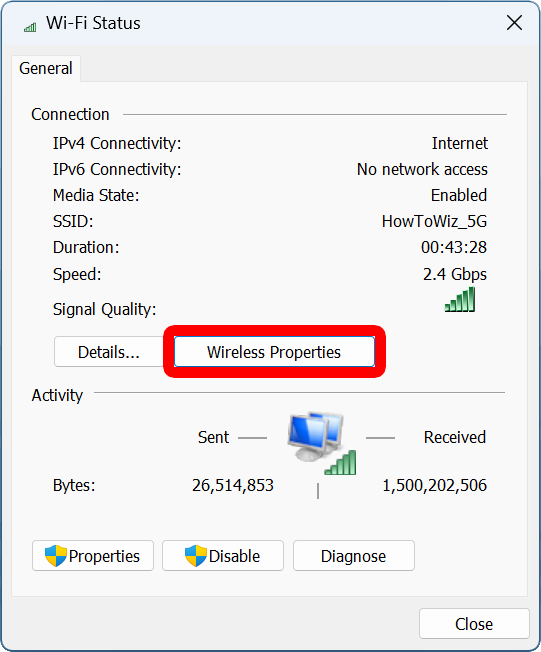
- Select “Wireless Properties.”
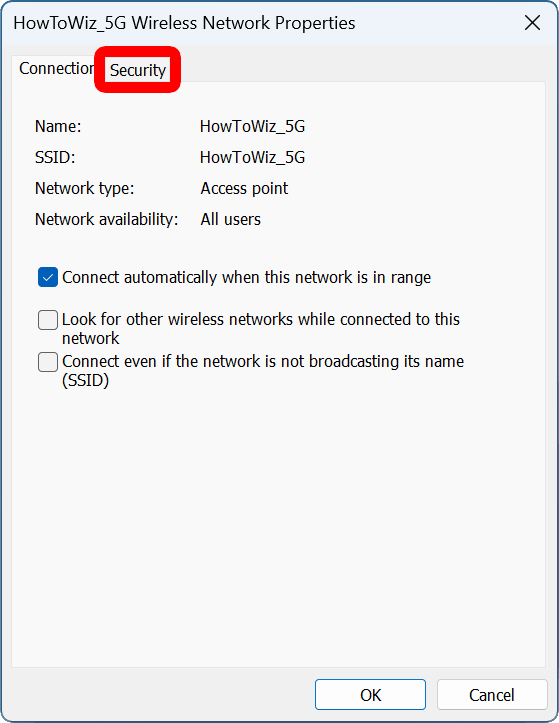
- Click the “Security” tab. You will see this at the top of the window.
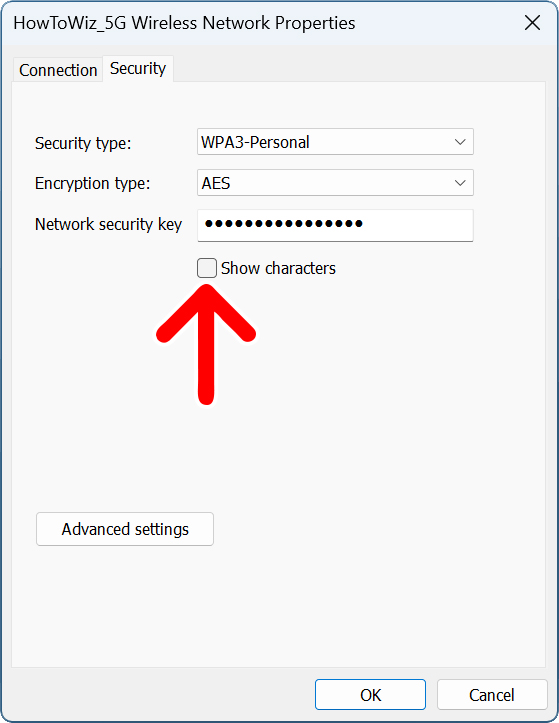
- Check the box next to “Show characters.”
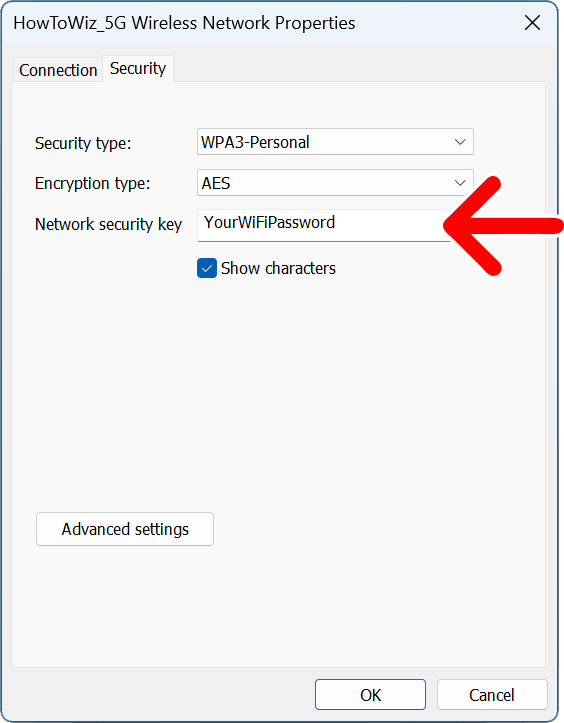
- Finally, you will see your WiFi password next to “Network security key.”